Template Management
Overview
Learn how to create and customize templates for your newsletters or email campaigns. Templates allow you to quickly design engaging emails using intuitive tools like a visual editor or an HTML editor.
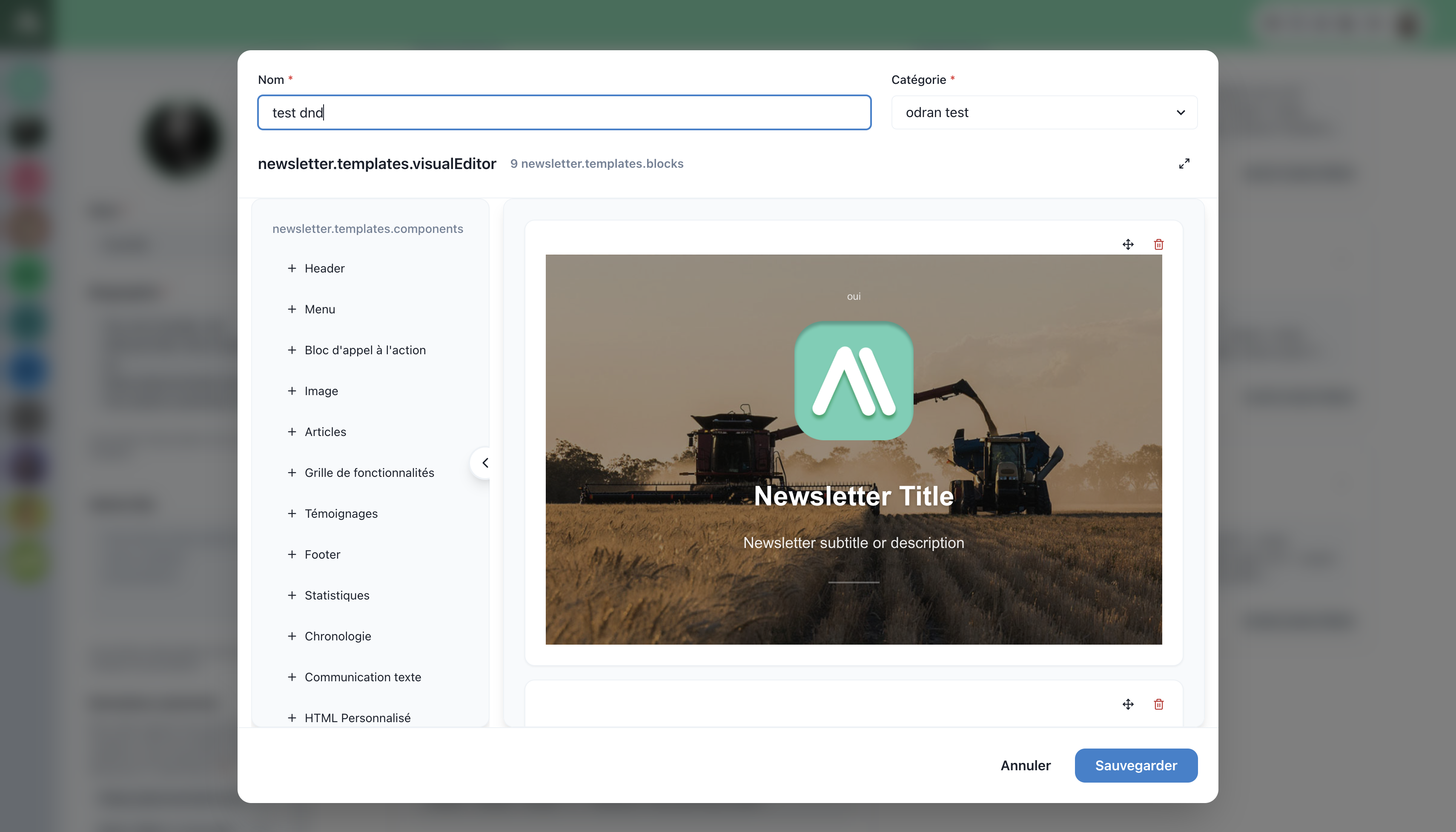
Creating a Template
Steps to create a template
- Access the Templates section:
- Go to Settings > Communication > Email > Templates.
- Create a new template:
- Click on + New template.
- Choose an editor:
- Visual Editor: Designed for users who want a drag-and-drop experience with pre-built blocks.
- HTML Editor: Ideal for advanced users who want to code their emails.
- Customization with the visual editor:
- Drag blocks such as Header, Images, Buttons, or Custom HTML into your design.
- Edit each block directly in the interface.
- Save your template:
- Click on Save to finalize your model.
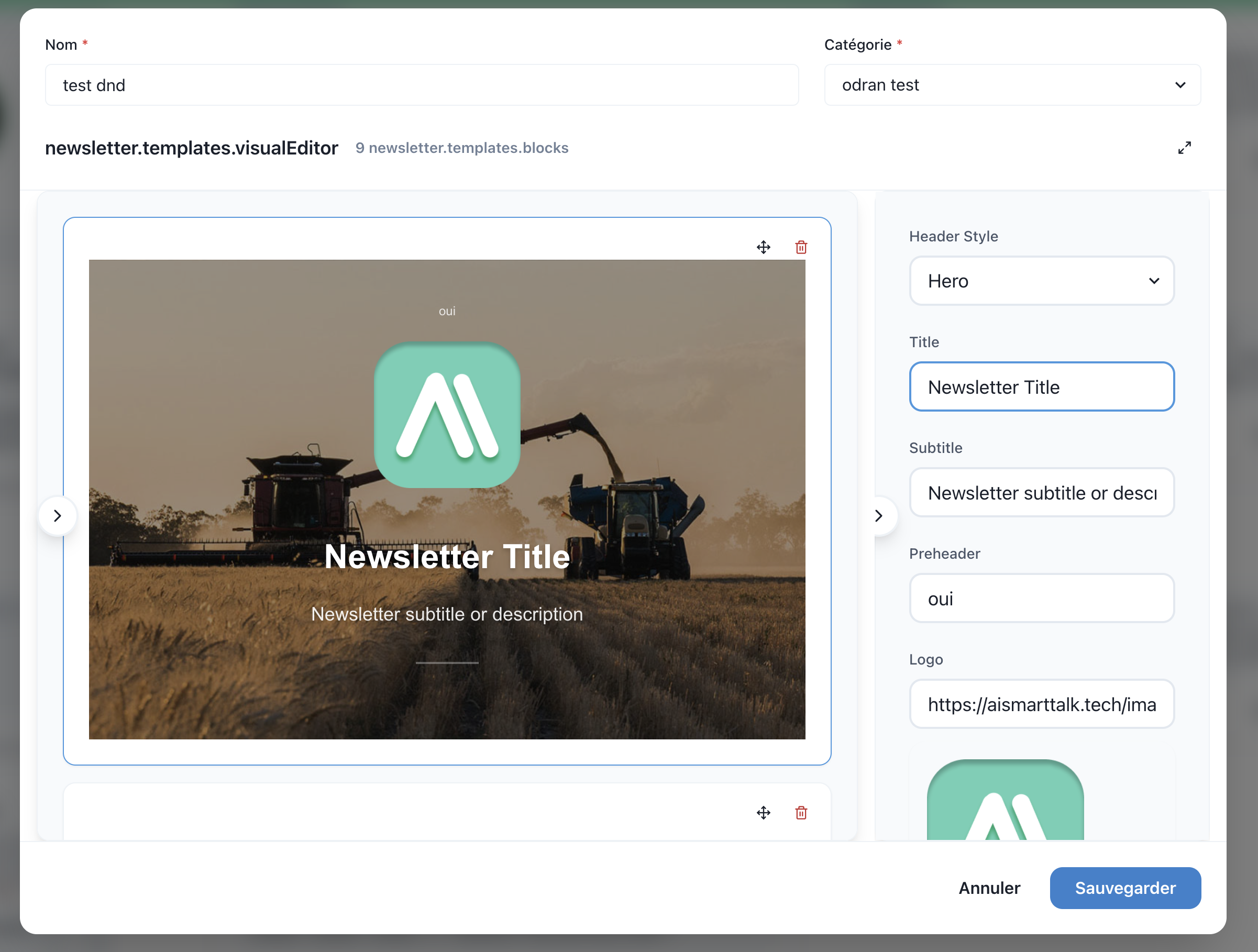
Visual Overview of Interactions
Using Templates
- Recurring campaigns: Create templates for regular newsletters.
- Promotional emails: Design personalized emails for special offers or events.
- Flexibility: Quickly modify an existing template to adapt it for a new campaign.