Dashboard Overview
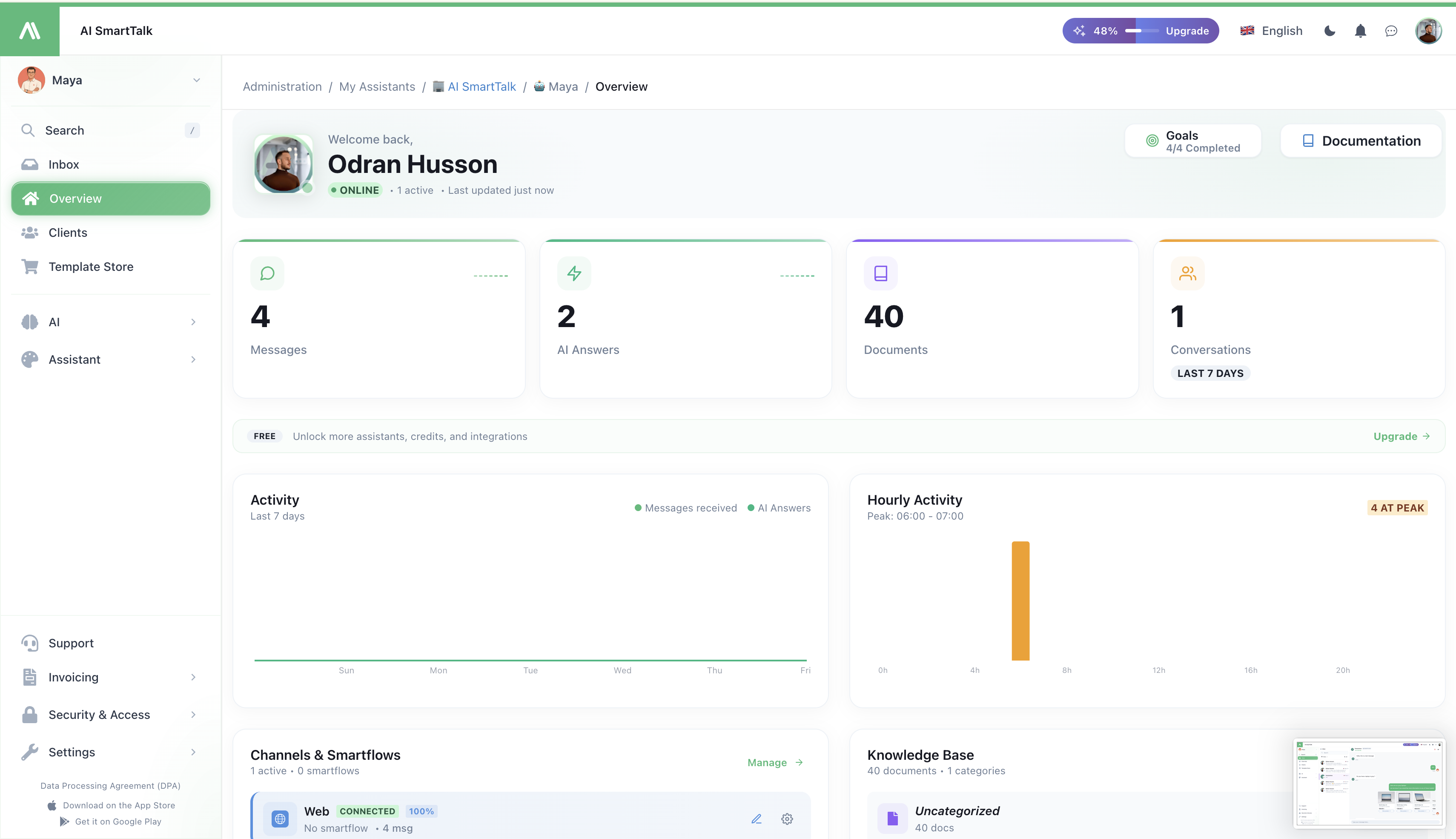
Your assistant dashboard is the command center for managing your AI agent. It provides real-time insights, quick access to all features, and a comprehensive view of your AI's performance.
Main Page - Assistant Management
The main page serves as your central hub for managing all your AI assistants. Here you'll find:
- Individual cards for each of your assistants
- Key information including assistant names and activity metrics
- A "Create Assistant" button in the top right for setting up new bots
- Interface customization options:
- Language selection
- Dark mode toggle
Dashboard Sections
When you select an assistant, you'll access its dedicated dashboard with several key sections:
Key Metrics (Top Row)
Four metric cards give you instant visibility into your AI's activity:
| Metric | Description |
|---|---|
| Messages | Total messages received across all channels (with recent change indicator) |
| AI Responses | Automatic replies sent by your assistant |
| Documents | Number of items in your knowledge base |
| Conversations | Active chat threads (last 7 days) |
Activity Charts
Two visualizations help you understand usage patterns:
- Activity Graph — Weekly timeline showing messages received vs. AI responses
- Hourly Activity — Bar chart showing peak hours to understand when your assistant is busiest
Channels & SmartFlows
This section shows all your connected communication channels at a glance:
| Channel | Status Info |
|---|---|
| Web | Connection status, active SmartFlows, message count |
| Messenger | Facebook Page connection status |
| Discord | Server bot connection |
| Gmail | Email integration status |
| Business API connection | |
| DM integration status |
Each channel card shows:
- Connection status (Connected badge)
- Active SmartFlows count
- Quick actions — Edit SmartFlow, Settings
Global SmartFlow
The Global SmartFlow applies to all channels and handles default AI behavior. Click it to customize how your AI responds across all platforms.
→ Channels Documentation → SmartFlow Introduction
Knowledge Base
Quick access to your AI's training data:
- Total documents count
- Categories for organization
- Usage statistics per category (percentage of retrievals)
Click Manage to add, edit, or organize your knowledge base content.
AI Tools
Your AI can use specialized tools to perform actions during conversations. The dashboard shows:
| Info | Description |
|---|---|
| Tool count | Number of tools available |
| Active tools | Currently enabled tools |
| Executions | Recent usage statistics (e.g., "26 exec. (7d)") |
Built-in Tools
Common tools include:
- Search for a FAQ — Find answers in your knowledge base
- Search in knowledge base — Deep search across all documents
- Custom tools — Create your own (e.g., "Create WordPress article")
Tool Status
Each tool shows:
- Active/Inactive badge
- AI Tool indicator (available to AI during chat)
- Execution count
SmartFlow Template Store
Click Store to browse and install pre-built SmartFlow templates:
| Template | Description |
|---|---|
| Gmail AI Draft | AI writes email drafts for review before sending |
| Messenger AI | Optimized flow for Facebook Messenger |
| And more... | Templates for different channels and use cases |
Each template shows:
- Official badge for verified templates
- Channel compatibility tags
- Download count and version
- Install button for one-click setup
Webhooks
Configure external integrations that trigger on specific events:
- Active webhooks count
- Quick create button
- Store for webhook templates
Example webhooks:
- Abandoned cart — Trigger when a customer abandons their cart
- New lead — Notify external systems of new contacts
- Custom events — Build your own integrations
Sidebar Navigation Reference
| Menu Item | Description | Documentation |
|---|---|---|
| Overview | Dashboard with metrics and all sections | This page |
| Chat | Unified inbox for all conversations | Channels |
| SmartForm | Form builder and response management | SmartForm |
| SmartCalendar | Appointment scheduling | SmartCalendar |
| Clients | Contact database and CRM | Client Management |
| Knowledge | AI training documents and FAQs | Knowledge Base |
| Test Scenarios | Quality assurance testing | — |
| Settings | Assistant configuration | Configuration |
| Customization | Theme, Biography, AI Model, User Feedback | Configuration |
| Connectors | Channels and integrations | Channels, Integrations |
Customization Submenu
The Customization section contains important AI configuration options:
| Submenu | Description |
|---|---|
| Theme | Visual appearance of your chat widget (colors, position) |
| Biography | AI personality, tone, and communication style |
| AI Model | Choose which AI models power your assistant |
| Learned Models | Custom training and fine-tuning |
| User Feedback | Monitor and review user ratings of AI responses |
| Categories | Organize your knowledge base |
| Simple Storage | Quick data storage for your AI |
Quick Actions
From the dashboard, you can quickly:
| Action | How |
|---|---|
| Add a channel | Click Manage in Channels section |
| Install a SmartFlow | Click Store button |
| Create a tool | Click + Create in AI Tools section |
| Add knowledge | Click Manage in Knowledge Base section |
| Create a webhook | Click + Create in Webhooks section |
Related Documentation
- Onboarding Guide — Complete setup walkthrough
- Registration — Create your account
- Login — Access your dashboard
- AI Configuration — Customize your assistant
- Channels — Connect messaging platforms
- Integrations — Sync your tools
- Knowledge Base — Train your AI
- SmartFlow — Build automations
- AI Tools — Extend AI capabilities
- Webhooks — External integrations
- SmartForm — Create forms
- SmartCalendar — Schedule appointments