Client View
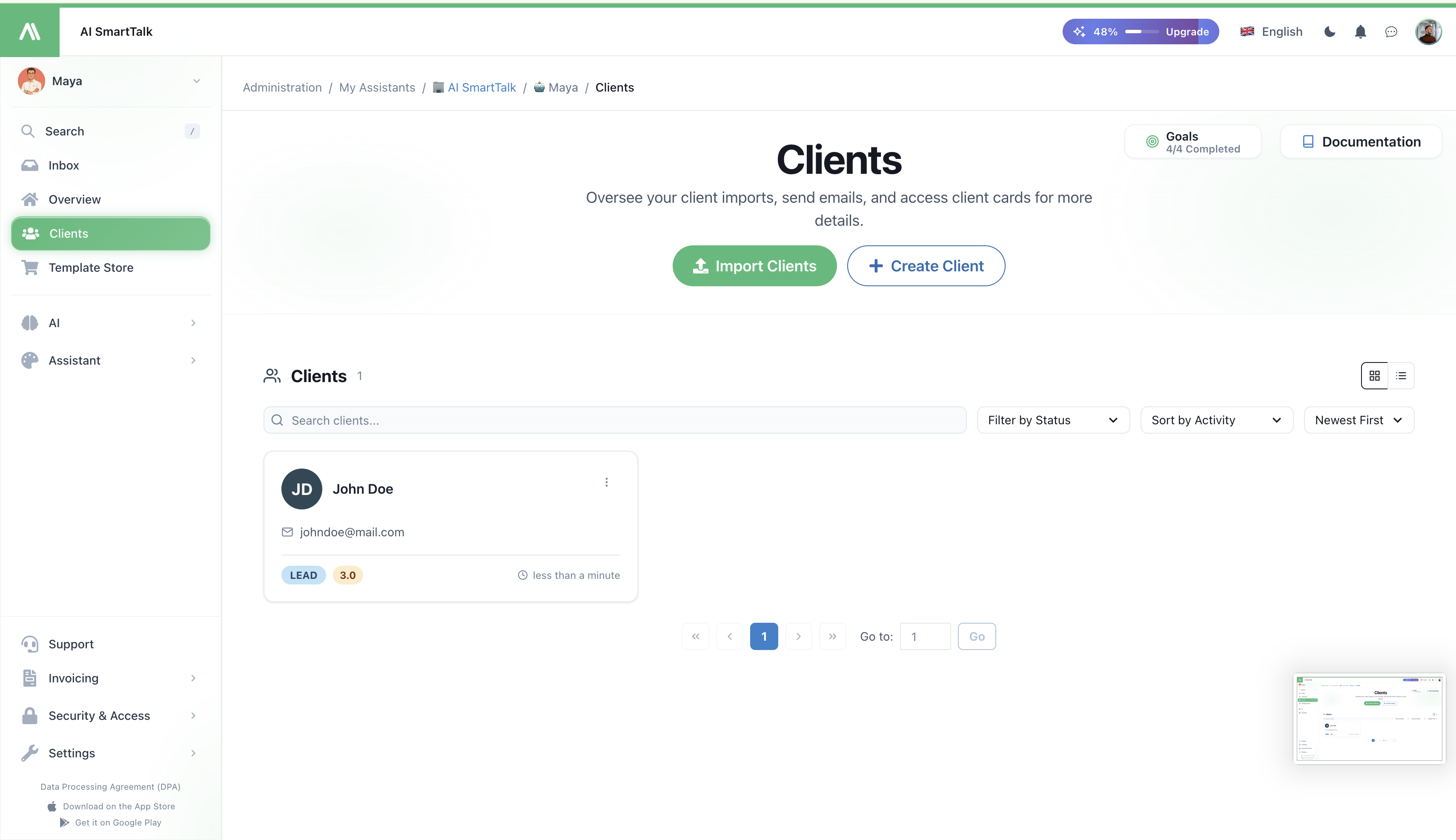
Open any contact from your client list and you get one screen with everything you know about that person: who they are, every conversation they've had with your assistant, what they did on your site, and the private notes your team keeps about them.
→ Open it from Clients in the admin menu, then click the person you want to see.
What's on the screen
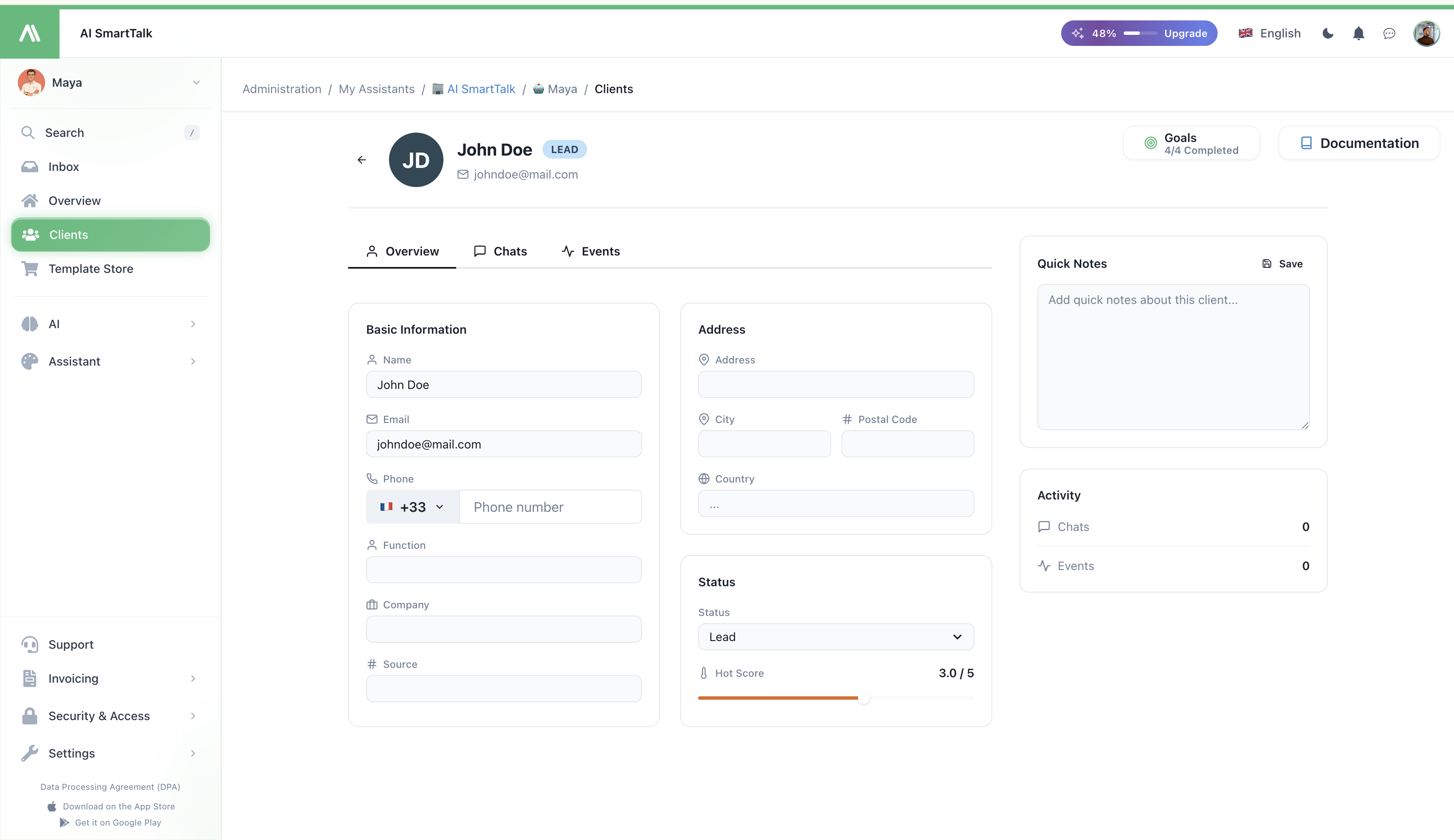
Three tabs
Overview
The contact's identity, in editable fields you can update at any time:
- Name, email, phone
- Job title and company
- Source (how they came in — newsletter, referral, paid ad, etc.)
- Address (street, city, postal code, country)
- Status — pick one from Lead, Customer, Active, Inactive, Pending, Blocked
- Hot Score (1 to 5) — a quick way to flag who's worth chasing now
Click Save when you're done.
Chats
Every conversation this contact has ever had with your assistant — across all channels. Click any conversation to jump straight into the Inbox and read the full thread.
A small badge next to the tab tells you how many conversations they've had.
Events
A timeline of what this contact did beyond chatting — pages they visited, forms they filled, events your SmartFlows recorded for them. Useful for spotting patterns ("they viewed pricing three times this week").
Side panel
Quick Notes — a free-text area for anything your team needs to remember about this contact. Saved with one click, visible to everyone with access.
Examples: "Asked for a custom quote on Jan 14", "Prefers email over phone", "Decision maker confirmed in last call."
Activity — at-a-glance totals: how many chats, how many tracked events.
Common things you'll do here
- Update someone's status as they move from prospect to customer. Open the contact, change Status from
LeadtoCustomer, hit Save. - Promote a hot lead. Bump the Hot Score to 4 or 5 so your team knows to follow up first.
- Find the last thing a customer said. Open the Chats tab, click the most recent conversation, you land in the Inbox with the full thread.
- Brief a colleague before a call. Read the Quick Notes, scan the Events timeline — you know the context in 30 seconds.
- Block an abusive contact. Set Status to
Blocked. (To enforce it across the chatbot, use the Ban action in the Inbox — it blocks future messages too.)
Permissions
| Action | Who can do it |
|---|---|
| View the contact | Anyone with CRM access |
| Edit fields (name, status, score, notes…) | Members with Update customer permission |
See Access Control for how to assign these.
Related
- Import contacts — bring in your existing list
- Inbox — read and reply to the actual messages
- Access Control — control who edits contacts