Email Workspace
The Email workspace lets your AI agent handle email like any other channel — read incoming messages, draft replies, search past threads, escalate when needed. Instead of running a custom email server, you connect the mailboxes you already use (Gmail or Outlook) via OAuth, and SmartFlow defines exactly how each message gets processed.
→ Admin path: Integrations → Gmail (or Outlook) on a chat model, then Inbox to work the conversations.
How it works
- Connect a mailbox — OAuth in one click, no SMTP/IMAP credentials, no DNS setup.
- Let it run — New emails feed the unified Inbox automatically. The AI replies using your Biography and Knowledge Base.
- (Optional) Customize the flow — Build a SmartFlow that intercepts each new email and runs your business logic before or after the AI replies (auto-reply, draft, label, escalate, create a ticket…).
Connect a mailbox
Pick the provider you already use — both follow the same OAuth pattern and expose the same SmartFlow actions.
Gmail
One-click OAuth against your Google account. Covers personal Gmail and Google Workspace mailboxes.
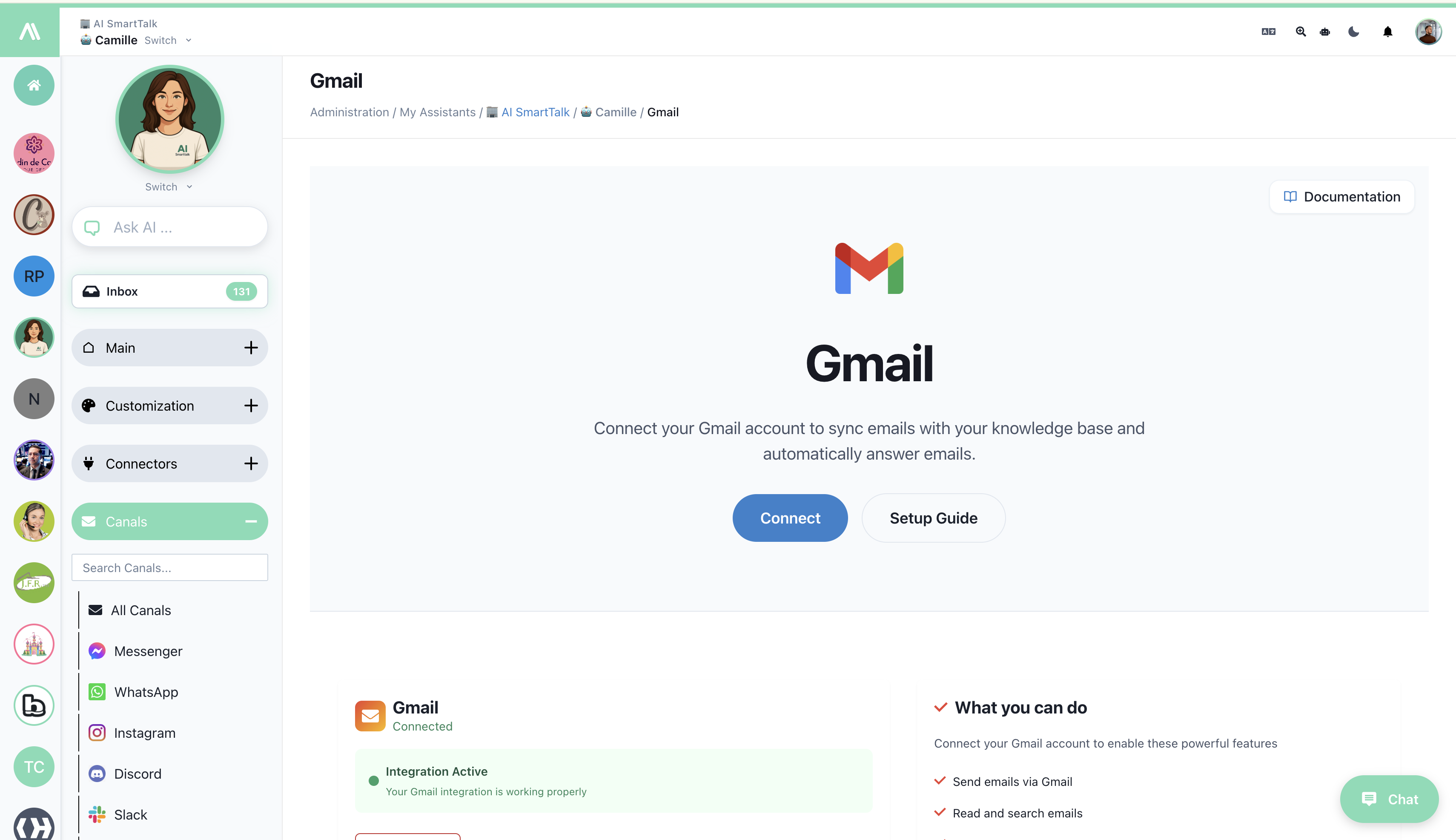
→ Gmail channel — full setup guide
Outlook
OAuth against Microsoft 365. Works for personal Outlook accounts and Exchange Online mailboxes.
→ Outlook channel — full setup guide
Multiple mailboxes? Connect each as a separate integration on the chat model — the AI sees them as distinct channels and can be wired to different SmartFlows per mailbox.
Customize the email flow with SmartFlow
The default behavior — the AI replies to new emails using your knowledge base and biography — is fine for most cases. When you need more control (different replies for different categories, mandatory human review, integration with a ticketing system, automatic drafting only…), wrap the channel in a SmartFlow.
Available Gmail actions
Use these inside a SmartFlow to script exactly what happens with each email:
| Action | What it does |
|---|---|
| Read emails | List recent or unread emails matching a query |
| Get email | Fetch a specific email by ID, with full body and attachments |
| Send email | Send a brand-new email (composer fully scripted in the flow) |
| Reply to email | Reply to an existing thread |
| Search emails | Run a Gmail search query against the connected mailbox |
| Mark as read | Update read state — useful in batch triage flows |
| Create draft | Compose a draft without sending — perfect for "AI suggests, human sends" workflows |
| List / send / delete drafts | Full draft management |
| Get thread history | Pull the full conversation context for the AI |
| Get / modify labels | Apply Gmail labels for routing and reporting |
Available Outlook actions
Mirror of the Gmail actions for Microsoft 365 mailboxes:
| Action | What it does |
|---|---|
| Read emails / Get email / Search emails | Inbound retrieval |
| Send email / Reply to email | Outbound delivery |
| Mark as read | State management |
| Create draft / Send draft / Delete draft | Draft workflow |
| Get thread history | Full conversation context |
| Get folders / Move message / Modify categories | Routing and filing |
→ Outlook SmartFlow actions live in the Actions overview — search by OUTLOOK_*.
Common SmartFlow patterns
1. AI drafts, human sends (high-stakes mailboxes)
[Trigger: new Gmail message]
  → AI Request: "Draft a reply using the knowledge base"
  → Create Draft (Gmail)
  → Notify human via Inbox
The customer never sees an unverified AI reply; you save 80% of the typing.

2. Auto-reply on FAQ-like questions, escalate the rest
[Trigger: new Gmail message]
  → AI Condition: "Is this a question covered by the FAQ?"
    ├─ Yes → Search Knowledge → Reply to email → Mark as read → Apply label 'ai-handled'
    └─ No  → Apply label 'needs-human' → Notify Inbox
3. Tag-and-route by topic
[Trigger: new Outlook message]
  → AI Request: "Classify into: billing, support, sales, other"
  → If condition on classification
    ├─ billing → Move to "Billing" folder → Reply with template
    ├─ support → Create ticket in ClickUp → Apply category 'support'
    └─ sales   → Forward to sales@…
4. Smart digest
[Trigger: scheduled, every morning at 8am]
  → Search emails (last 24h)
  → AI Request: "Summarize the unread thread starters into 5 bullets"
  → Send a digest email to the team
→ SmartFlow introduction · Triggers overview · Actions overview
Where things live
| You want to… | Go to |
|---|---|
| Connect Gmail | Integrations → Gmail |
| Connect Outlook | Integrations → Outlook |
| Read/reply to actual emails | The unified Inbox — connected mailboxes feed into it like any other channel |
| Change the auto-reply tone | Biography — the same biography drives email replies as chat replies |
| Define email-specific workflows | SmartFlow — use Gmail/Outlook actions in your flow |
| Manage who can read/reply to emails | Access Control |