Inbox
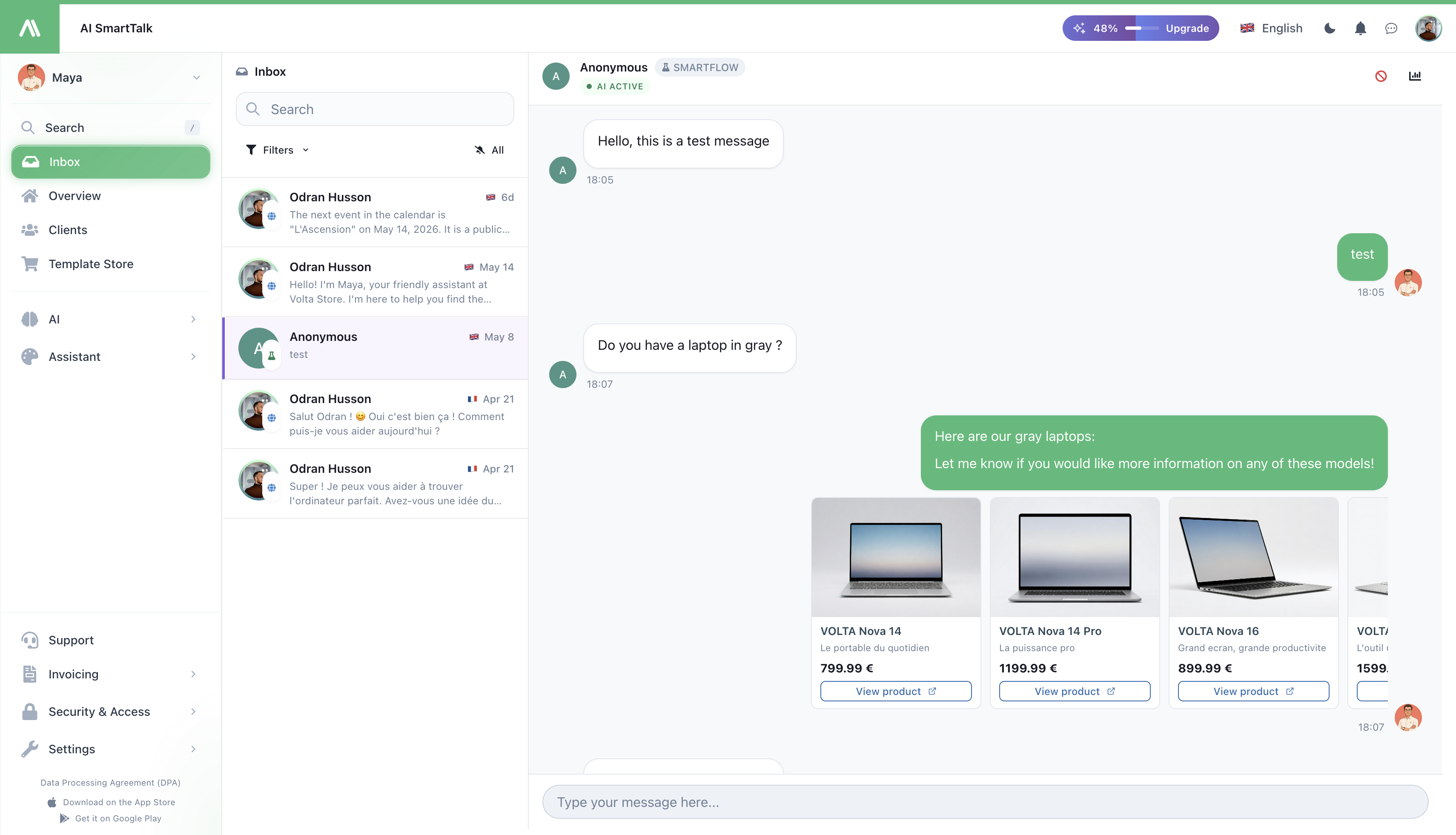
Every customer message your assistant receives — across your website, WhatsApp, Messenger, Instagram, Slack, Discord, Gmail and Outlook — lands here. One screen, one workflow, no tab juggling.
→ Open it from Inbox in the admin menu.
→ Using the mobile app? See iOS Inbox.
What you see
A list of conversations on the left (newest first), and the selected conversation on the right. On mobile, you switch between the two with a tap.
Each row in the list shows the customer's name, the channel they wrote on (a small icon — WhatsApp green, Messenger blue, etc.), how long ago they wrote, and a preview of their last message. Unread conversations are highlighted with a count badge.
Find a conversation
- Search — type a name, an email, or any word from a message. The list filters as you type.
- Filter by channel — click Filters and pick one or several channels (WhatsApp only, Email only, etc.).
- Show only unread — toggle the bell button at the top of the list. Useful first thing in the morning to triage what's new.
Reply to a customer
Click any conversation to open it. The full thread appears on the right, with the message box at the bottom. Type your reply and send.
Different language than yours?
If the customer writes in a language different from yours:
- Each message has a Translate button — click it to read it in your language.
- You can also turn on Auto-translate so every new message in the conversation gets translated for you.
- When you reply, your message can be sent translated into the customer's language — they read it in theirs, you write in yours.
Take over from the AI
Your assistant handles conversations on its own by default. The moment you send your first reply, you "take over" — the AI stops replying and the conversation switches to Agent mode.
You'll be asked once per conversation what you want:
- Send and take over — your message goes out, the AI steps aside. (You can hand it back any time.)
- Send and keep AI on — your message goes out, the AI continues to handle future replies. Use this for a one-off nudge or correction.
Done helping? Click Switch to AI at the top of the conversation to hand it back.
See why the AI replied that way
Sometimes you want to know how the AI came up with an answer — what knowledge it pulled, which rules it followed, what it considered. Click the Inspect button on any AI message to see exactly that.
It's the fastest way to figure out why an answer was wrong: most of the time it's a missing piece in your Knowledge Base, and you can fix it on the spot.
Customer info at a glance
The header shows the customer's name and channel. Click the name to see their email and copy it in one click. Need more context? Open Details to see their full profile, past activity and any notes your team has left in the Client View.
Block an abusive customer
If someone is spamming or being abusive, click Ban user in the conversation header.
You can block them at three levels — pick one or more:
- Their network — stops anyone on that same network from chatting
- Their browser — stops that specific browser from chatting (even if they switch networks)
- Their account — if they're logged in, stops that account
Choose how long the ban lasts:
- Permanent, 30 days, 7 days, 24 hours, or 1 hour
A reason is required — write something specific ("Spam — promo links" beats "Bad"). You'll see it later in the audit log, and so will your team.
To unblock someone, open the same conversation, click Ban user again, and use Unban.
Special: Gmail
If the conversation came from Gmail and the AI didn't reply the way you wanted (maybe a knowledge base entry was missing), you can Reprocess the email — the AI runs again with whatever's now in your knowledge base.
What new messages do
When a new message comes in (any channel), the conversation jumps to the top of the list and the preview updates instantly. You don't need to refresh.
When you open a conversation, its unread badge clears immediately, on your phone too.
Who can do what
| Action | Required permission |
|---|---|
| Read the inbox | View conversations |
| Reply, take over, switch back to AI | Answer chats |
| Ban / unban a user | Answer chats (+ org-level ban rights) |
People with read-only access see everything but can't send a message or click action buttons. See Access Control for how to assign these.
Tips
- Work the Unread filter at the start of your shift. Top-down, switch to All when you're caught up.
- Use channel filters as work queues. Split the work between teammates — one on Email, one on Web — by saving a filter each.
- Don't take over for one-off corrections. Pick "keep AI on" if you just want to nudge — the AI continues smoothly, the customer never notices a handoff.
- Check Inspect before assuming the AI is broken. Most "wrong answer" tickets resolve to a missing knowledge entry, which Inspect makes obvious.
Related
- iOS Inbox — the same inbox on your phone
- Client View — everything you know about one customer
- Biography — change how the AI talks so you have to take over less
- Channels — connect more places where customers reach you
- Access Control — manage who can read, reply, ban