Biography
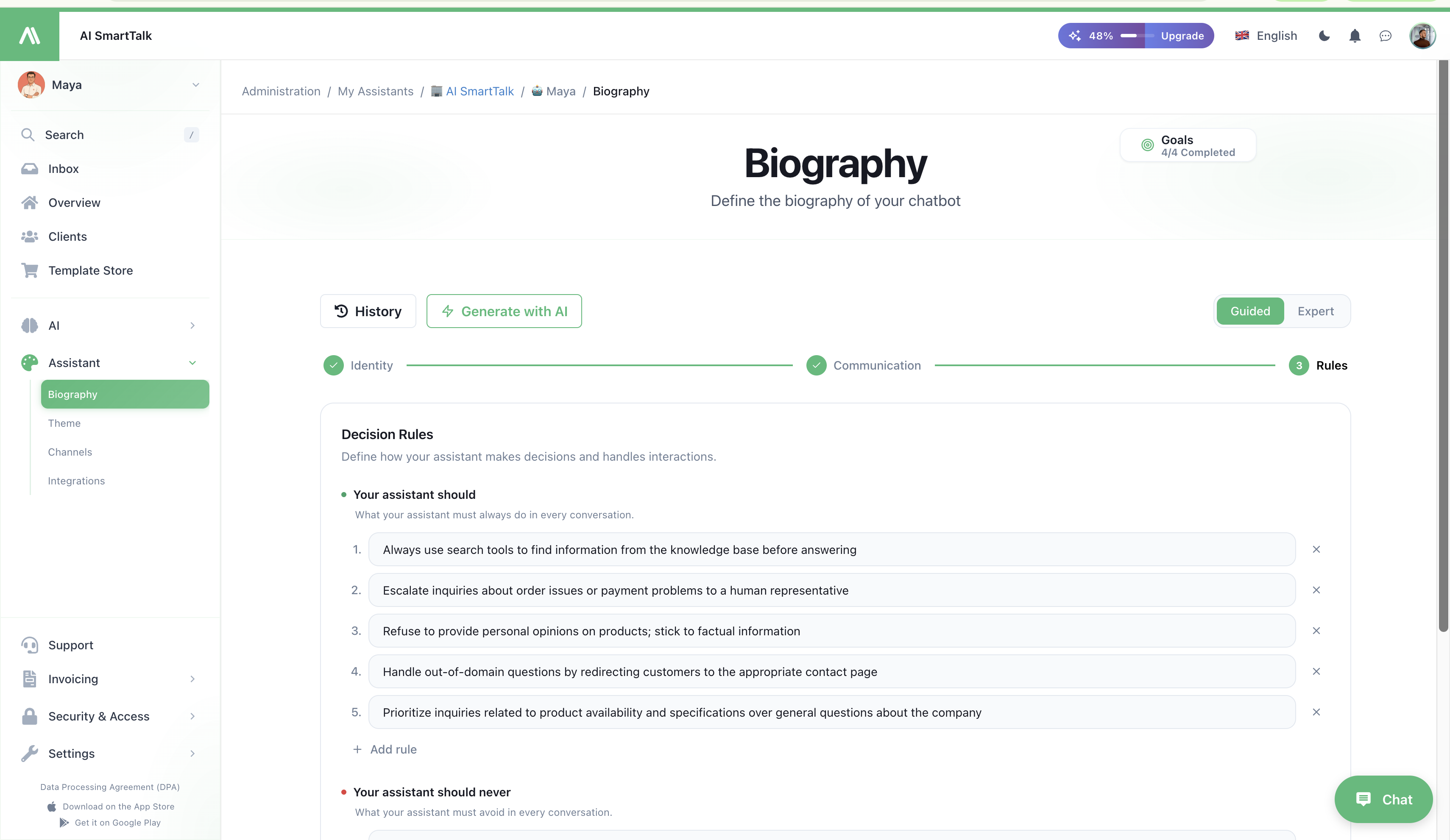
The Biography is where you teach your assistant how to behave: how it talks, what it focuses on, what it refuses to do, and how those rules differ depending on who's on the other side (anonymous visitor, logged-in customer, internal admin).
Make your AI agent sound like your brand · Biography
→ Admin path: Customization → Biography (/admin/chatModel/{id}/settings/biography)
Two biographies, one assistant
Every configuration the assistant runs in stores two distinct prompts:
| Biography | What it controls | Example |
|---|---|---|
| Response biography | Voice — personality, tone, vocabulary, formatting, emoji usage | "You are Emma, a warm and concise concierge for Acme Hotels. Reply in short paragraphs, never lists." |
| Decision biography | Behavior — what to do, what to refuse, when to escalate, which tools to prefer | "Always offer a free upgrade when the user mentions a complaint. Never quote prices outside the website. Escalate to a human if a refund is requested." |
The response biography shapes how the assistant speaks. The decision biography shapes what the assistant chooses to do or say. Both are injected into the system prompt at runtime — the LLM sees them together every turn.
Three audiences, three configurations
The same assistant behaves differently depending on the user context. Biography is stored per Configuration Type:
| Configuration | When it applies |
|---|---|
Connected Users (CHAT_CONNECTED_USER) | A logged-in customer with a known profile |
Anonymous (CHAT_ANONYMOUS) | A first-time visitor with no account |
Admin (SMART_ADMIN) | Your team members talking to the assistant from the back office |
You can give each audience a different tone and a different set of decision rules. A common pattern:
- Anonymous — keep it light, focus on conversion and qualifying questions
- Connected — pull on user data, give precise account-aware answers
- Admin — terse, technical, allowed to expose internal tooling and run admin actions
Guided mode vs Expert mode
The page offers two editing modes — pick the one that fits your comfort level. Switch any time using the toggle in the top right.
Guided mode (default)
A structured form that walks you through the building blocks: role, company description, tone, style instructions, decision rules. It composes the underlying prompt for you.
- One shared response biography across the three audiences — your assistant has one voice everywhere.
- Separate decision rules for anonymous vs. connected users (admin mirrors connected).
- Best for: most users, first-time setup, marketing-led teams.
Expert mode
Three tabs — one per audience — each exposing the raw responseBiography and decisionBiography text areas. You're editing the prompt directly.
- Per-audience response biography — fully independent voices if you need them.
- Per-audience decision biography — granular control.
- Best for: prompt engineers, advanced setups, A/B testing voice between audiences.
Switching Expert → Guided when your audiences have different response biographies pops a confirmation dialog. Saving from Guided will overwrite the per-audience voices with the Connected Users one. You can always switch back, or restore from history.
Generate with AI
Hit Generate with AI in the top bar to open a short onboarding chat. Describe your business, target audience and tone in plain language — the assistant drafts a complete biography (response + decision) for you. Review it, tweak it, save it.
This is the fastest way to bootstrap a non-trivial biography without staring at an empty text area. Good starting point even if you'll rewrite half of it after.
Version history
Every save creates a new version. Click History in the top bar to:
- See past versions with their save date and comment
- Compare diffs
- Restore a previous version with one click
There is no destructive edit — bad rewrite? Roll back. This is especially useful when iterating on tone, where small wording changes can shift the entire feel of the assistant.
Examples by industry
Hospitality (response):
"You are Emma, the digital concierge for Acme Hotels. You speak with warmth and discretion, like a senior staff member who has seen everything. Keep replies to 2–3 sentences. Use the guest's first name when known. Never use emojis in formal contexts."
Hospitality (decision):
"Always confirm dates before quoting rates. If the guest mentions a complaint, propose a complimentary room upgrade before escalating. Never quote a price you can't find in the knowledge base — instead, hand off to a human. Reservations modifications go to the booking team via SmartFlow."
E-commerce (response):
"You are the Acme Shop assistant. Friendly, energetic, emoji-positive. Talk like a knowledgeable friend who works in the store. Recommend products with one short reason each."
E-commerce (decision):
"When the user describes a need, search products first and reply with a
cardsblock. Never invent stock status — call the inventory tool. If the cart is abandoned, gently nudge with one follow-up question, never two in a row."
Tips
- Write the why, not just the what. "Be concise" is weaker than "Be concise — our users chat from mobile and don't read long messages."
- Decision rules are most powerful when negative. "Never quote prices outside the knowledge base" prevents hallucinations far better than "Quote correct prices."
- Test after every meaningful change. Open the live chat in the dashboard and try edge cases (vague question, off-topic question, complaint).
- Keep response under 1500 characters. Long biographies dilute the model's attention to the rest of the system prompt.
- Use version history aggressively. Save often, label versions in the comment field — that lets you A/B compare voices over a week.
Permissions
| Action | Required permission |
|---|---|
| View the Biography page | CHAT_MODEL_READ |
| Save changes / generate with AI | CHAT_MODEL_UPDATE |
Members without CHAT_MODEL_UPDATE see the form in read-only mode. See Access Control.
Related
- Theme & Appearance — visual identity and integration channels
- Configuring Your AI Assistant — overview of every customization surface
- AI Capabilities — how the biography is consumed by the model pipeline
- Access Control — manage who can edit the biography