الحسابات المتعددة
تشغيل مساعدي الذكاء الاصطناعي لأعمال، أو علامات تجارية، أو أقسام مختلفة؟ قم بإدارتها جميعًا من تطبيق واحد. قم بالتبديل بينها بنقرة واحدة.

إضافة مساعد آخر
- انقر على الصورة الرمزية الخاصة بك في الزاوية العليا اليسرى من الشاشة الرئيسية
- انقر على "إضافة حساب"
- قم بتسجيل الدخول باستخدام حساب AI SmartTalk مختلف
- تم — مساعدك الجديد جاهز
أضف ما تحتاجه. لا يوجد حد.
التبديل بين المساعدين
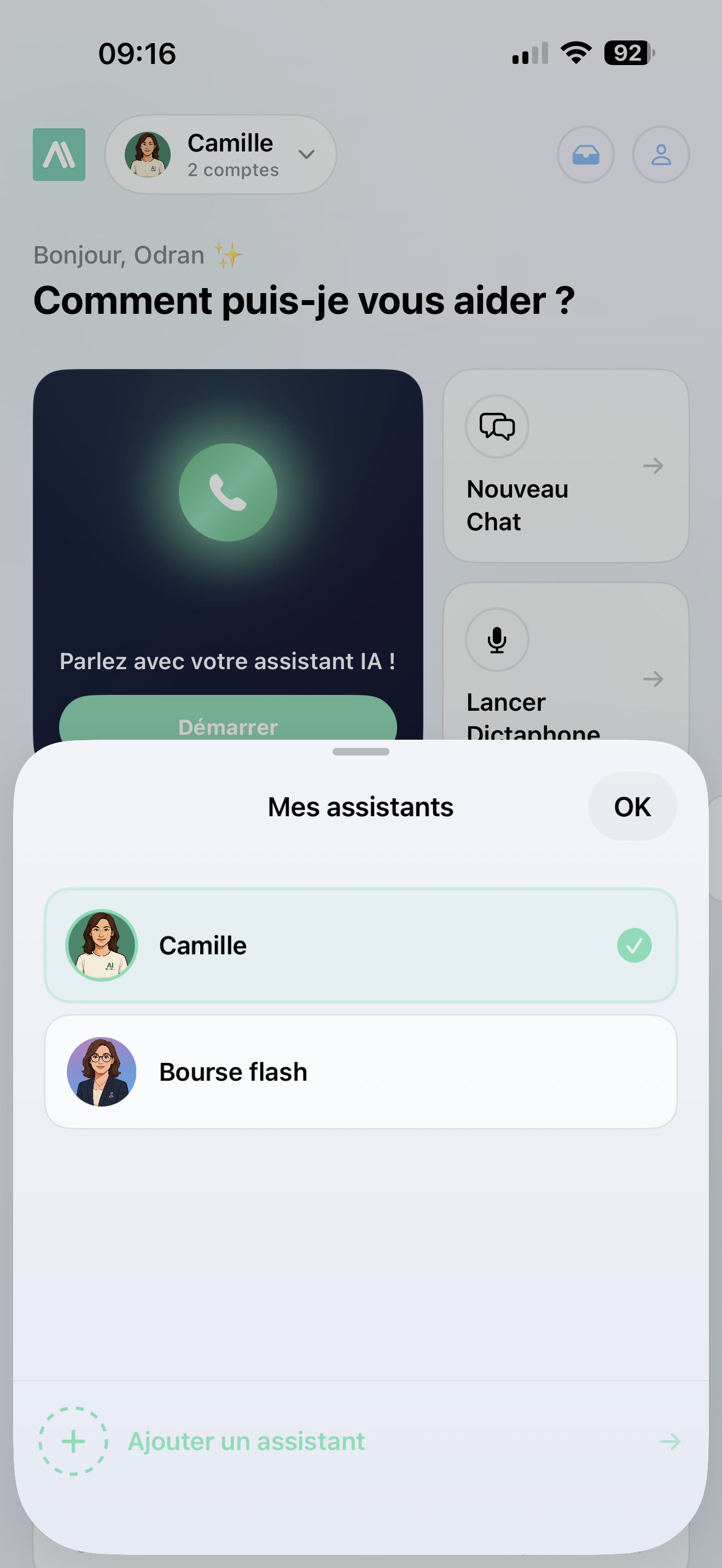
- انقر على الصورة الرمزية الخاصة بك في الزاوية العليا اليسرى
- اختر المساعد الذي تريده
- يقوم التطبيق بتحميل لوحة التحكم، وصندوق الوارد، والتاريخ الخاص بذلك المساعد على الفور
كل مساعد له ألوانه، وصورته الرمزية، واسمه الخاصة به حتى تعرف دائمًا أي واحد تستخدمه.
كل شيء يبقى منفصلًا
كل مساعد لديه:
- لوحة التحكم — إحصائيات لذلك العمل المحدد
- صندوق الوارد — رسائل العملاء لذلك المساعد فقط
- التاريخ — المحادثات والتسجيلات السابقة
- الإعدادات — السمة، والإشعارات، والتفضيلات
لا يتم خلط أي شيء بين الحسابات.
الإشعارات عبر الحسابات
أفضل جزء — تحصل على إشعارات لـ جميع مساعديك، حتى تلك التي لا تشاهدها حاليًا:
- تظهر الإشعارات اسم المساعد حتى تعرف لمن هي
- النقر على إشعار يبدل إلى الحساب الصحيح تلقائيًا
- يظهر شارة التطبيق الرسائل غير المقروءة من حساباتك الأخرى
يعمل مثل وجود حسابات متعددة على إنستغرام — أنت دائمًا في حلقة المعلومات.
إزالة مساعد
انقر على صورتك الرمزية، اسحب على الحساب الذي تريد إزالته، ثم أكد. يمكنك دائمًا إضافته مرة أخرى لاحقًا.
warning
إزالة حساب يحذف بياناته المحلية (التاريخ، الرسائل المخزنة). بياناتك على aismarttalk.tech غير متأثرة.