الإشعارات
لا تفوت أي شيء. احصل على إشعار في اللحظة التي يحدث فيها شيء مهم — رسالة جديدة من عميل، تقديم نموذج، حجز موعد، أو أي شيء آخر يهمك.
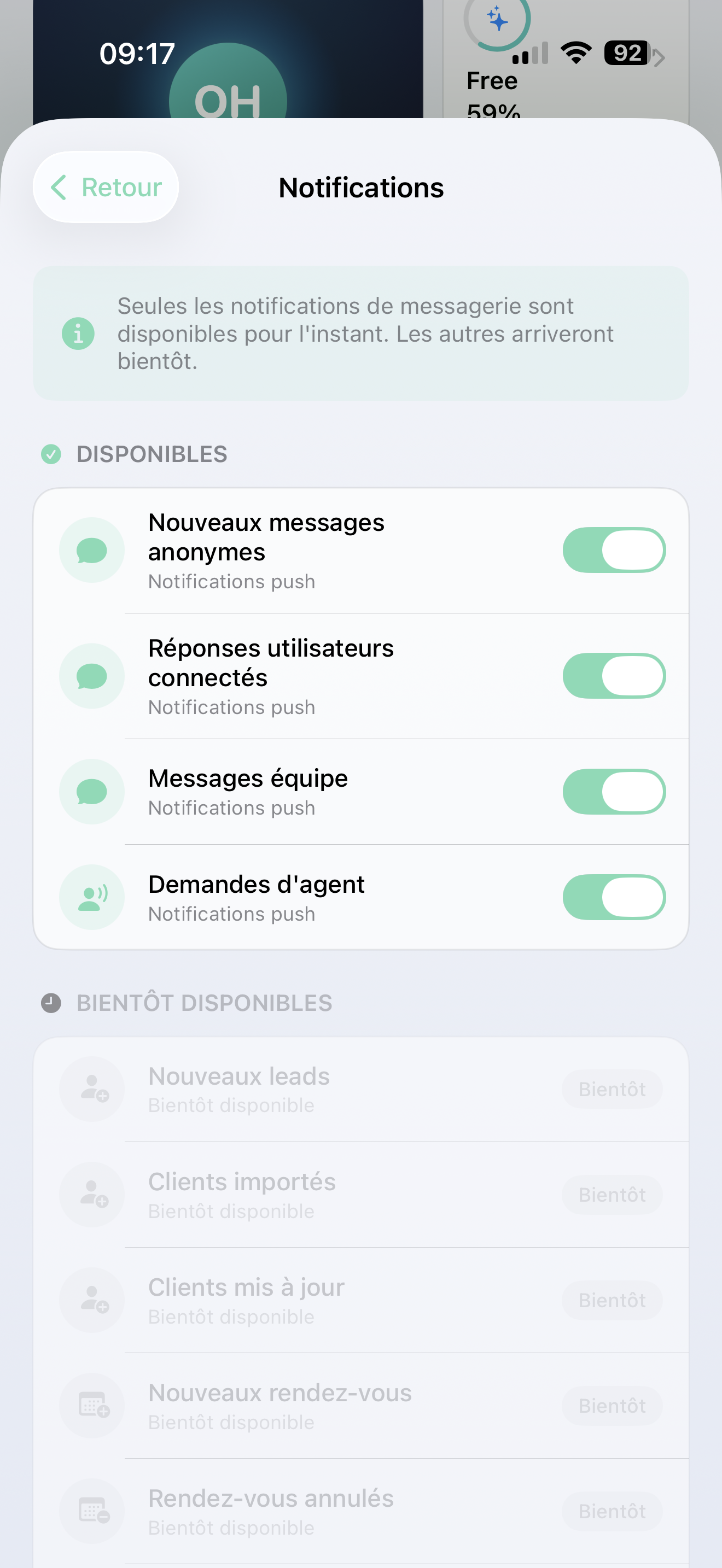
تفعيل الإشعارات
عند فتح التطبيق لأول مرة، سيطلب منك جهاز iPhone السماح بالإشعارات. اضغط على السماح — هذه هي الطريقة التي ستعرف بها متى يحتاجك العملاء.
هل فاتتك الرسالة؟ انتقل إلى إعدادات iPhone > AI SmartTalk > الإشعارات وقم بتفعيلها.
ما الذي يمكنك تلقي إشعارات بشأنه
رسائل العملاء
- رسالة جديدة من زائر الموقع
- رد من عميل عائد
- رسالة من فريق العمل الداخلي
- عميل يطلب التحدث مع إنسان
المواعيد
- حجز جديد
- إلغاء
- تذكير
- موعد تم إعادة جدولته
النشاط التجاري
- الحصول على عميل محتمل جديد
- نموذج تم تقديمه (SmartForm)
- تعليقات إيجابية أو سلبية
الحساب والنظام
- تم معالجة الدفع أو فشله
- قبول دعوة الفريق
- تحديث قاعدة المعرفة
اختر ما يهمك
ليس عليك تلقي كل شيء. قم بتخصيص إشعاراتك:
- انتقل إلى الملف الشخصي على الشاشة الرئيسية
- اضغط على إعدادات الإشعارات
- قم بتبديل كل نوع إلى تشغيل أو إيقاف
- اضغط على حفظ
يمكنك أيضًا الوصول إلى هذا من رمز الجرس في صندوق الوارد.
تلميح
نوصي بالاحتفاظ بـ رسائل العملاء و طلبات الوكلاء مفعلة — هذه هي الرسائل التي ينتظر فيها شخص ما ردًا.
لديك عدة مساعدين ذكيين؟
إذا كنت تدير عدة مساعدين (انظر الحسابات المتعددة):
- ستحصل على إشعارات لـ جميع مساعديك
- كل إشعار يظهر أي مساعد يتعلق به (على سبيل المثال، "[كاميل] رسالة جديدة")
- الضغط على إشعار يحولك تلقائيًا إلى الحساب الصحيح
استكشاف الأخطاء وإصلاحها
لا تتلقى إشعارات؟
- تحقق من أن إعدادات iPhone > AI SmartTalk > الإشعارات مفعلة
- تحقق من إعدادات الإشعارات داخل التطبيق (الملف الشخصي > إعدادات الإشعارات)
- تأكد من أن هاتفك لديه اتصال بالإنترنت
- حاول تسجيل الخروج ثم تسجيل الدخول مرة أخرى
الإشعارات تصل متأخرة؟
- قم بإيقاف تشغيل وضع الطاقة المنخفضة
- تأكد من أن تحديث التطبيقات في الخلفية مفعل لتطبيق AI SmartTalk