Onboarding Process
Step 1: Organization Association or Creation
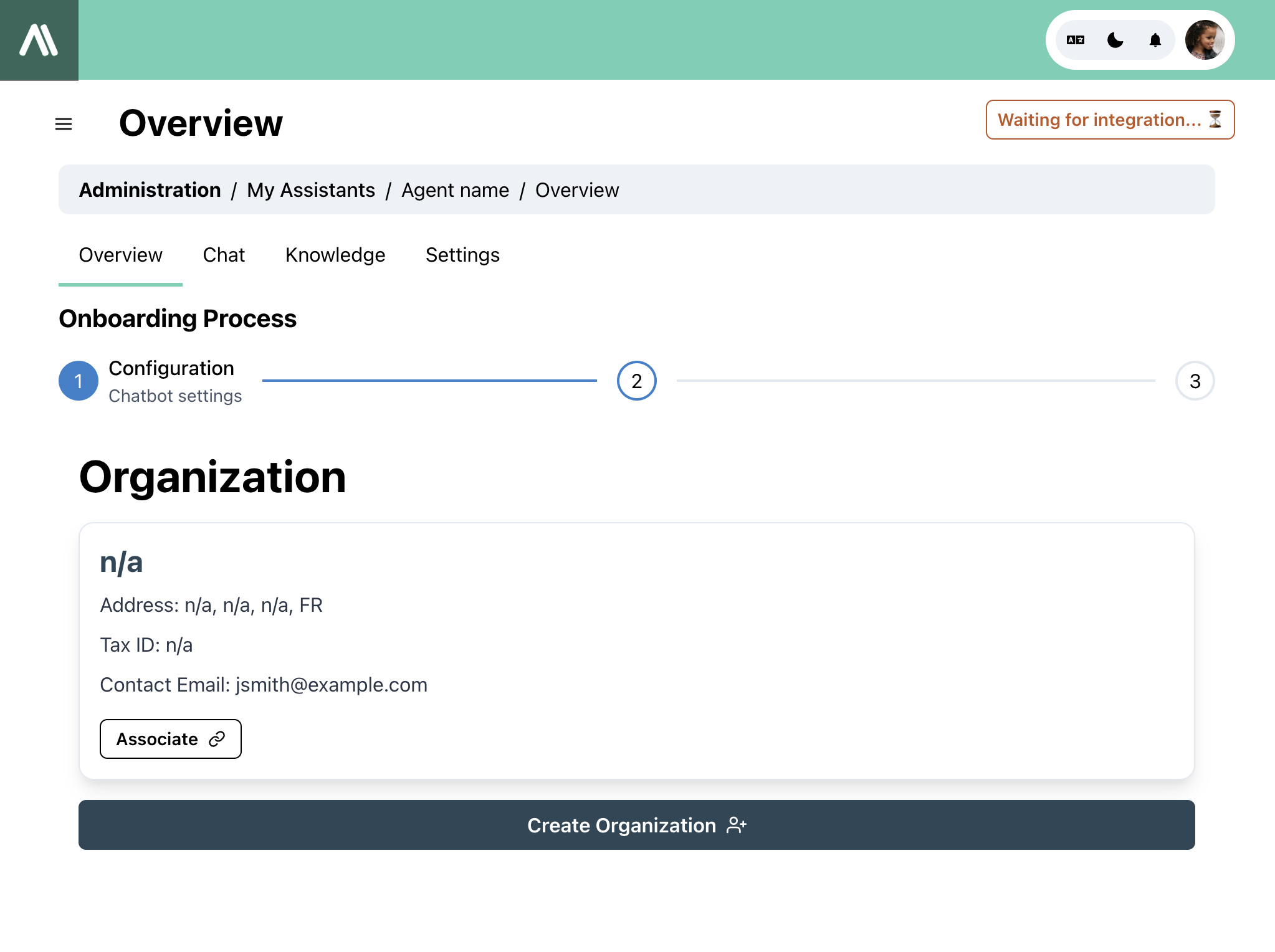
During this step, you have the option to either associate your chatbot with an existing organization or create a new one.
Associating with an Existing Organization
- If you choose to associate with an existing organization, you will need to select the appropriate organization from the provided list.
Creating a New Organization
- If you decide to create a new organization, you will start a 1-month trial period with the trial plan.
- The information required for creating an organization typically includes the organization's name, address, tax ID, and contact email.
- After filling in the necessary information, click on the "Create Organization" button to proceed.
Step 2: Theme - Appearance of Your Chatbot
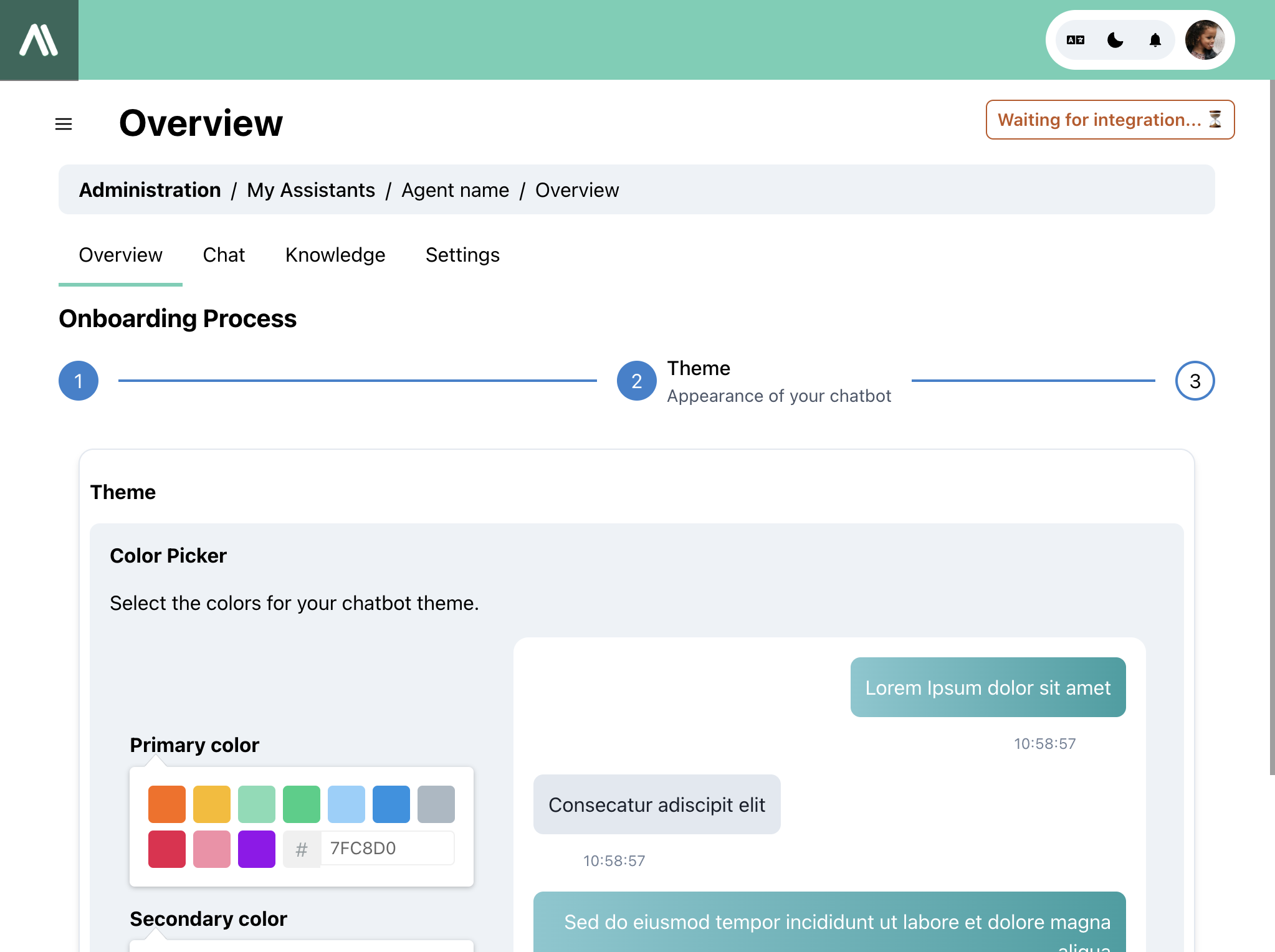
In this step, you can customize the appearance of your chatbot by selecting the primary and secondary colors.
Customization Options
- Primary Color: Select the primary color for your chatbot from the color picker.
- Secondary Color: Select the secondary color for your chatbot from the color picker.
After selecting the colors, a chatbot creation request is processed. Your chatbot will be available with the new theme within 30 seconds to 5 minutes.
Step 3: Finalization - Check Integration
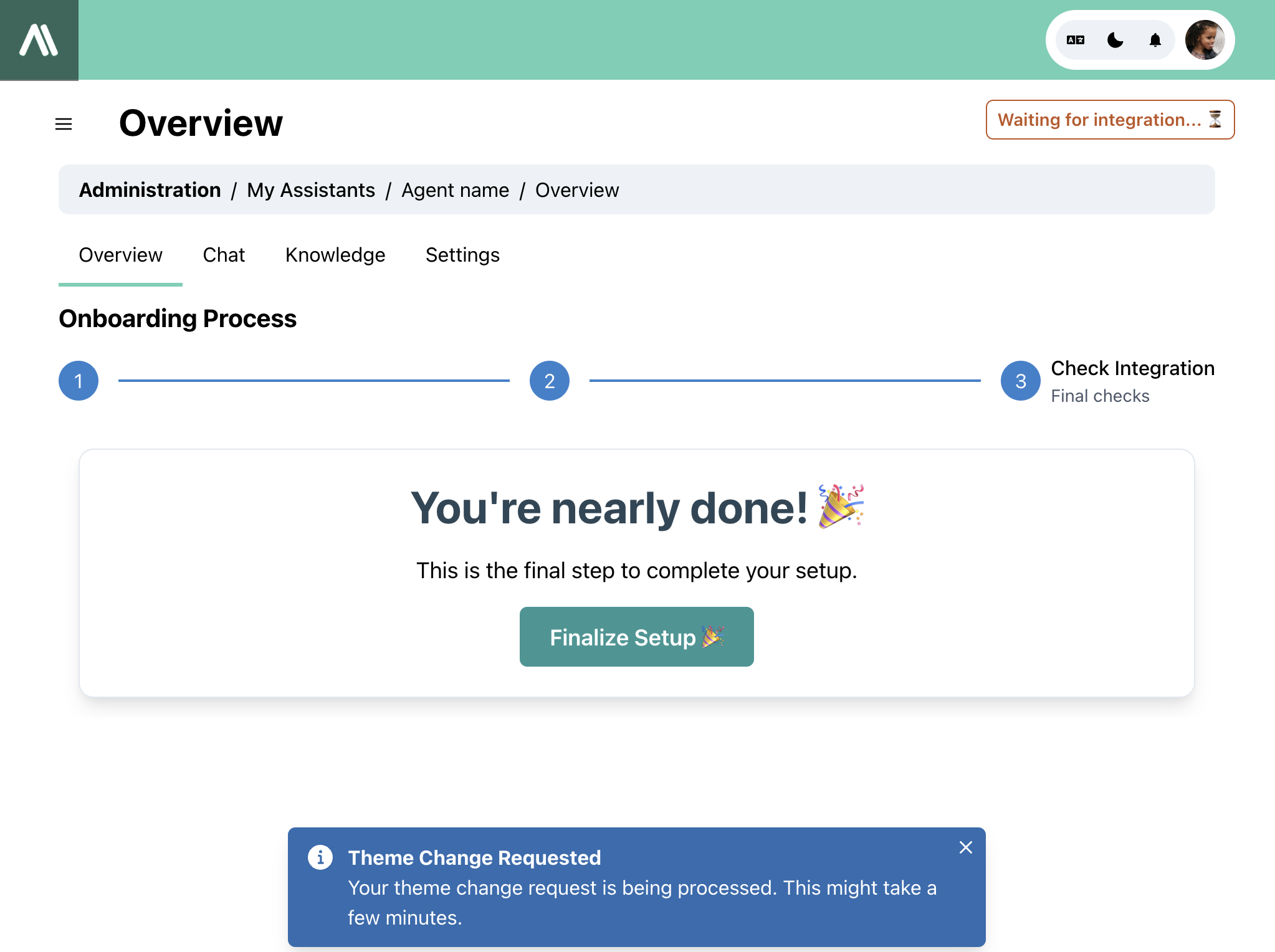
Finalize Setup
- Click on the "Finalize Setup" button to apply the recommended configuration for notifications and other settings to ensure a seamless experience.
- This action will complete the setup process and redirect you to the integration page.
ინტეგრაციის გვერდი
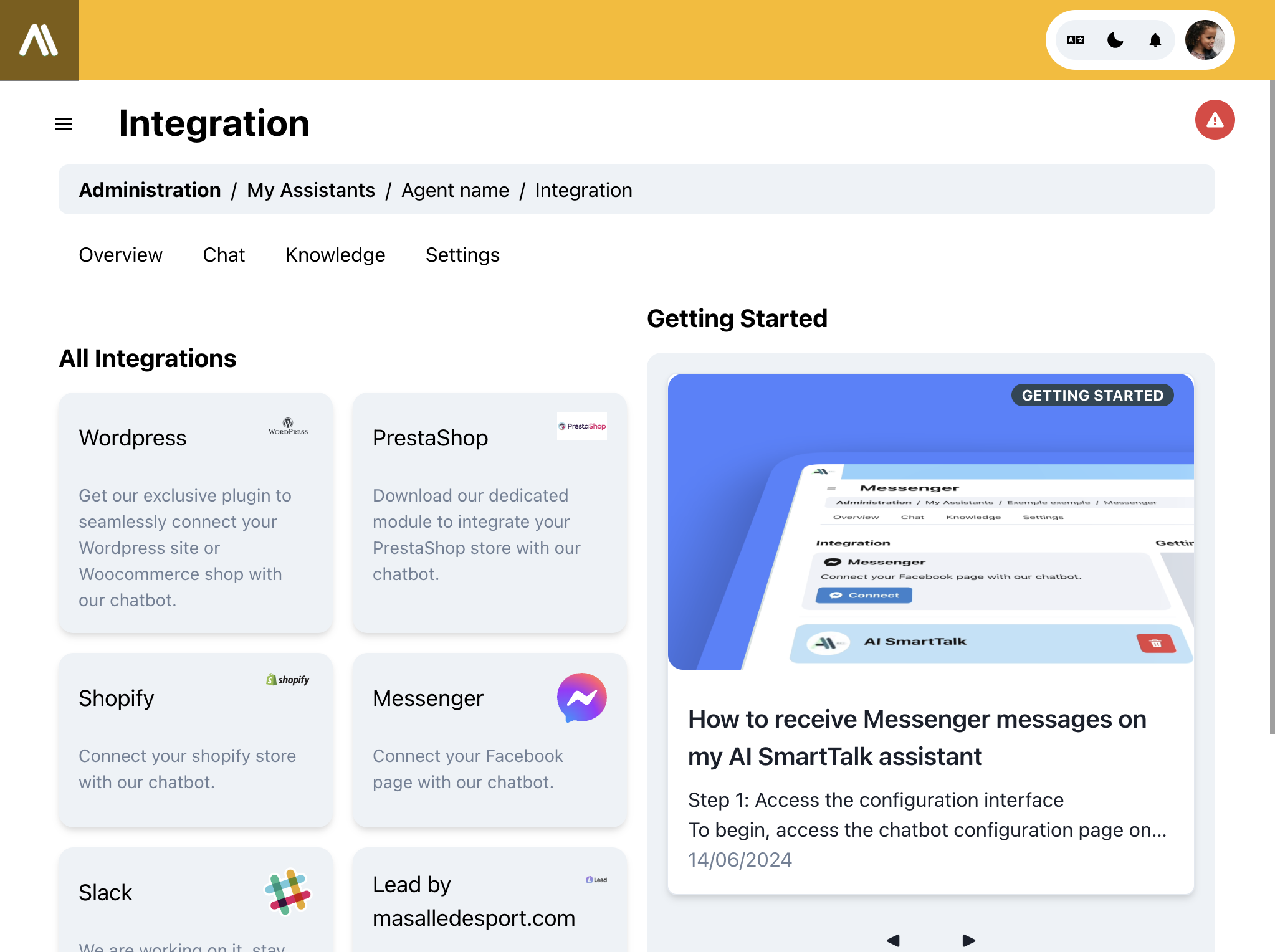
ინტეგრაციის გვერდზე შეგიძლიათ დააკავშიროთ თქვენი ჩეთბოტი სხვადასხვა პლატფორმებთან და კომუნიკაციის არხებთან.
ხელმისაწვდომი ინტეგრაციები
- WordPress: გამოიყენეთ ექსკლუზიური მოდული, რათა შეუფერხებლად დააკავშიროთ თქვენი WordPress ვებსაიტი ან WooCommerce მაღაზია თქვენს ჩეთბოტთან.
- PrestaShop: ჩამოტვირთეთ სპეციალურად შექმნილი მოდული, რათა ინტეგრირდეთ თქვენი PrestaShop მაღაზია თქვენს ჩეთბოტთან.
- Shopify: დააკავშირეთ თქვენი Shopify მაღაზია თქვენს ჩეთბოტთან.
- Messenger: დააკავშირეთ თქვენი Facebook გვერდი თქვენს ჩეთბოტთან.
- Slack: ინტეგრირდეთ თქვენი ჩეთბოტი Slack-თან შიდა კომუნიკაციისთვის.
- Lead by masalledesport.com: ინტეგრაცია masalledesport.com-ის მიერ გაწვდილი კონკრეტული სერვისებისათვის.
ინტეგრაციების კონფიგურაცია
- თითოეული ინტეგრაციის ვარიანტი მოიცავს კონკრეტულ ნაბიჯებს, რათა დააკავშიროთ და სინქრონიზირდეთ თქვენი მონაცემები ჩეთბოტის ცოდნის ბაზასთან.
- ეს ინტეგრაციები ეხმარება თქვენს ჩეთბოტს თქვენი ვებსაიტის ან სხვა პლატფორმების ჩვენებაში, ასევე კომუნიკაციის არხების შექმნაში თქვენი მომხმარებლებისთანა ურთიერთობისათვის.
- დაასრულეთ კონფიგურაცია მოცემული ინსტრუქციების მიხედვით თითოეული ინტეგრაციისთვის.
დეტალური ინსტრუქციებისათვის თითოეული ინტეგრაციის კონფიგურაციისთვის, ეწვიეთ ჩვენს ინტეგრაციების დოკუმენტაციას.
პრობლემების მოგვარების რჩევები
- დარწმუნდით, რომ გაქვთ საჭირო უფლებები და API გასაღებები იმ პლატფორმებისთვის, რომელთანაც გსურთ ინტეგრაცია.
- შეამოწმეთ დოკუმენტაცია და მხარდაჭერის რესურსები, რომლებიც გაწვდილია თითოეული ინტეგრაციისთვის, რათა მოაგვაროთ ნებისმიერი პრობლემა.
ამ ნაბიჯების შესრულებით, შეგიძლიათ წარმატებით დაასრულოთ onboarding პროცესი და დააკავშიროთ თქვენი ჩეთბოტი სასურველ კონფიგურაციებთან და ინტეგრაციებთან.