API Permissions
To unlock the full potential of AI SmartTalk — such as looking up orders, updating product descriptions, or managing customers — you need to configure a PrestaShop Webservice API token with the right permissions.
This step is required if you want to use AI Actions (SmartFlow). Without it, your AI assistant can still answer questions based on synchronized knowledge, but won't be able to access real-time store data.
1. Enabling the Webservice
- Go to Advanced Parameters > Webservice
- Enable PrestaShop's webservice
- Click Save
2. Creating an API key
- On the Webservice page, click Add new webservice key
- Fill in the form:
- Key: Click Generate to create a secure token, or enter your own
- Key description:
AI SmartTalk - Status: Enabled
- Set the permissions as described below
- Click Save
Copy and save the API key — you'll need it when configuring the integration in AI SmartTalk.
3. Required permissions
In the permissions section of your API key, enable the following resources:
| Resource | GET | PUT | POST | Description |
|---|---|---|---|---|
| products | Yes | Yes | — | Read product details, update descriptions and SEO |
| orders | Yes | — | — | Look up orders by reference or customer |
| order_details | Yes | — | — | View products within an order |
| order_states | Yes | — | — | Read order status labels |
| order_histories | Yes | — | Yes | Read status history, add status changes |
| customers | Yes | Yes | — | Look up and update customer information |
| languages | Yes | — | — | List available store languages |
Only check the permissions listed above. There's no need to grant access to other resources.
4. What each resource is used for
Products (read + write)
- Read: Retrieve product details — name, description, short description, price, reference, stock, SEO fields (meta title, meta description, meta keywords)
- Write: Update product descriptions, short descriptions, and SEO fields with full multilingual support
Orders (read only)
- Look up an order by its reference number
- List orders for a specific customer (by email)
- Get the most recent order for a customer
Order Details (read only)
- View the products within an order: name, reference, quantity, unit price
Order States (read only)
- Retrieve the human-readable label for each order status (e.g., "Payment accepted", "Shipped")
Order Histories (read + create)
- Read: View the status change history of an order
- Create: Add a new status change to an order (e.g., mark as shipped), with optional email notification to the customer
Customers (read + write)
- Read: Look up a customer by email or ID — retrieve name, email, registration date, newsletter status, notes
- Write: Update customer information (first name, last name, email, notes)
Languages (read only)
- List all languages configured on your store (used for multilingual product updates)
5. Entering the API key in AI SmartTalk
Once your Webservice key is created and configured:
- Go to the AI SmartTalk module configuration in PrestaShop
- The API key is typically transmitted during the OAuth connection
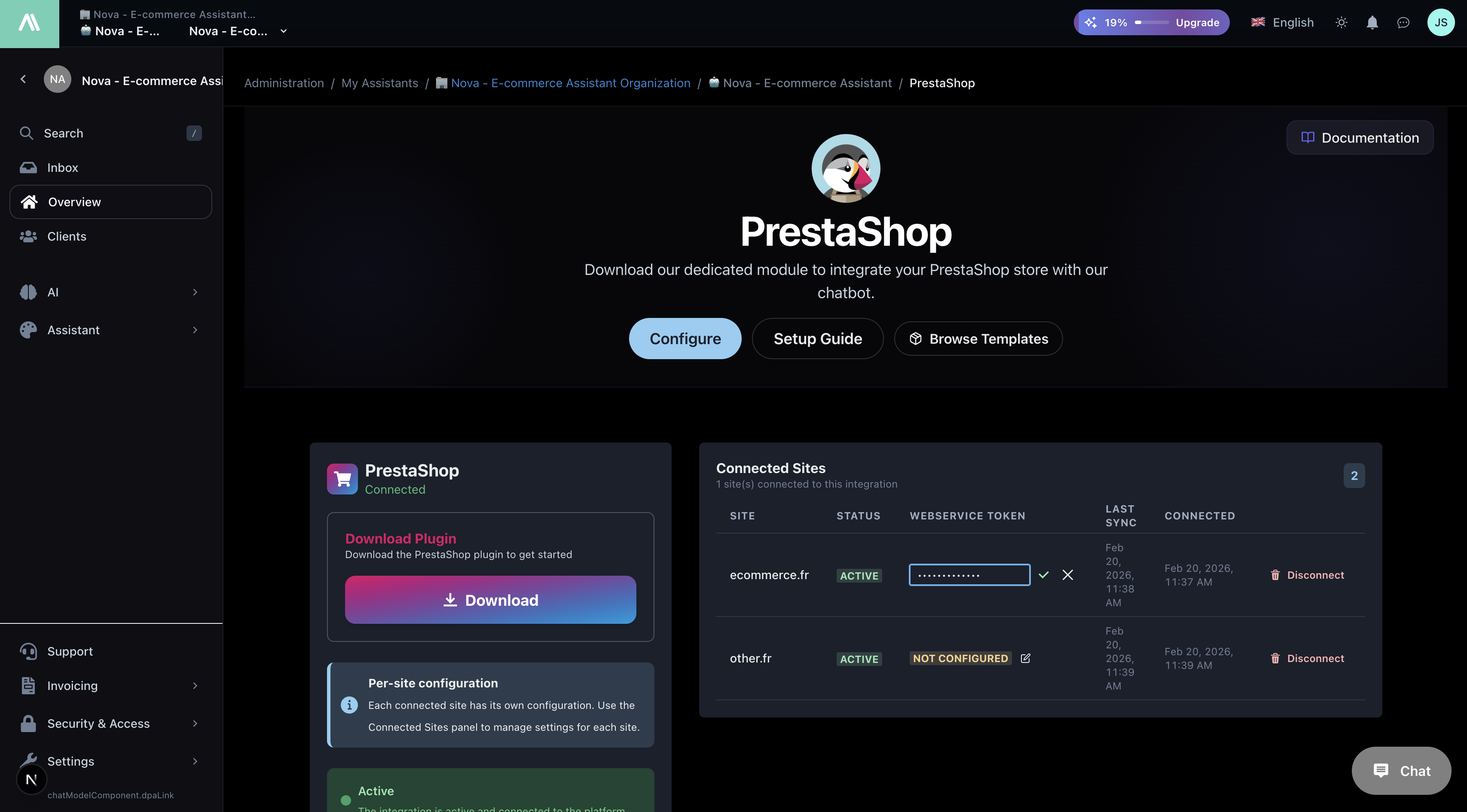
- If you need to update it, go to your AI SmartTalk dashboard > Integration > PrestaShop and update the Webservice token
For multi-site setups, each site can have its own Webservice API key configured independently.
Next steps
- Synchronize your store data — Push your product catalog to the AI
- See what the AI can do — Full reference of available actions