Customization
Make the chatbot match your store's look and feel. All customization options are available in the Appearance tab of the AI SmartTalk module configuration.
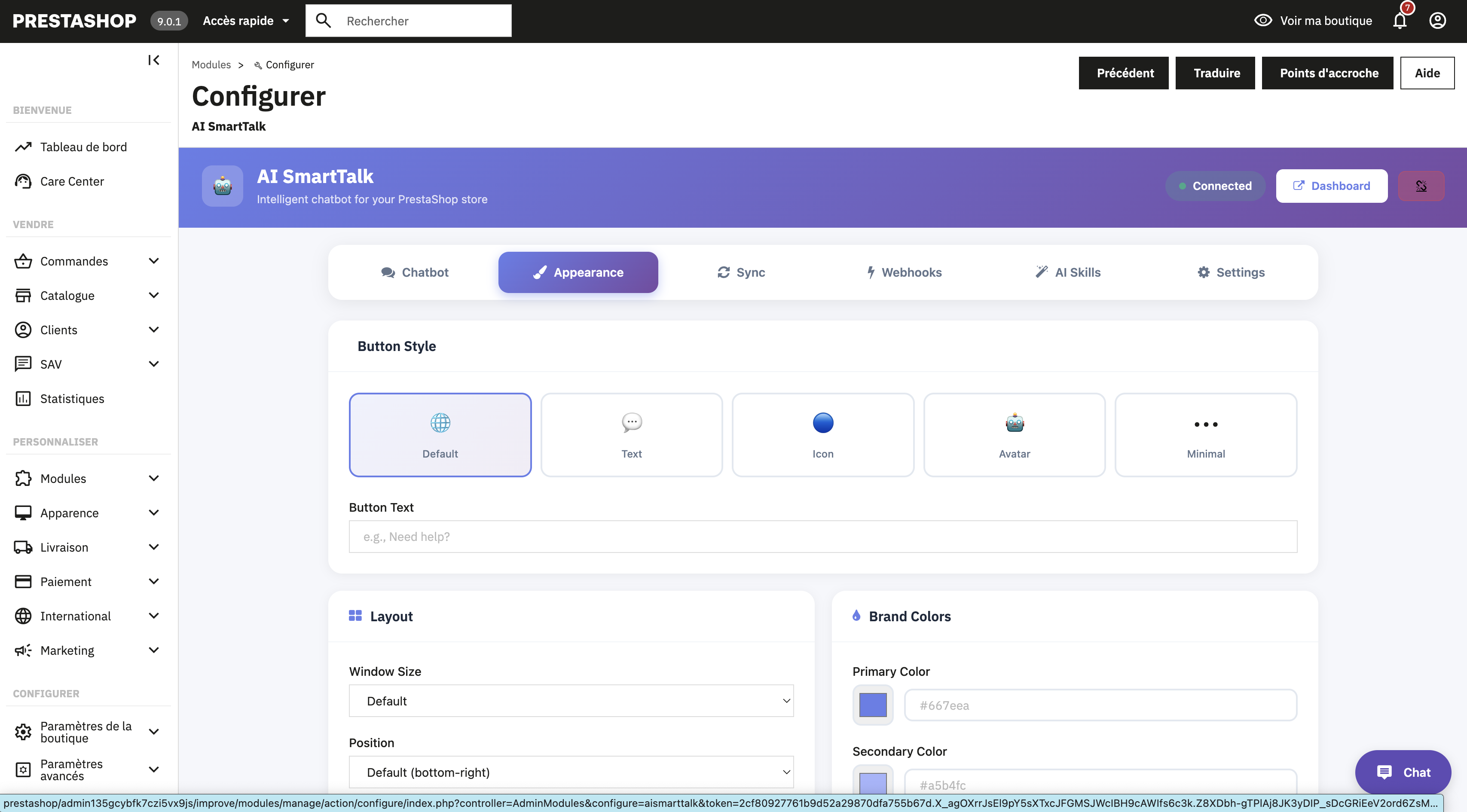
Chat button
Button type
Choose how the chat button appears on your store:
| Type | Description |
|---|---|
| Default | Standard chat button with text |
| Icon | Compact icon-only button |
| Avatar | Button with a custom avatar image |
| Minimal | Discreet, minimal-style button |
Button text
Customize the text displayed on the chat button (e.g., "Need help?", "Ask our AI", "Chat with us").
Button position
- Bottom right (default)
- Bottom left
Button corners
| Style | Description |
|---|---|
| Rounded | Fully rounded corners |
| Slightly rounded | Subtle border radius |
| Square | No border radius |
Avatar
Upload a custom avatar image to personalize the chat button when using the Avatar button type. You can upload an image file or provide a URL.
Chat window
Window size
| Size | Best for |
|---|---|
| Small | Stores with limited screen space, mobile-first designs |
| Medium | Most stores (default) |
| Large | Stores where the chatbot is a primary interaction point |
Window corners
| Style | Description |
|---|---|
| Rounded | Fully rounded corners |
| Slightly rounded | Subtle border radius |
| Square | Sharp corners |
Window position
Choose where the chat widget is injected on the page:
- Footer (default) — Standard placement at the bottom of the page
- Before footer — Placed just above the footer section
Colors
Color mode
| Mode | Description |
|---|---|
| Light | Light background, dark text |
| Dark | Dark background, light text |
| Auto | Follows the user's system preference |
Primary color
The main color used for the chat button and key UI elements. Enter a hex color code (e.g., #667eea).
Secondary color
The accent color used for secondary elements. Enter a hex color code (e.g., #764ba2).
Use your brand colors for a seamless integration with your store's design.
Features
Toggle individual chatbot features on or off:
| Feature | Description |
|---|---|
| Attachments | Allow users to upload files in the chat |
| Feedback | Show thumbs up/down buttons on AI responses |
| Voice input | Enable microphone input for voice-to-text |
| Voice mode | Enable full voice conversation mode |
GDPR compliance
If your store is subject to GDPR or similar privacy regulations:
- Enable the GDPR toggle
- Enter your Privacy Policy URL
When enabled, users will be asked to accept your privacy policy before starting a conversation.
Saving your settings
After making your changes, click Save at the bottom of the Appearance tab. Changes take effect immediately on your store.
PrestaShop may cache static assets. If your changes don't appear immediately, clear your PrestaShop cache in Advanced Parameters > Performance, and clear your browser cache.