Installation & Connection
This guide walks you through downloading, installing, and connecting the AI SmartTalk module on your PrestaShop store.
Connect your PrestaShop catalog to your AI agent
1. Downloading the module
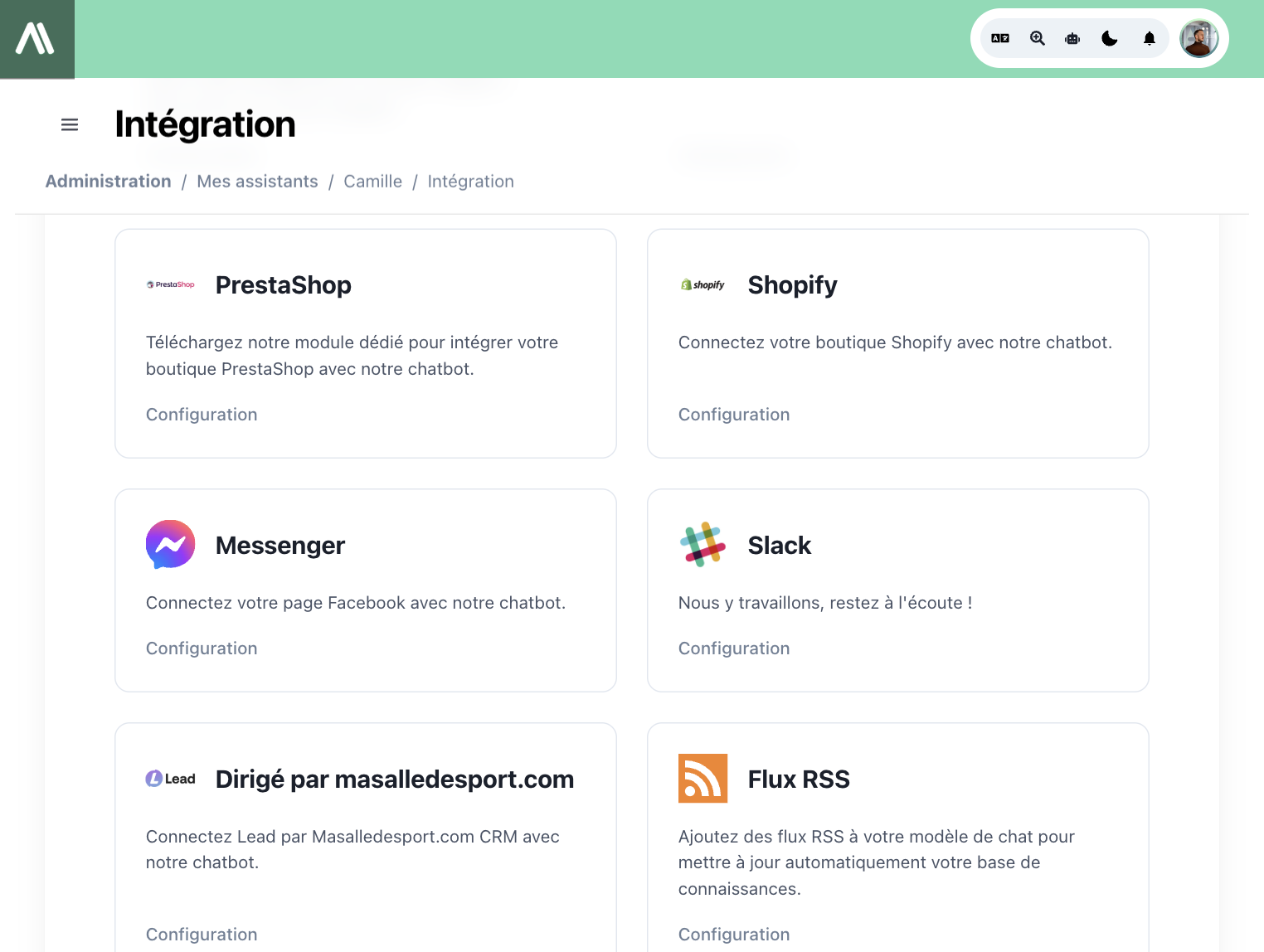
- Go to the AI SmartTalk platform at aismarttalk.tech
- Navigate to Integration in the main menu
- Find the PrestaShop section
- Click the Download button to save the module ZIP file to your computer
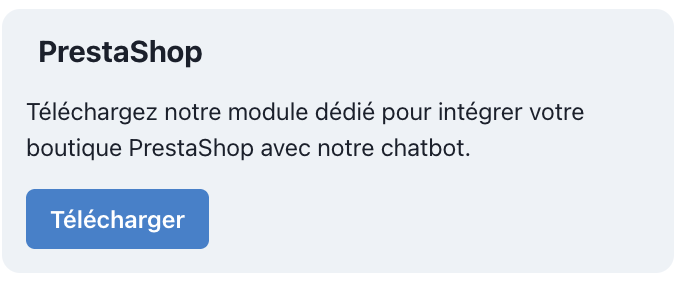
2. Installing on PrestaShop
- Log in to your PrestaShop admin dashboard
- Go to Modules > Module Manager
- Click Upload a module
- Select the AI SmartTalk ZIP file you downloaded
- The module installs automatically
If you're upgrading from a previous version, the module will automatically migrate your settings. No data is lost.
3. Connecting to AI SmartTalk
The module uses OAuth 2.0 with PKCE for a secure, one-click connection between your store and AI SmartTalk.
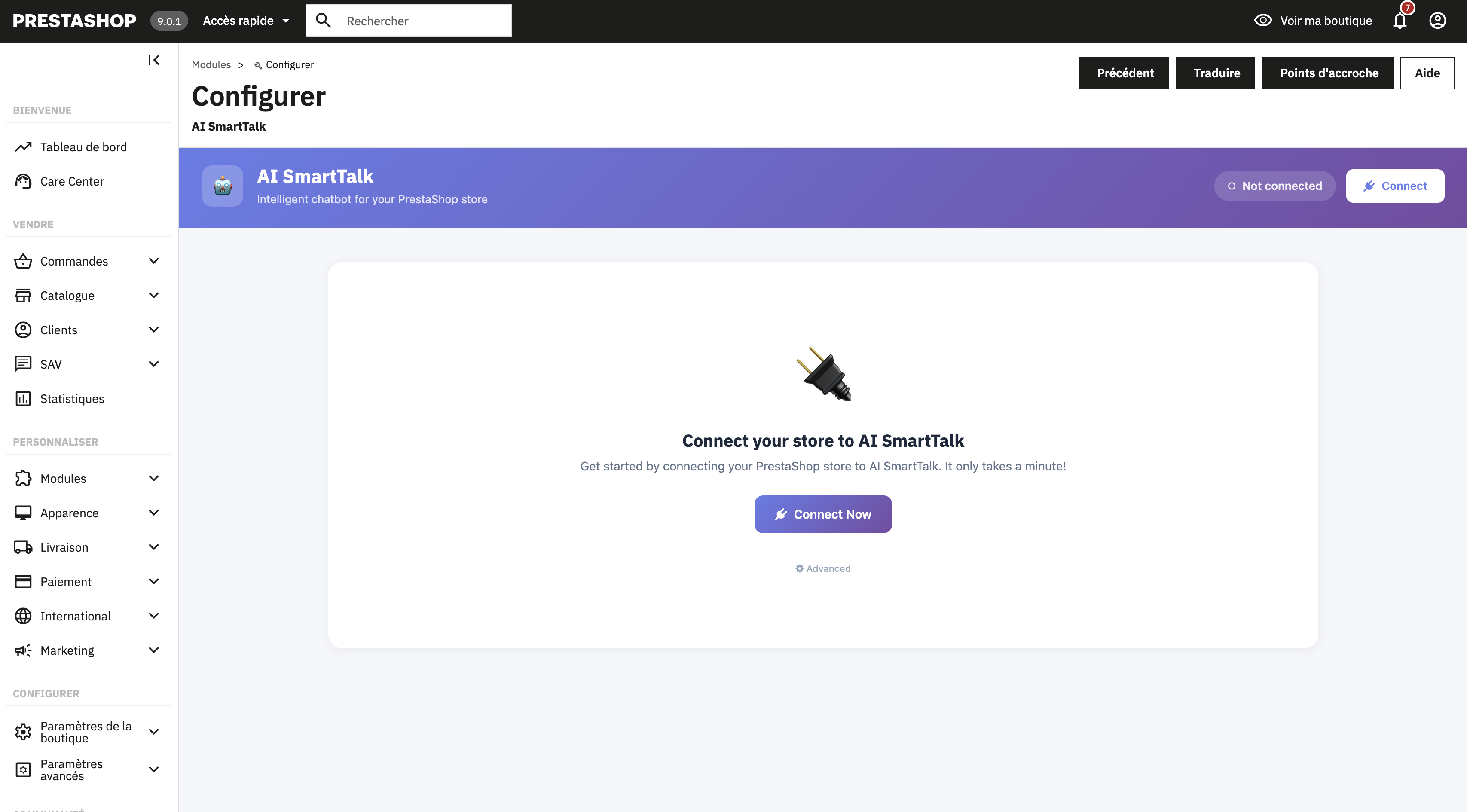
- After installation, go to the AI SmartTalk module settings (click Configure)
- Click the Connect with AI SmartTalk button
If you already have an account
Simply log in with your email and password. You'll be redirected back to PrestaShop automatically.
If you're new to AI SmartTalk
Click Create an account or sign up here. Fill in your details and you'll be redirected back to PrestaShop automatically.
The connection is fully secure. Your credentials are never stored in PrestaShop — only an OAuth token is saved locally.
4. Selecting your AI assistant
Once connected, choose which AI assistant will power your store's chatbot.
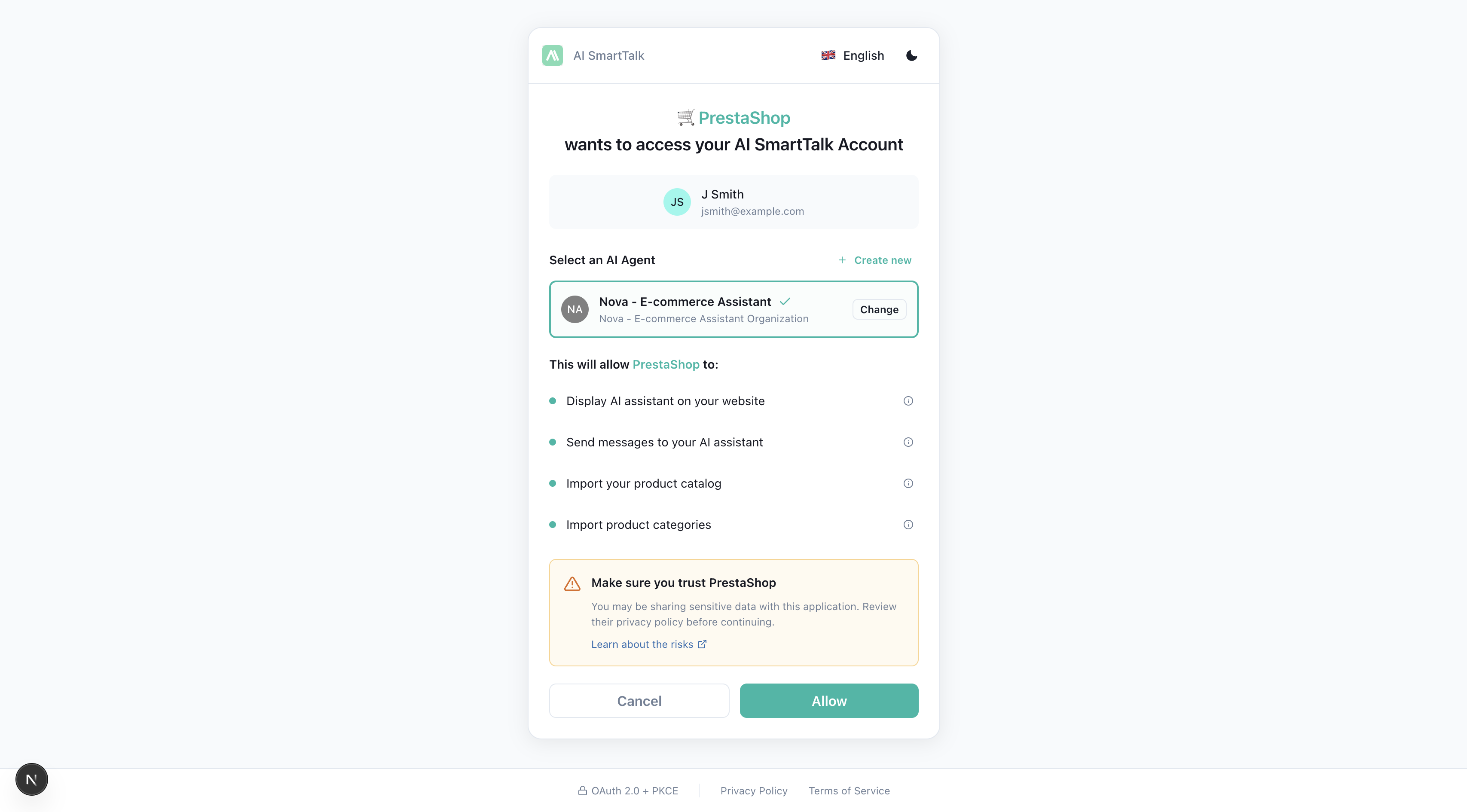
Use an existing assistant
If you already have assistants configured in AI SmartTalk:
- Select the assistant you want from the dropdown list
- Click Save
Create a new assistant
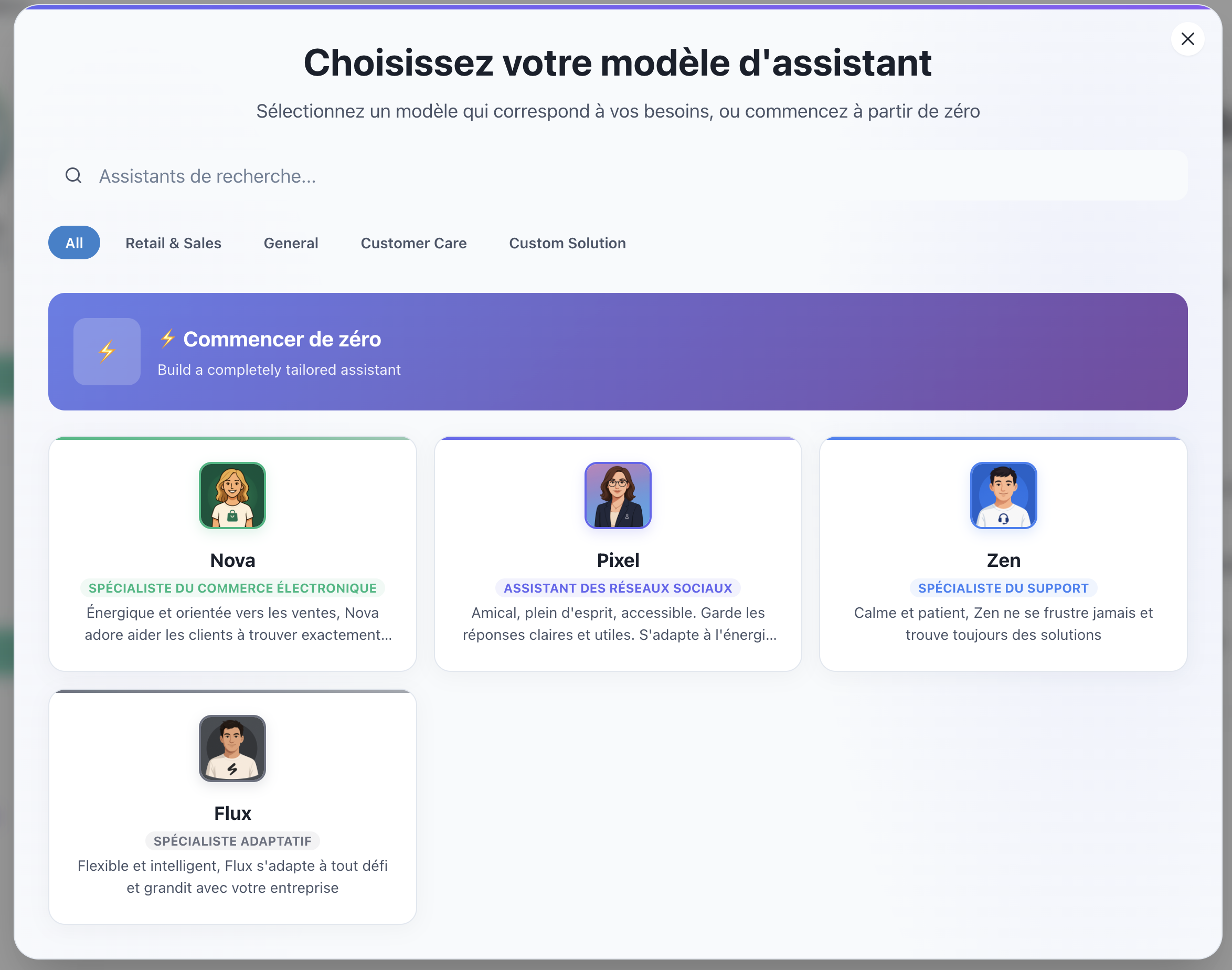
If you don't have an assistant yet:
- Click the Create button
- A window opens with available templates
- Choose a template that fits your needs (e.g., "E-commerce", "Customer Support")
- Your new assistant is created and automatically selected
- Click Save
5. Multi-site setup
If you manage multiple PrestaShop stores and want them all connected to the same AI SmartTalk assistant, the module supports multi-site out of the box.
How it works
- Each PrestaShop installation connects independently via OAuth
- Each site is identified by its domain name (e.g.,
shop-fr.example.com,shop-en.example.com) - All sites share the same AI assistant but maintain separate configurations
- Each site can have its own Webservice API token and settings
Connecting additional sites
Simply repeat the installation and connection process on each PrestaShop instance. AI SmartTalk will automatically detect and register each site.
In your AI SmartTalk dashboard, you'll see all connected sites listed under the PrestaShop integration page, with their status and connection date.
What's next?
Your module is installed and connected. Next steps:
- Configure API permissions — Required if you want the AI to access orders, update products, or manage customers
- Sync your store data — Feed your AI with your product catalog
- Customize the chatbot — Make it match your brand