Synchronization
Synchronize your PrestaShop store data with AI SmartTalk so your AI assistant always has up-to-date information about your products and customers.
Product synchronization
Running a sync
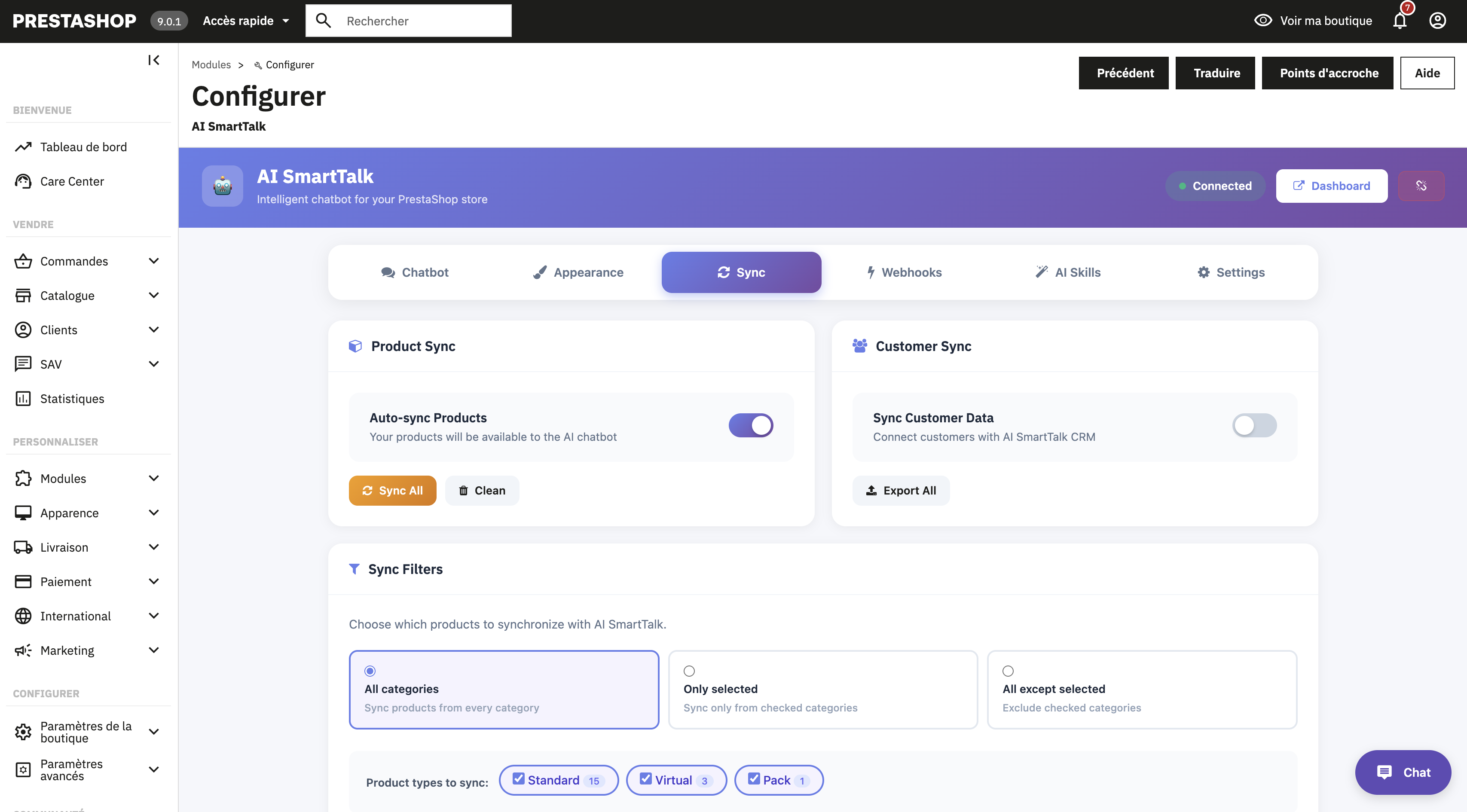
- In your PrestaShop admin, go to the AI SmartTalk module configuration
- Open the Synchronize tab
- Click Synchronize Store Data
- Wait while your products are sent to AI SmartTalk
- A success message appears when complete
Your products will appear in the Knowledge section of your AI SmartTalk dashboard, where you can review and manage them.
Automatic sync
The module automatically keeps your AI assistant up to date:
- Product created — New products are synced automatically
- Product updated — Changes to existing products are pushed in real time
- Product deleted — Removed products are cleaned up from AI SmartTalk
Sync filters
You can control which products are synchronized using filters in the Synchronize tab:
Filter by category
- Include specific categories: Only sync products from selected categories
- Exclude specific categories: Sync everything except products in selected categories
- Supports subcategories
Filter by product type
Choose which product types to synchronize:
- Standard products
- Virtual products (digital goods, services)
- Pack products (bundles)
When filters are active, a "Filtered" badge appears on the Synchronize tab so you can easily see that filtering is enabled.
Customer synchronization
In addition to products, you can synchronize your customer database with AI SmartTalk. This enables the AI to recognize returning customers and provide personalized assistance.
Enabling customer sync
- In the AI SmartTalk module configuration, go to the Synchronize tab
- Enable Customer Synchronization
- Click Save
How it works
- Batch export: Existing customers are exported in batches of 50 for optimal performance
- Real-time sync: New customer registrations and profile updates are automatically sent to AI SmartTalk
- Customer deletion: When a customer is removed from PrestaShop, they are also removed from AI SmartTalk
Data synchronized
The following customer fields are synced:
- First name and last name
- Email address
- Registration date
- Newsletter subscription status
Next steps
You can also import your product catalog via a CSV URL integration. This can be useful if you need to import data from sources outside PrestaShop, but for most use cases the built-in module synchronization above is simpler and recommended.