📋 SmartForm as a Conversation Tool
The SmartForm Trigger serves as an entry point for workflows by collecting user responses through a form. All collected data, including AI-calculated results (if enabled in the form configuration), is passed to SmartFlow. It enables you to use form data dynamically in your workflows and create logic-driven actions.
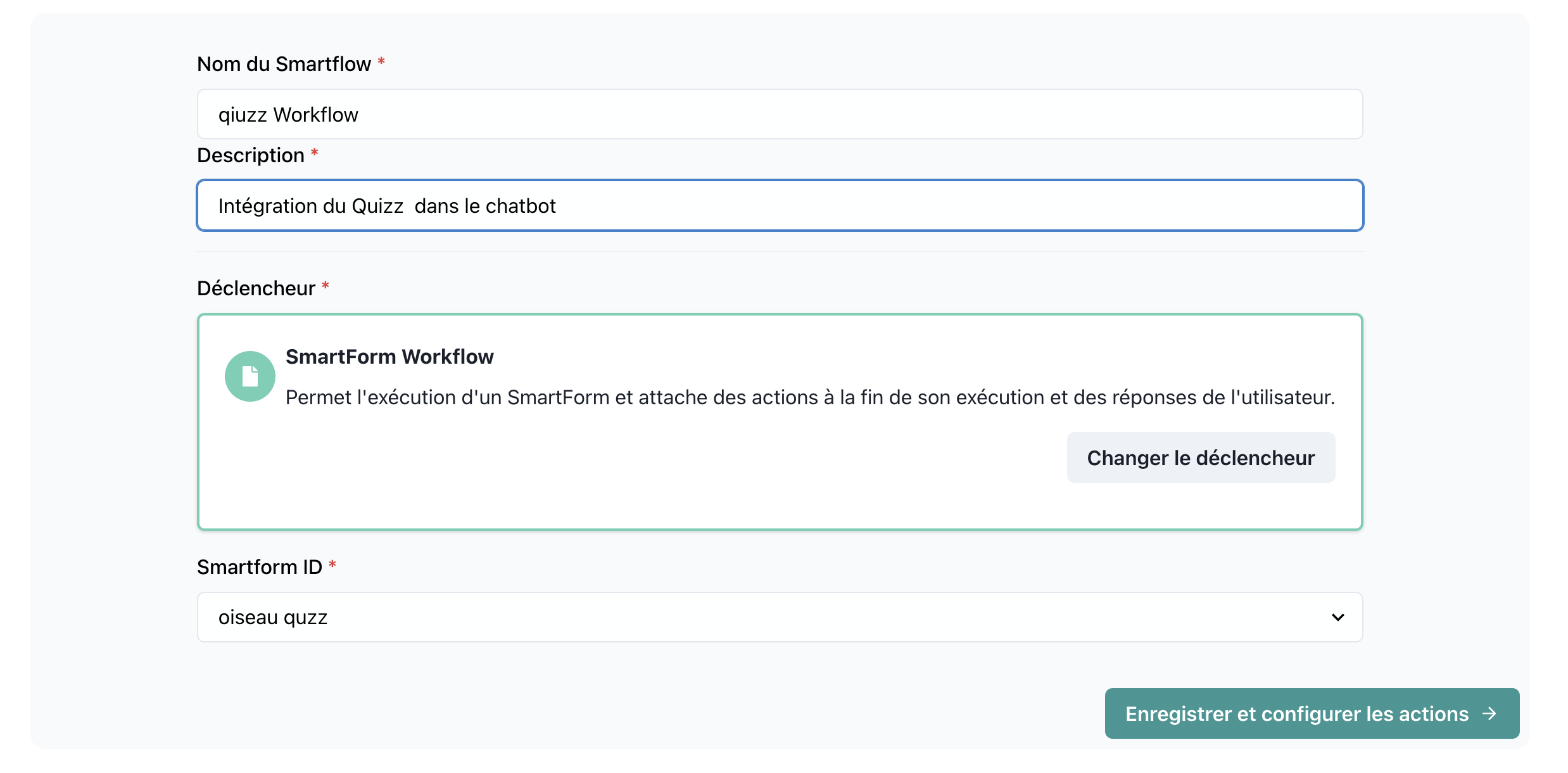
📝 Trigger Details
Name: SmartForm
Category: Triggers
🔧 Parameters
1. Form ID
- Type:
string - Description: The unique identifier of the SmartForm.
- Required: Yes
- Example:
form12345
2. Form Responses
- Type:
object - Description: Contains all questions and their respective answers, which can be used as variables in SmartFlow actions.
- Required: Yes
- Example:
{
  "name": "John Doe",
  "email": "john.doe@example.com",
  "age": 30,
  "feedback": "Great service!"
}
3. Observation
- Type:
string - Description: Sets the observation for the AI after form completion. By default, this is the AI-calculated result or the form's answers. However, you can customize it manually.
- Required: Optional
- Default Value: The form's result or response.
🚀 How It Works
-
Form Completion:
- Users interact with the SmartForm and provide responses to the questions.
-
Result Handling:
- Once the form is submitted, SmartFlow receives:
- All form data: Each question and answer as variables.
- Result (if enabled): AI-calculated outcomes based on the user's inputs.
- The observation is set to either the calculated result or default form data.
- Once the form is submitted, SmartFlow receives:
-
Variables in Workflow:
- Every question and answer is available for use in SmartFlow actions.
- Example: Use
{name}or{feedback}in an email action.
💡 Use Cases
1. Personalized Onboarding
- Scenario: Use SmartForms to collect user details during onboarding.
- Workflow:
- Variables from the form (e.g., name, age) are used to personalize the next steps.
- Example: Assign users to a specific customer success manager based on their responses.
2. Survey Analysis
- Scenario: Gather feedback and analyze it dynamically.
- Workflow:
- Use AI-calculated results to gauge sentiment.
- Variables like
{rating}and{feedback}are used to take appropriate actions.
3. Dynamic Decision-Making
- Scenario: Allow SmartFlow to make decisions based on user responses.
- Workflow:
- Questions in the form (e.g.,
{role}) guide the workflow’s next steps.
- Questions in the form (e.g.,
🔍 Example Configuration
Form ID:
customerFeedbackForm01
Form Questions:
{
  "name": "string",
  "email": "string",
  "feedback": "string",
  "rating": "number"
}
Observation:
"Feedback analysis complete. Sentiment: Positive."
🛠️ Tips
-
Observation Control:
- Manually set the observation to influence the AI’s next action. For instance:
"Start a new workflow based on the form data."
- Manually set the observation to influence the AI’s next action. For instance:
-
Debugging:
- Test form submissions to ensure that all variables are correctly passed to SmartFlow.
-
Result Accuracy:
- If result calculation is enabled, ensure that AI logic in the form is correctly configured for accurate outcomes.