Joomla
Add an AI-powered chatbot to your Joomla website in just a few clicks. No technical knowledge required!
1. Prerequisites
Before you begin, make sure you have:
- Administrator access to your Joomla website (version 4.x or 5.x)
- A few minutes of your time
2. Downloading the Plugin
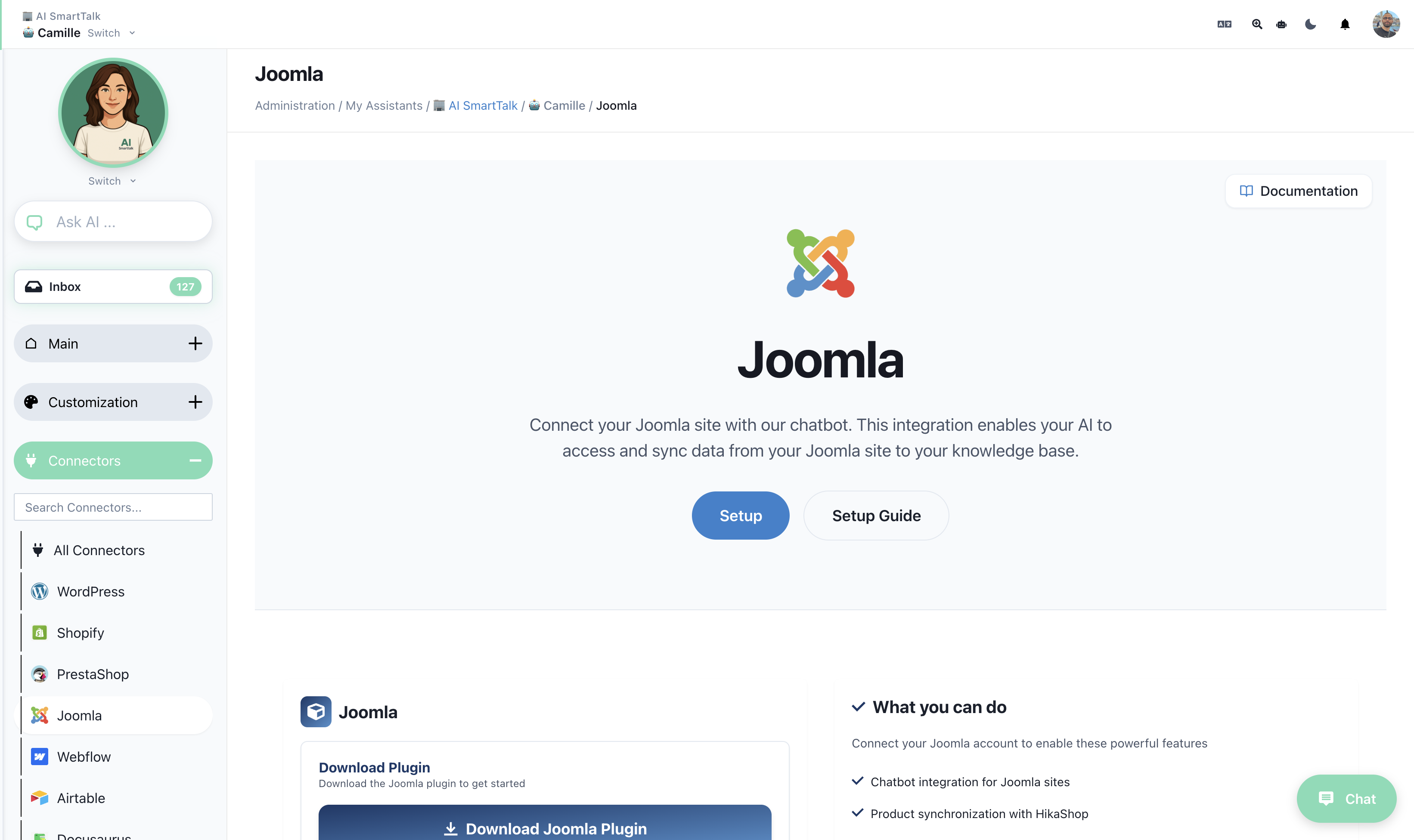
- Go to the AI SmartTalk platform at aismarttalk.tech
- Navigate to Integration in the main menu
- Find the Joomla section
- Click the Download button to save the plugin ZIP file to your computer
3. Installing on Joomla
- Log in to your Joomla administrator dashboard
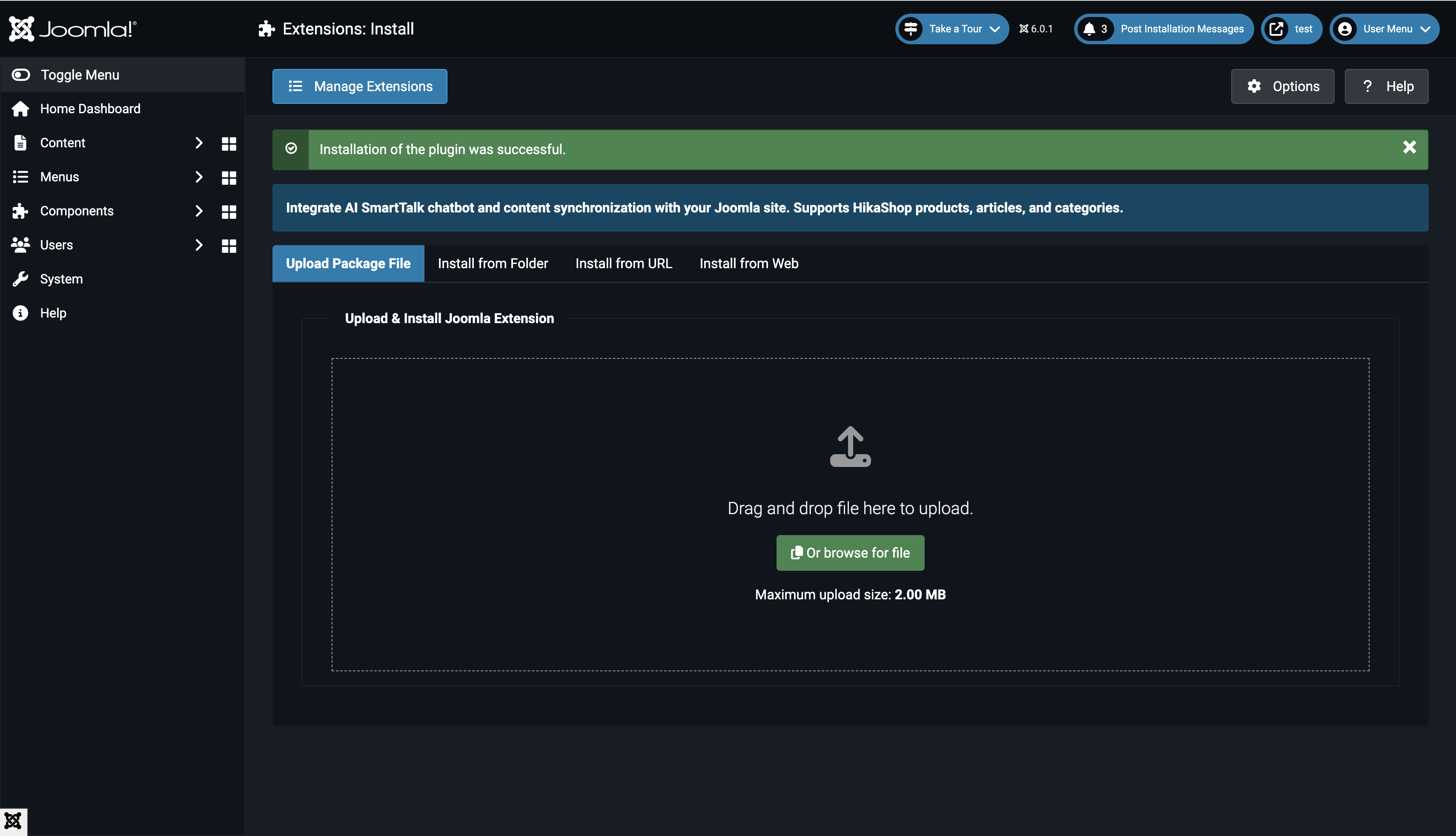
- Go to System > Install > Extensions
- Drag and drop the AI SmartTalk ZIP file, or click to browse and select it
- Wait for the installation confirmation message
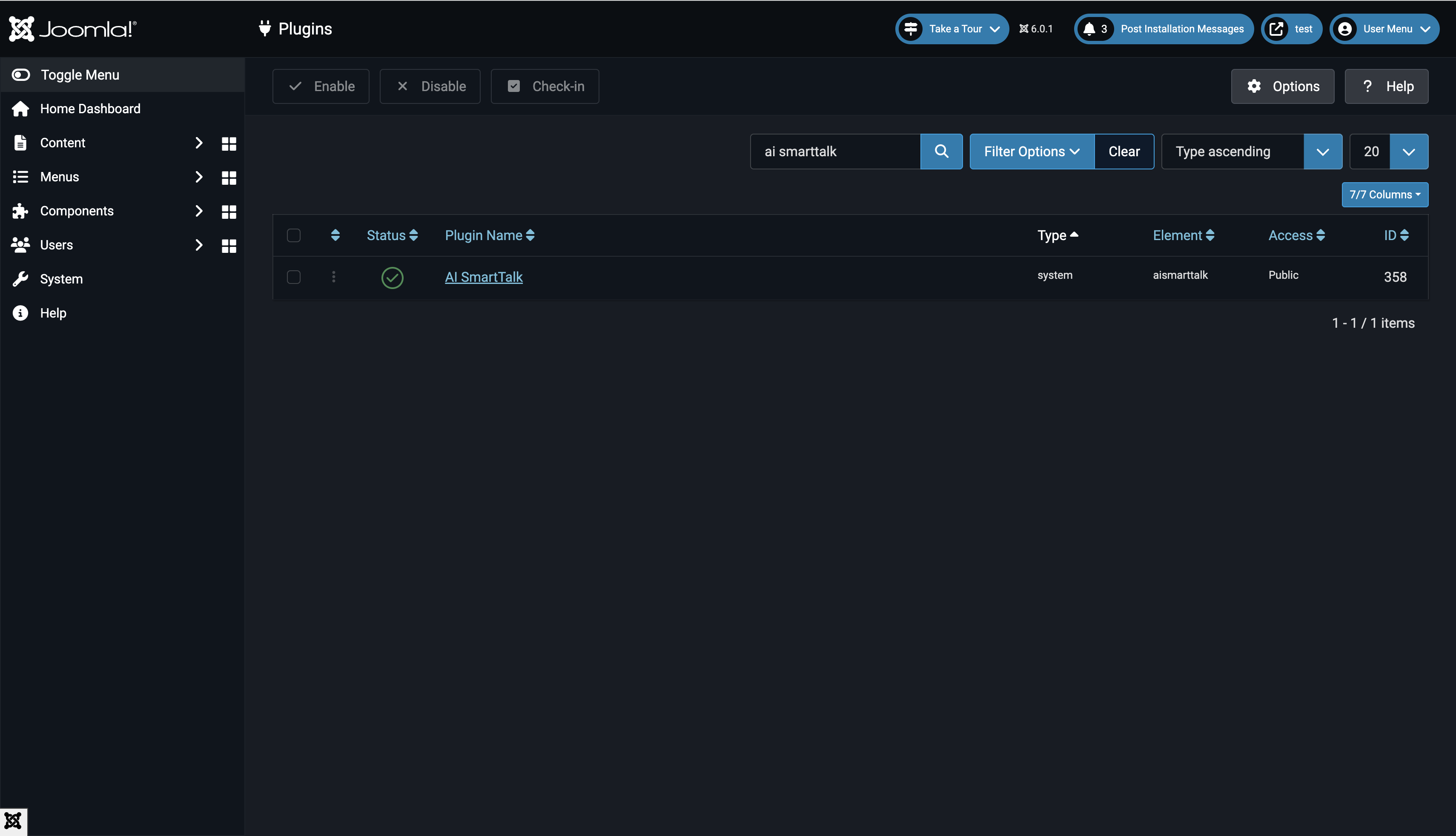
- Go to System > Manage > Plugins
- Search for AI SmartTalk
- Click on the plugin name and set Status to Enabled
4. Connecting to AI SmartTalk
This is where the magic happens! The plugin uses a secure connection to link your Joomla site to AI SmartTalk.
- In the plugin settings, click the Connect with AI SmartTalk button
If you already have an account
Simply log in with your email and password. You'll be redirected back to Joomla automatically.
If you're new to AI SmartTalk
Click Create an account or sign up here. Fill in your details and you'll be redirected back to Joomla automatically.
5. Selecting Your AI Assistant
Once connected, you need to choose which AI assistant will power your chatbot.
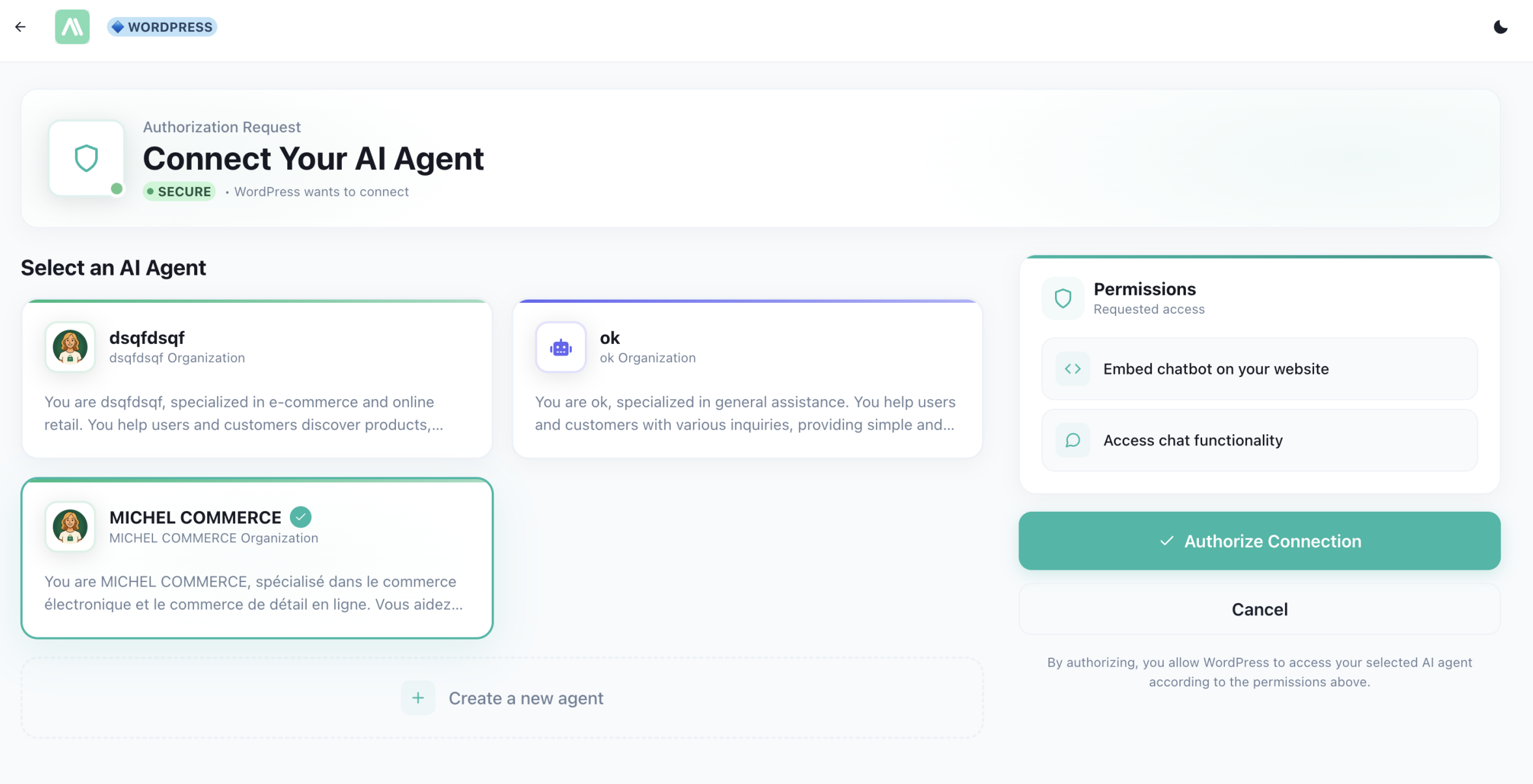
Use an existing assistant
If you already have assistants configured in AI SmartTalk:
- Select the assistant you want from the dropdown list
- Click Save & Close
Create a new assistant
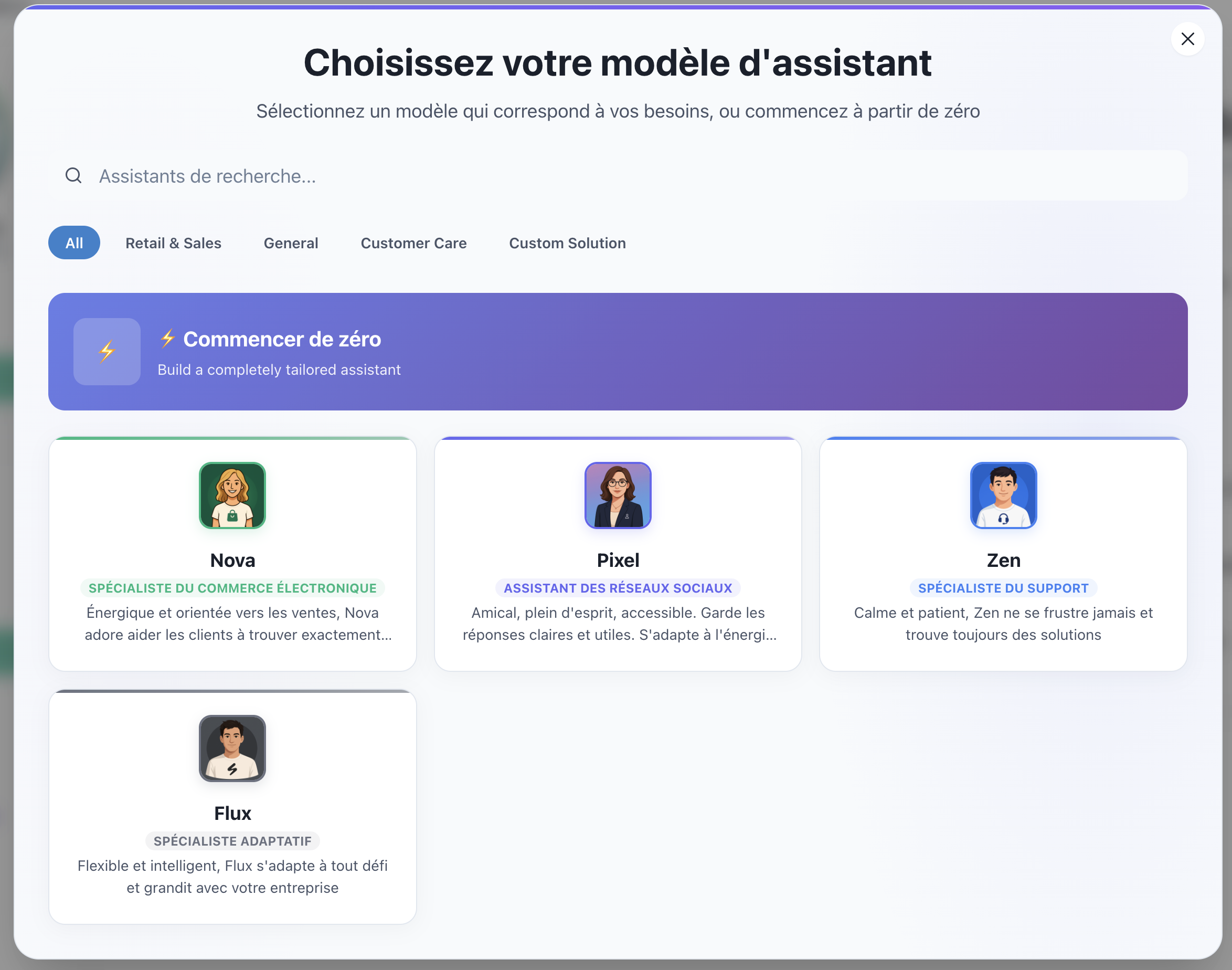
If you don't have an assistant yet or want to create a new one:
- Click the Create button
- A window will open with available templates
- Choose a template that fits your needs (e.g., "Customer Support", "E-commerce", "General Assistant")
- Your new assistant is created and automatically selected
- Click Save & Close
6. Choosing What to Sync
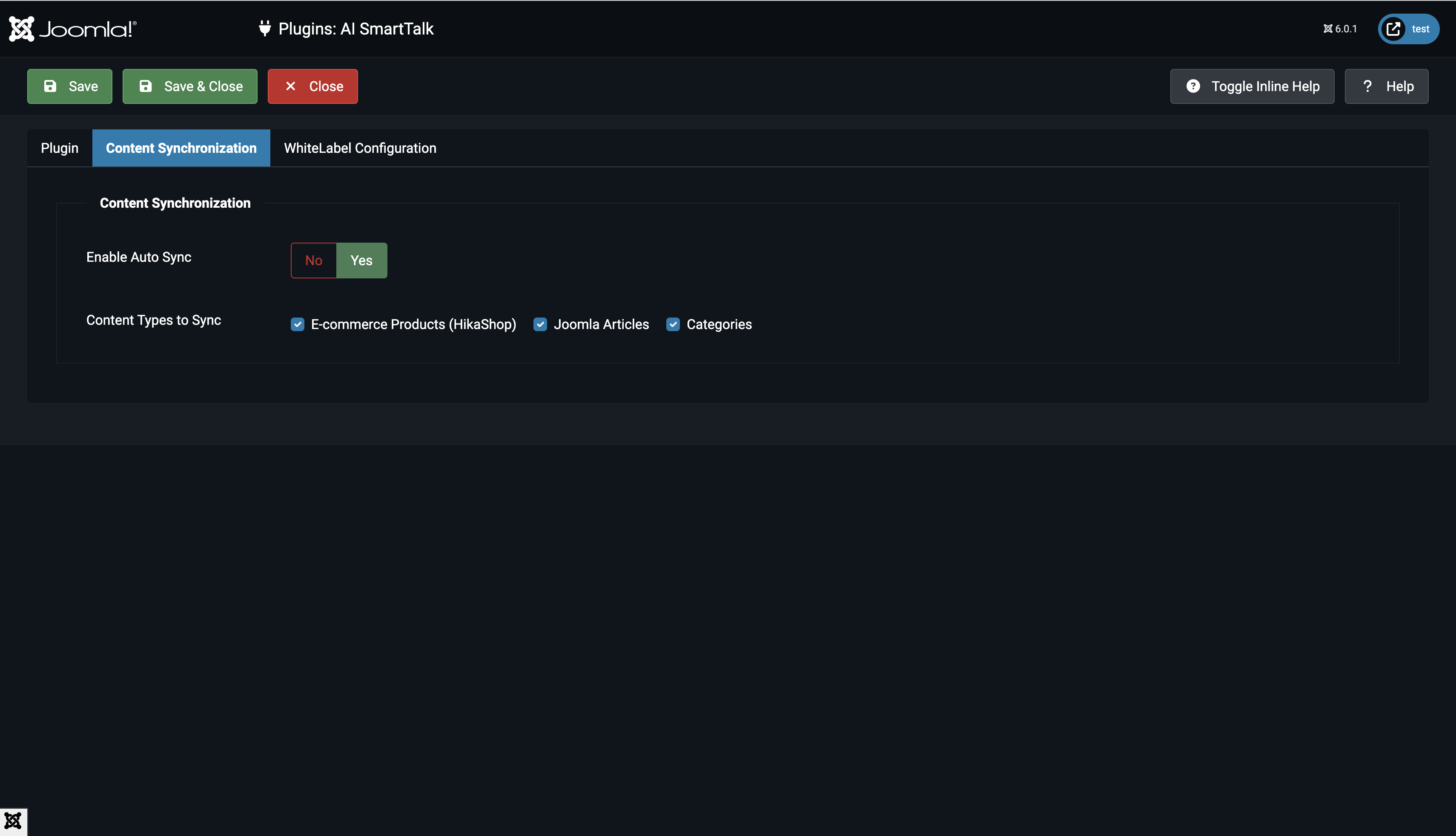
Select which content you want to sync to your chatbot:
- Articles: Sync your Joomla articles
- Categories: Sync your category descriptions
- Products: Sync HikaShop products (if installed)
Enable Auto Sync to automatically update your chatbot when content changes.
7. Data Synchronization
Your content will sync automatically when you save the plugin settings. To manually sync:
- Open the plugin settings
- Click Save & Close
- All published content will be synced
Your content will appear in the Knowledge section of your AI SmartTalk dashboard.
8. That's It!
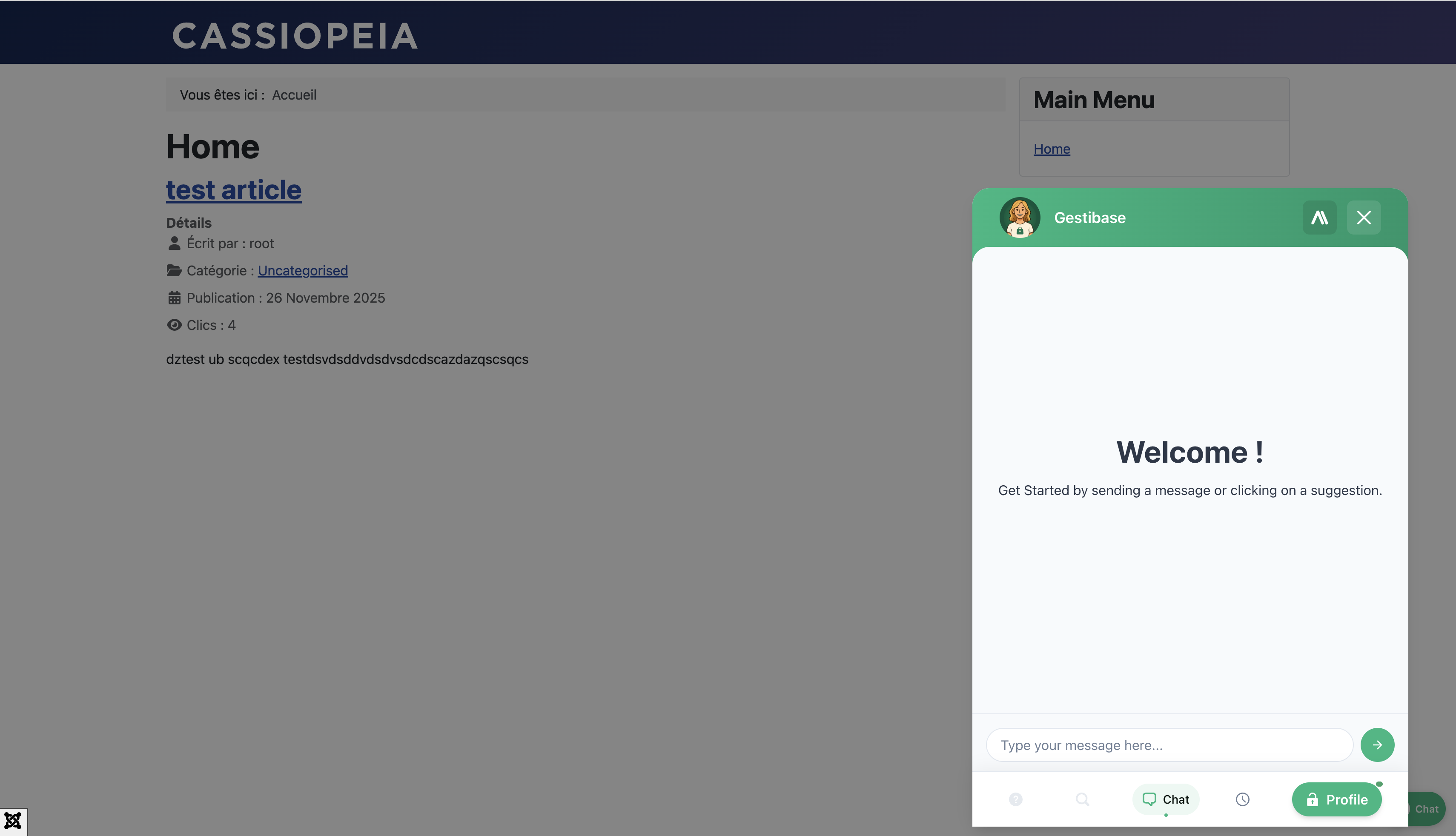
Your chatbot is now live! Visit your website to see it in action:
- Go to your Joomla site's homepage
- Look for the chat bubble in the bottom-right corner
- Click to open the chat window
- Try asking a question about your content
How Content Sync Works
What Gets Synced
Articles:
- Published articles only
- Public access articles
- Full content including intro text
Products (HikaShop):
- Published products with stock
- Descriptions, prices, and details
Categories:
- Published categories
- Category descriptions
Automatic Updates
When Auto Sync is enabled:
- New articles sync when published
- Product updates sync automatically
- Unpublished content is removed from the chatbot
Troubleshooting
The chatbot doesn't appear on my site
- Check that the plugin is Enabled in Extensions > Plugins
- Clear your Joomla cache: System > Clear Cache
- Clear your browser cache
Content is not syncing
- Ensure Auto Sync is enabled
- Check that content is published with public access
- For products, verify they have stock available
Connection issues
- Make sure your server allows outbound HTTPS connections
- Check that cURL is enabled in PHP
- Try disconnecting and reconnecting
Uninstalling the Plugin
If you need to remove the plugin:
- The plugin will automatically clean up synced data
- Go to System > Manage > Extensions
- Search for AI SmartTalk
- Select and click Uninstall
Conclusion
You've successfully:
- Installed the AI SmartTalk plugin on Joomla
- Connected it to your account with one click
- Selected or created an AI assistant
- Configured automatic content synchronization
Your visitors can now get instant answers about your content 24/7!
Need help? Contact us at contact+support@aismarttalk.tech