Connect and sign in
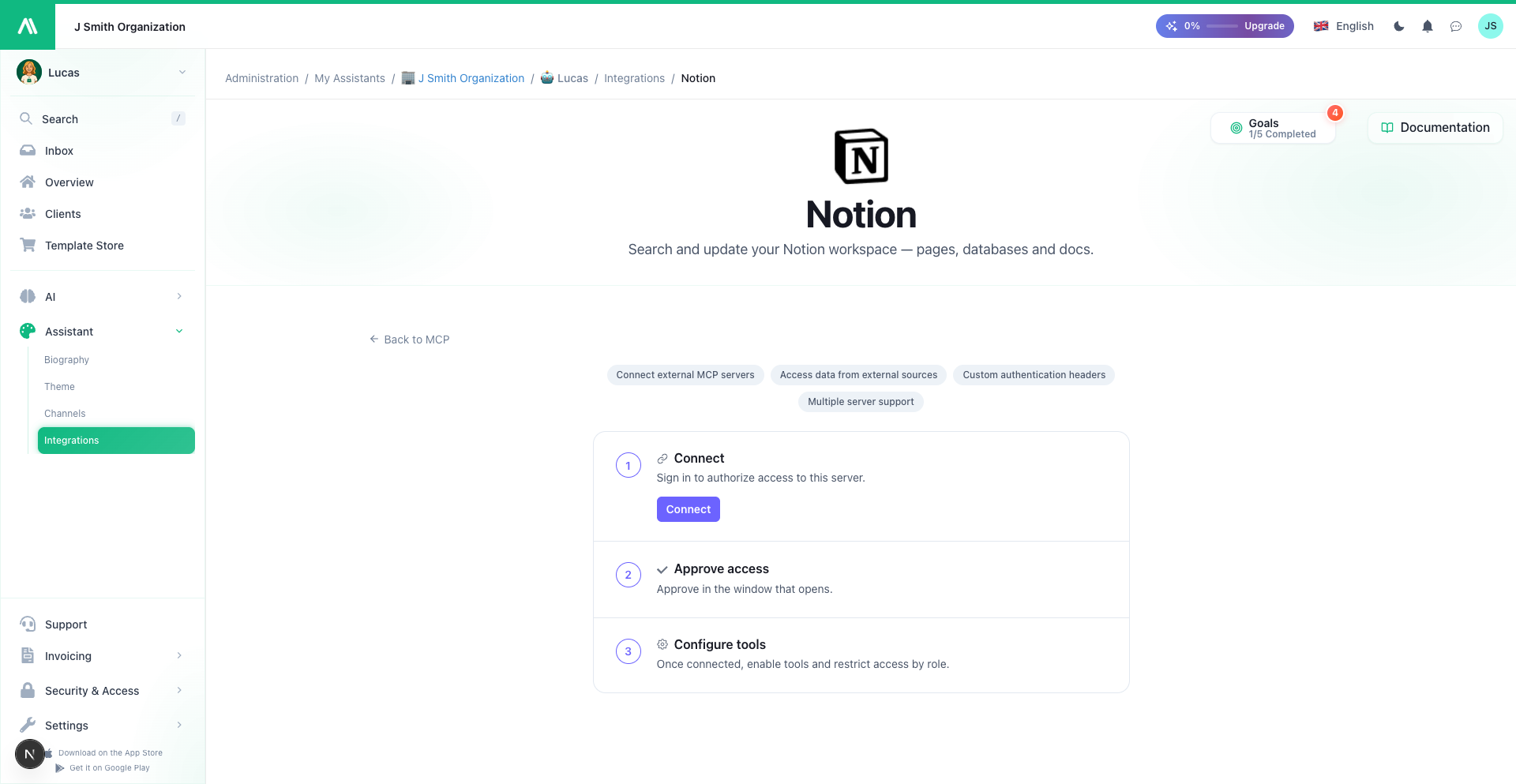
After you've added a service, open its page to connect it. Until you do, your assistant can see the service on your list but can't use it.
Each service connects in one of two ways. Its page shows you which one applies — you don't have to guess.
Way 1 — Connect with a secure sign-in
Most modern services connect this way. There are no keys to copy or store.
- On the service's page, click Connect.
- A window opens on the service's own website.
- Sign in to that service with your usual account, and approve access for AI SmartTalk.
- The window closes and the service shows as connected.
This is the safest option: your password stays with the service, AI SmartTalk never sees it, and the service only grants the access you approve.
Way 2 — Connect with an access key
Some services ask for an access key (sometimes called a key or token) instead of a sign-in.
- Get the key from the service — usually in its own settings, under something like "API keys" or "Developer".
- On the service's page in AI SmartTalk, paste the key where prompted.
- Save.
Your key is stored securely and hidden after you save it. Use a key that's dedicated to AI SmartTalk rather than a personal one, so you can revoke it on its own if you ever need to.
Connecting your own AI SmartTalk
One of the ready-made services is AI SmartTalk itself. Connecting it lets your assistant help manage your assistants — for example, search a knowledge base or check how an assistant is set up. It connects with a secure sign-in, just like above.
Checking it worked
Once connected, the service's page switches from the connect screen to its configuration screen, listing the tools it offers. If you see that list, you're connected — head to choosing tools and access.
If it won't connect
- The sign-in window didn't finish — close it and click Connect again.
- The key was rejected — double-check you copied the whole key, with no extra spaces, and that it's still valid in the service.
- No tools appear after connecting — the service may be temporarily unavailable, or the address may be wrong. Try again in a moment, or re-check the address you entered.
- Still stuck? Reach out to support — we're happy to help.
Disconnecting
You can disconnect a service at any time from its page — see Choose tools and control access. Disconnecting stops your assistant from using it, and you can reconnect later.