Gmail
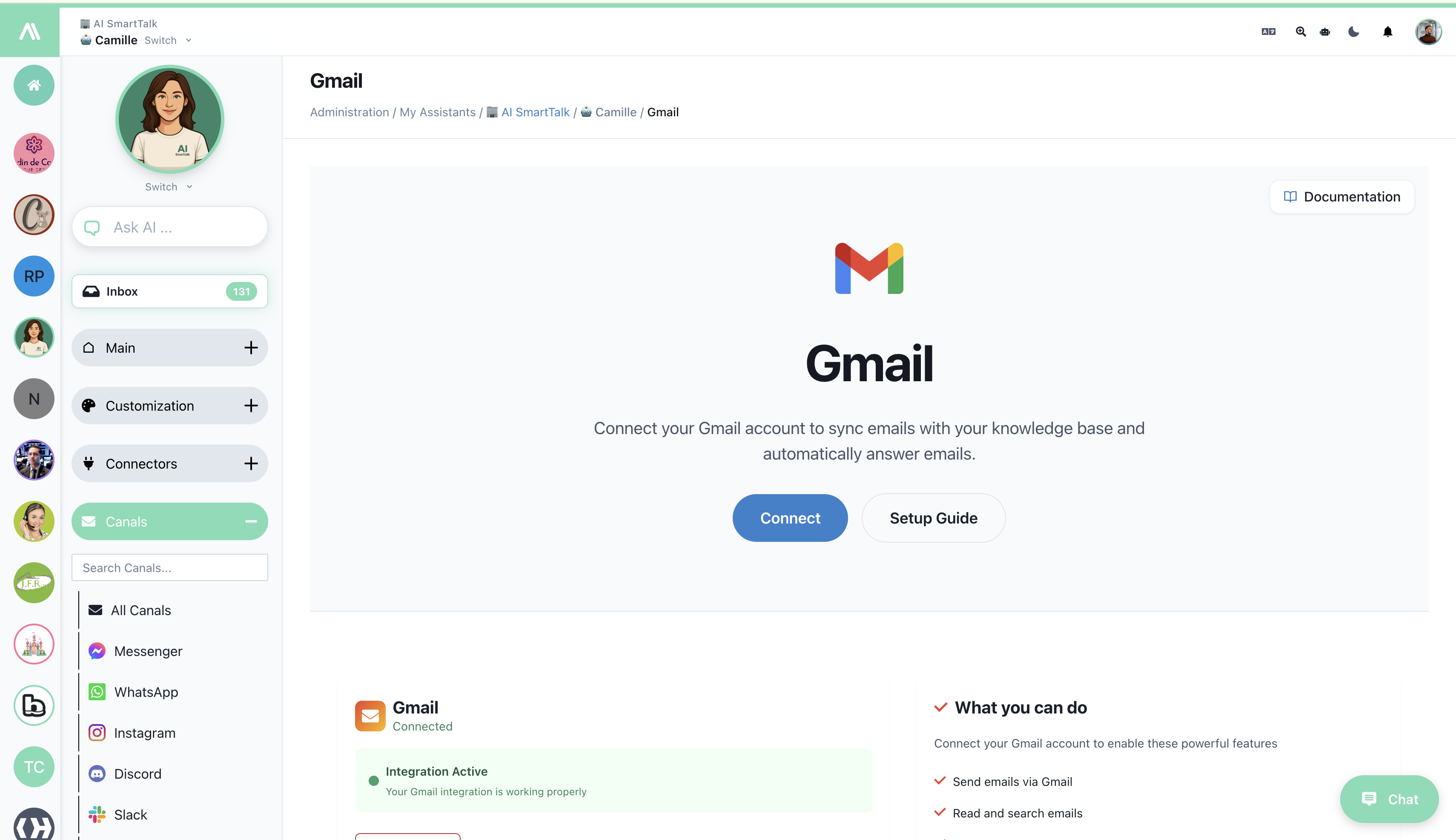
Connect your Gmail account to AI SmartTalk to handle email conversations with AI assistance. Incoming emails create conversation threads, and you can respond, create drafts, and automate email workflows with 11 powerful SmartFlow actions.
Overview
The Gmail channel enables you to:
- Receive emails as conversation threads in AI SmartTalk
- Auto-respond using your AI assistant
- Create drafts for human review before sending
- Automate email workflows with 11 SmartFlow actions
- Search and manage your entire Gmail inbox programmatically
Key Features
| Feature | Description |
|---|---|
| 📥 AI Email Processing | Automatically analyze and respond to incoming emails |
| 📝 Draft Mode | AI creates drafts for human review |
| 📤 Direct Send | Auto-reply to simple queries |
| 🔍 Email Search | Search Gmail with powerful query syntax |
| 📂 Thread Management | Handle complete email conversations |
| ✅ Read Status | Mark emails as read automatically |
| 🔄 SmartFlow Integration | 11 actions + Gmail AI Draft trigger |
Prerequisites
Before you begin, ensure you have:
- An active AI SmartTalk account
- A Gmail or Google Workspace account
- Permission to grant email access via OAuth
Step-by-Step Setup
Step 1: Access Gmail Channel
- Log into your AI SmartTalk account
- Navigate to Channels → Canals
- Find Gmail and click Connect
Step 2: Authorize with Google
- Google OAuth window opens
- Select your Google account
- Review the permissions requested:
- Read email messages
- Send email on your behalf
- Manage drafts
- Search and organize emails
- Click Allow
Security Note: AI SmartTalk uses secure OAuth 2.0. We never see or store your Google password.
Step 3: Verify Connection
Once connected, you'll see:
- ✅ Integration Active - Your Gmail integration is working properly
- Connected status with your email address
Step 4: Configure Email Settings
After authorization, configure how emails are handled:
| Setting | Description |
|---|---|
| Auto-reply | AI responds automatically to incoming emails |
| Create draft only | AI creates drafts for human review |
| Labels/Folders | Which emails to process (Inbox, specific labels) |
| Response delay | Wait time before AI responds (optional) |
What You Can Do
Connect your Gmail account to enable these powerful features:
- ✅ Send emails via Gmail - Send emails directly from SmartFlow
- ✅ Read and search emails - Access your inbox programmatically
- ✅ Use in SmartFlow workflows - 11 dedicated Gmail actions
- ✅ AI-powered email responses - Generate intelligent replies
How Gmail Channel Works
Email → Conversation
Incoming Email                    AI SmartTalk Chat
┌─────────────────┐              ┌─────────────────┐
│ From: customer  │    ────▶     │ ✉️ customer@...  │
│ Subject: Help   │              │ "I need help..." │
│ Body: I need... │              │                  │
└─────────────────┘              │ 🤖 AI Response   │
                                 └─────────────────┘
Thread Continuity
- Email replies stay in the same conversation thread
- AI has full context of the email chain
- Thread history visible in Chat view
SmartFlow Integration
Gmail AI Draft Trigger
The Gmail AI Draft trigger activates when a new email arrives, allowing you to build custom AI-powered email workflows.
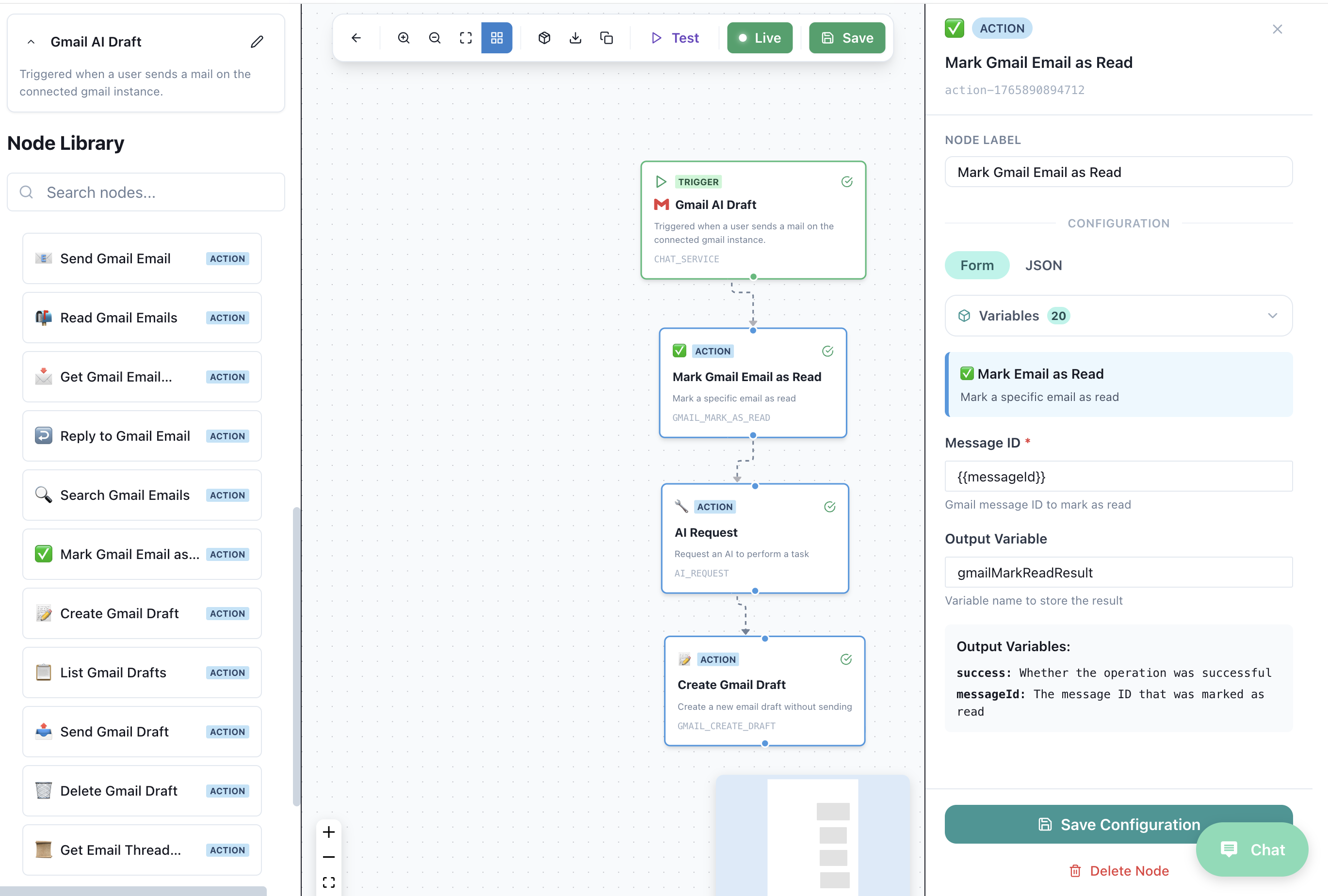
Trigger: Gmail AI Draft
  Event: User sends an email to connected Gmail instance

Actions:
  1. AI Request (Analyze and generate response)
  2. Create Gmail Draft (For human review)
Available Gmail Actions
AI SmartTalk provides 11 Gmail actions in SmartFlow:
| Action | Description | Use Case |
|---|---|---|
| 📤 Send Gmail Email | Send email directly | Auto-reply to queries |
| 📬 Read Gmail Emails | Fetch inbox emails | Process new messages |
| 📧 Get Gmail Email | Get specific email | Retrieve full content |
| ↩️ Reply to Gmail Email | Reply to thread | Continue conversations |
| 🔍 Search Gmail Emails | Search with queries | Find specific emails |
| ✅ Mark Gmail Email as Read | Update read status | Organize inbox |
| 📝 Create Gmail Draft | Create draft for review | Human oversight |
| 📋 List Gmail Drafts | List all drafts | Draft management |
| 📨 Send Gmail Draft | Send existing draft | Approve & send |
| 🗑️ Delete Gmail Draft | Remove draft | Cleanup |
| 📂 Get Email Thread | Get full conversation | Full context |
👉 See full documentation: Gmail SmartFlow Actions
Example: AI Email Assistant Workflow
Trigger: Gmail AI Draft
  Channel: Gmail

Actions:
  1. Get Email Thread:
       Thread ID: {{email.threadId}}

  2. AI Request:
       System: "You are a professional email assistant"
       Input: {{thread.messages}}
       Output: response, sentiment, urgency

  3. If Condition: urgency == "high"
       └── Yes: Send Gmail Email (immediate)
       └── No: Create Gmail Draft (for review)

  4. Slack Notification:
       Channel: #emails
       Message: "Email from {{email.from}} processed"
Example: Support Email Workflow
Trigger: Gmail AI Draft
Condition: Subject contains "support" OR "help"

Actions:
  1. AI Request:
       System: "Analyze this support email and draft a helpful response"
       Input: {{email.body}}
       Output: response, category, priority

  2. Create Gmail Draft:
       To: {{email.from}}
       Subject: Re: {{email.subject}}
       Body: {{ai_response}}

  3. Create JIRA Issue:
       Summary: "Support: {{email.subject}}"
       Priority: {{priority}}

  4. Mark Gmail Email as Read:
       Email ID: {{email.id}}
Use Cases
Customer Support
Handle inbound support emails:
- AI analyzes the issue
- Drafts appropriate response
- Creates support ticket automatically
- Team reviews and sends
Sales Inquiries
Respond to sales questions:
- AI answers product questions from knowledge base
- Creates personalized draft with pricing info
- Sales team reviews before sending
FAQ Handling
Auto-respond to common questions:
- AI recognizes frequent questions
- Sends immediate response
- Frees team for complex issues
Email Triage
Automatically categorize and route emails:
- AI classifies email type (support, sales, spam)
- Routes to appropriate team
- Archives irrelevant emails
Out-of-Office
Smart away responses:
- AI handles routine emails
- Escalates urgent matters to backup
- Provides relevant information even when away
Email Processing Modes
Auto-Reply Mode
AI responds directly to emails:
| Pros | Cons |
|---|---|
| Instant responses | Less human oversight |
| 24/7 availability | Risk of inappropriate replies |
| Reduced workload | Customers may prefer human contact |
Best for: High-volume, routine inquiries
Draft Mode
AI creates drafts for review:
| Pros | Cons |
|---|---|
| Human quality control | Slower response time |
| Learning opportunity | Requires manual sending |
| Safer for sensitive topics | More work for team |
Best for: Complex topics, new implementations, sensitive communications
Hybrid Mode
Use SmartFlow to decide per-email:
If: Email is simple FAQ → Auto-reply (Send Gmail Email)
If: Email is sales inquiry → Create draft (Create Gmail Draft)
If: Email is complaint → Route to human immediately
Troubleshooting
Connection Issues
| Issue | Solution |
|---|---|
| "Authorization failed" | Re-authorize through Google OAuth |
| "Access revoked" | Check Google Account → Security → Connected apps |
| "Token expired" | Click Reconnect in AI SmartTalk |
Email Not Appearing
| Issue | Solution |
|---|---|
| No conversations in Chat | Check email is in configured labels/folders |
| Delayed appearance | May take 1-2 minutes for sync |
| Only some emails | Verify filter settings aren't excluding them |
Response Issues
| Issue | Solution |
|---|---|
| AI not responding | Check Auto-reply is enabled |
| Wrong tone | Adjust AI personality settings |
| Missing information | Update knowledge base |
| Draft not created | Check SmartFlow configuration |
Managing Gmail Channel
| Action | How |
|---|---|
| Pause channel | Toggle Enabled → Off |
| Change settings | Edit configuration in channel settings |
| Switch accounts | Disconnect, then connect with different account |
| Disconnect | Channels → Gmail → Disconnect |
Privacy & Security
What We Access
| Access | Purpose |
|---|---|
| Read emails | Process incoming messages |
| Send emails | Respond on your behalf |
| Manage drafts | Create response drafts |
| Search emails | Find relevant messages |
What We DON'T Do
- ❌ Store email content permanently
- ❌ Access emails outside configured filters
- ❌ Share email content with third parties
- ❌ Access other Google services (Calendar, Drive, etc.)
Revoking Access
To disconnect AI SmartTalk from Gmail:
- In AI SmartTalk: Channels → Gmail → Disconnect
- In Google: Account → Security → Third-party apps → Remove AI SmartTalk
Best Practices
- Start with Draft Mode: Review AI responses before enabling auto-reply
- Configure filters: Only process relevant emails (not newsletters, etc.)
- Set expectations: Let customers know they may receive AI-assisted responses
- Monitor quality: Regularly review AI responses for accuracy
- Use thread context: Always fetch the full thread before responding
- Train your AI: Update knowledge base with common email topics
- Implement fallbacks: Use If Conditions for error handling
Comparison with Other Channels
| Feature | Gmail | Messenger | |
|---|---|---|---|
| Async communication | ✅ Expected | Possible | Possible |
| Formal tone | ✅ Typical | ❌ Casual | ❌ Casual |
| Long-form content | ✅ Supported | ❌ Best short | ❌ Best short |
| Attachments | ✅ Full support | Limited | Limited |
| Threading | ✅ Native | ❌ Flat | ❌ Flat |
| SmartFlow Actions | 11 actions | 3 actions | 3 actions |
Related Documentation
- Gmail SmartFlow Actions - All 11 Gmail actions
- Channels Overview
- SmartFlow Introduction
- AI Request Action
- AI Configuration