Google Calendar
Savienojiet savu Google Calendar ar AI SmartTalk, lai jūsu asistents varētu atbildēt uz jautājumiem par jūsu grafiku reālajā laikā — mises, dievkalpojumi, nodarbības, darba laiki, tikšanās — lasot notikumus tieši no jūsu kalendāra.
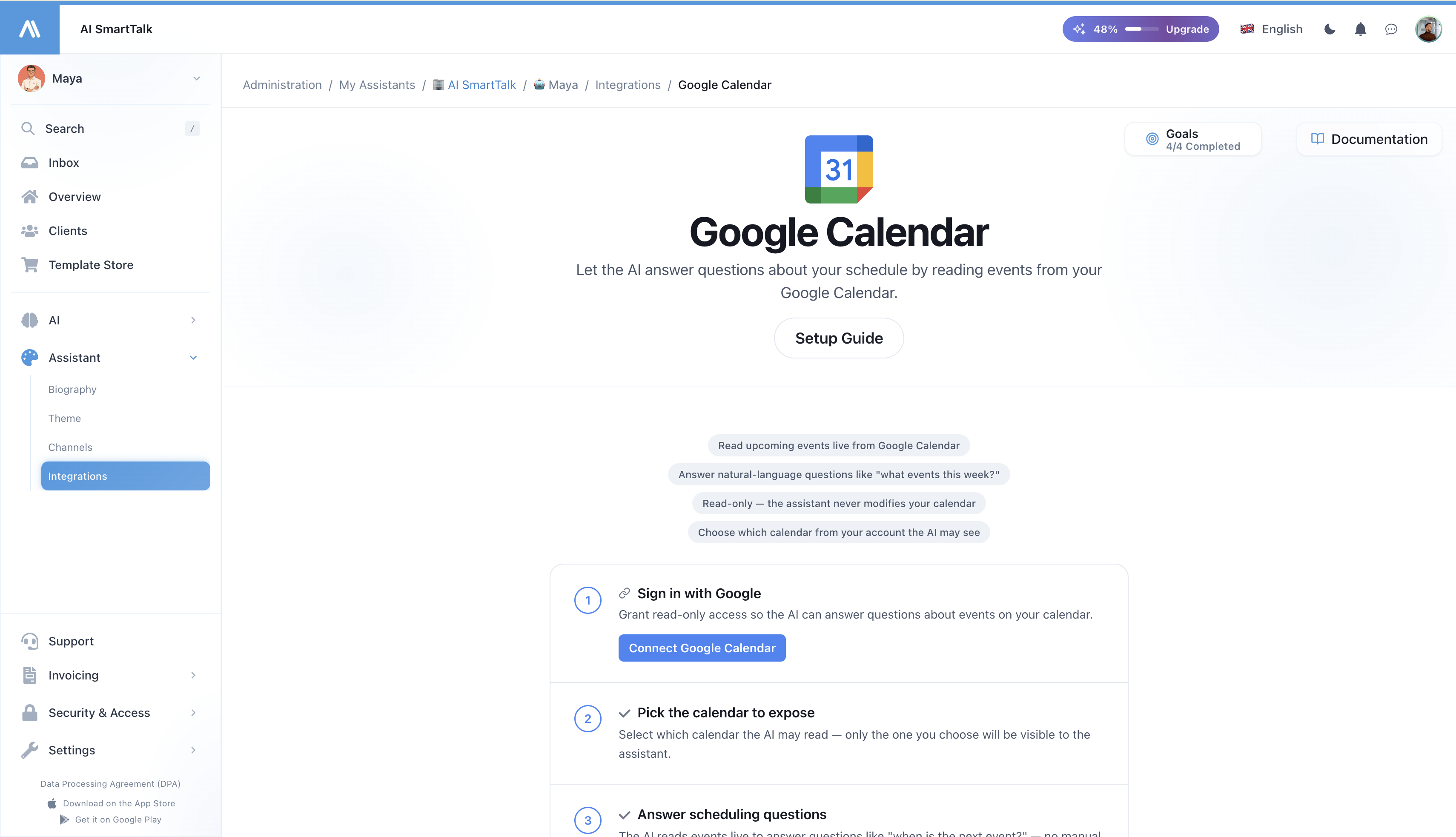
Pārskats
Google Calendar integrācija ļauj jūsu AI asistentam:
- Atbildēt uz grafika jautājumiem dabiskā valodā — "Kad ir nākamais dievkalpojums?", "Vai jūs esat atvērti svētdien no rīta?", "Kādi notikumi šonedēļ?"
- Lasīt notikumus tiešsaistē — nav manuālas sinhronizācijas, nav novecojušu atbilžu. Kad jūs atjaunināt savu kalendāru, asistents redz izmaiņas nekavējoties.
- Darboties jūsu laika zonā — notikumi ir formatēti kalendāra laika zonā, tāpēc nedēļas dienas un laiki paliek pareizi.
- Palikt tikai lasāmiem — asistents nekad nemodificē, neveido vai nenodzēš notikumus jūsu kalendārā.
Kam tas ir paredzēts?
Šī integrācija ir piemērota jebkurai organizācijai, kur klienti regulāri uzdod jautājumus "kad?":
- Draudzes un pielūgsmes vietas — dievkalpojumu laiki, grēksūdzes, draudzes pasākumi
- Medicīnas prakses un klīnikas — konsultāciju laiki, dežūras grafiki
- Sporta klubi un sporta zāles — nodarbību grafiki, laukumu pieejamības logi
- Skolas, asociācijas, NVO — pasākumu kalendāri, darba laiki
- Jebkura uzņēmuma ar mainīgiem darba laikiem, kas jau publicē kalendāru
Ja jūs šodien publicējat Google Calendar savā vietnē, jūsu AI asistents var atbildēt uz to rīt.
Kā tas darbojas
Kad lietotājs jautā asistentam par jūsu grafiku:
- Asistents atpazīst, ka tas ir grafika jautājums
- Tas lasa jūsu kalendāru tiešsaistē — tieši no Google, bez kopēšanas
- Tas izvēlas attiecīgos notikumus laika periodam, par kuru lietotājs jautāja
- Tas atbild dabiski, lietotāja valodā
Nav nakts sinhronizācijas un nav jūsu notikumu kopijas mūsu datubāzē. Dati dzīvo Google un tiek lasīti tikai tad, kad tas ir nepieciešams jautājumam — kas arī nozīmē, ka brīdī, kad jūs atsaucat piekļuvi Google, asistents pārstāj redzēt jebko.
Prasības
- Aktīva AI SmartTalk konts
- Google konts, kas pieder vai ir piekļuve kalendāram, ko vēlaties atklāt
- Kalendārs, ko atklāt, jau izveidots Google Calendar (tas var būt publisks vai privāts — asistents izmanto savienotā konta OAuth atļaujas)
Soli pa solim iestatīšana
Solis 1: Atveriet Google Calendar integrāciju
- Piesakieties savā AI SmartTalk kontā
- Dodieties uz Administrācija → Mani asistenti → [Jūsu asistents]
- Noklikšķiniet uz Savienotāji sānu joslā
- Atrodiet Google Calendar un noklikšķiniet uz tā
Solis 2: Autorizējiet ar Google
- Noklikšķiniet uz Savienot Google Calendar
- Piesakieties ar Google kontu, kam ir piekļuve kalendāram, ko vēlaties atklāt
- Pārskatiet pieprasītās atļaujas:
- Redzēt jūsu kalendārus (tikai lasīšanai)
- Redzēt jūsu primāro e-pastu (tikai displeja nolūkiem)
- Noklikšķiniet uz Atļaut
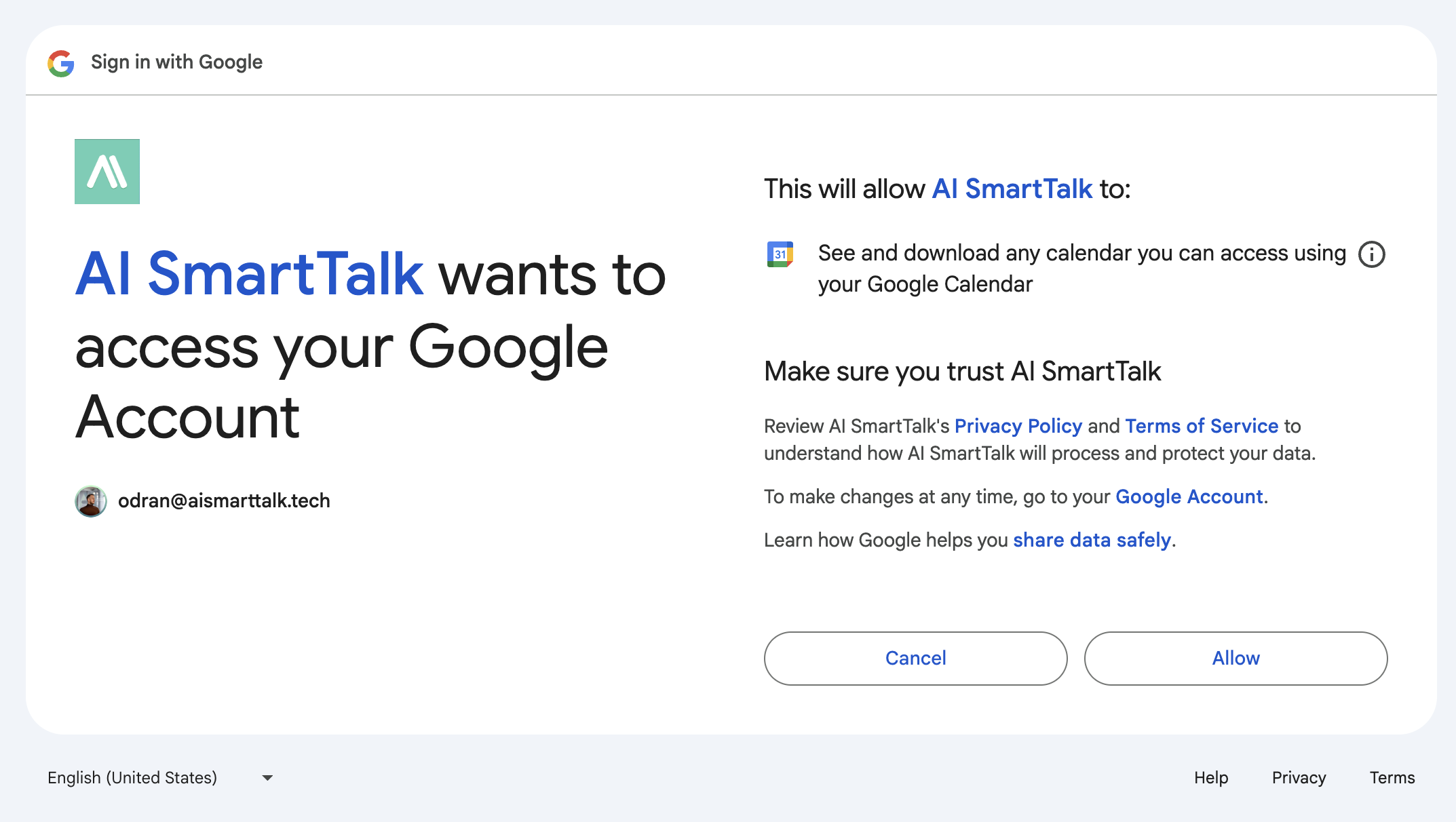
AI SmartTalk pieprasa calendar.readonly — asistents var uzskaitīt un lasīt notikumus, bet nevar izveidot, modificēt vai dzēst neko jūsu kalendārā.
Solis 3: Izvēlieties kalendāru, ko asistents var lasīt
Pēc autorizācijas jūs redzēsiet visus kalendārus, kas ir pieejami savienotajam Google kontam. Izvēlieties to, ko vēlaties, lai asistents lasa.

Tikai izvēlētais kalendārs tiek atklāts. Citi kalendāri kontā paliek privāti asistentam. Jūs varat mainīt izvēli jebkurā laikā.
Solis 4: Pārbaudiet, vai parādās nākamie notikumi
Kad kalendārs ir izvēlēts, integrācijas lapa rāda nākamos 5 gaidāmos notikumus kā pārbaudi. Ja jūs tos redzat šeit, asistents tos redz arī.
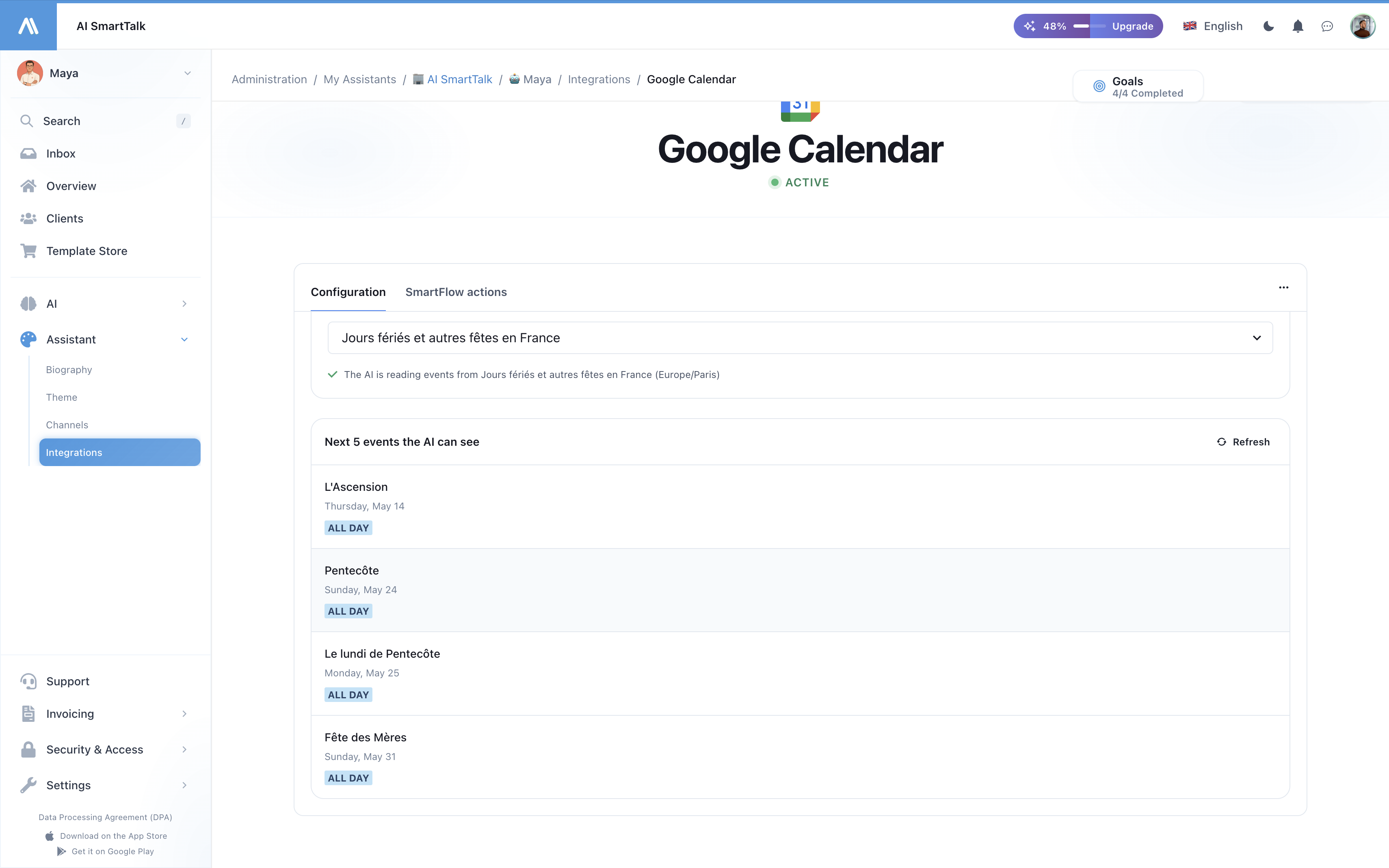
Tas ir viss — asistents tagad spēj atbildēt uz grafika jautājumiem tiešsaistē.
Uz ko asistents var atbildēt
Kad ir savienots, jūsu asistents apstrādā jautājumus, piemēram:
| Jautājums | Ko asistents dara |
|---|---|
| "Cikos ir mise svētdien?" | Iegūst šonedēļ notikumus, filtrējot pēc "mise", atgriežot atbilstošo laiku un vietu |
| "Kas ir kalendārā šajā nedēļas nogalē?" | Uzskaita visus notikumus starp svētdienu un svētdienu |
| "Kad ir grēksūdzes?" | Filtrē gaidāmos notikumus pēc "grēksūdze" atslēgvārda |
| "Cikos jūs atverat trešdien?" | Meklē "atvēršanas" vai attiecīgus notikumus trešdien |
| "Vai drīz būs kristību sagatavošana?" | Meklē nākamo 30 dienu laikā atbilstošus notikumus |
Asistents automātiski izvēlas pareizo laika logu, pamatojoties uz jautājumu — šodien, rīt, šonedēļ, nākamnedēļ, šajā nedēļas nogalē, nākamo 30 dienu laikā vai līdz 90 dienām plašākiem jautājumiem.
Daudzvalodu atbalsts
Asistents atbild lietotāja valodā neatkarīgi no tā, kā notikumu nosaukumi ir uzrakstīti kalendārā. Kalendāra notikums ar nosaukumu "Messe à Crèvecoeur-le-Grand" var tikt atspoguļots angliski runājošam kā "Mass at Crèvecoeur-le-Grand on Wednesday at 6:30pm."
Privātums un drošība
Ko mēs piekļūstam
| Piekļuve | Mērķis |
|---|---|
| Uzskaitīt jūsu kalendārus | Ļaut jums izvēlēties, kuru atklāt |
| Lasīt notikumus izvēlētajā kalendārā | Atbildēt uz grafika jautājumiem tiešsaistē |
| Redzēt jūsu primāro e-pastu | Displejēt "Savienots kā ..." administrācijā |
Ko mēs nekad nedarām
- Modificēt, izveidot vai dzēst jebkuru notikumu
- Lasīt notikumus no kalendāriem, kurus jūs neizvēlējāt
- Piekļūt Gmail, Drive, Kontaktiem vai jebkurai citai Google pakalpojumu
- Glabāt notikumu saturu mūsu datubāzē (notikumi tiek iegūti tiešsaistē, nekad netiek kopēti)
- Dalīties ar kalendāra datiem ar trešajām pusēm
Piekļuves atsaukšana
Jūs varat atslēgt jebkurā laikā, no jebkuras puses:
- AI SmartTalk: Savienotāji → Google Calendar → Atslēgt
- Google: Kontu atļaujas → Noņemt AI SmartTalk
Kad esat atslēdzis, kalendāra rīks nekavējoties pazūd no asistenta, un jebkurš nākamais jautājums par notikumiem tiks atbildēts bez kalendāra datiem.
Problēmu novēršana
| Problēma | Risinājums |
|---|---|
| "Savienojums ir beidzies" integrācijas lapā | Jūsu OAuth tokens ir beidzies un nevarēja tikt atjaunots. Noklikšķiniet uz Atjaunot Google Calendar. |
| Asistents saka, ka tam nav kalendāra informācijas | Pārliecinieties, ka jūs izvēlējāt kalendāru 3. solī un ka kalendārā ir notikumi nākamo 30 dienu laikā. |
| Asistents sniedz nepareizus laikus | Pārbaudiet kalendāra laika zonu Google Calendar iestatījumos, lai pārliecinātos, ka tā atbilst jūsu vietējai laika zonai. |
| Jauns notikums pievienots, bet asistents to neredz | Uzgaidiet dažas sekundes un jautājiet vēlreiz — nav kešatmiņas, bet Google var aizņemt 10–30 sekundes, lai izplatītu jaunus notikumus API. |
| Asistents atgriež nepareizu valodu notikumu nosaukumiem | Notikumu nosaukumi tiek atgriezti tā, kā tie ir uzrakstīti. Izmantojiet valodu, kurā vēlaties atbildes uz saviem notikumu nosaukumiem, vai paļaujieties uz asistentu, lai tos tulkotu. |
Integrācijas pārvaldība
| Darbība | Kā |
|---|---|
| Savienot | Savienotāji → Google Calendar → Savienot → OAuth |
| Mainīt kalendāru | Atveriet integrācijas lapu → izvēlieties citu kalendāru no nolaižamā saraksta |
| Atjaunot priekšskatījumu | Atveriet integrācijas lapu → noklikšķiniet uz Atjaunot notikumu panelī |
| Atjaunot savienojumu | Ja tokens ir beidzies, noklikšķiniet uz Atjaunot Google Calendar |
| Atslēgt | Savienotāji → Google Calendar → Atslēgt |
Labākās prakses
- Izmantojiet īpašu kalendāru — izveidojiet "Publisko pasākumu" kalendāru Google, nevis atklājiet savu personīgo. Jūs varat to kopīgot ar vairākiem komandas locekļiem, un visi redzēs tos pašus pasākumus.
- Izmantojiet skaidrus, meklējamus pasākumu nosaukumus — "Svētdienas mise — 10:30" ir vieglāk asistents var atrast nekā "S.M.". Asistents var meklēt pēc atslēgvārdiem.
- Pareizi iestatiet kalendāra laika joslu — asistents izmanto kalendāra laika joslu, lai formatētu laikus. Pārbaudiet to Google Calendar → Iestatījumi → Iestatījumi maniem kalendāriem → Jūsu kalendārs → Laika josla.
- Testējiet ar reāliem jautājumiem — kad esat savienots, atveriet čatu un jautājiet "kad ir nākamais pasākums?", lai apstiprinātu, ka asistents atbild no jūsu kalendāra.
- Uzturiet OAuth kontu aktīvu — ja maināt Google paroli vai atsaucat piekļuvi, jums būs jāatjauno savienojums.
Saistītā dokumentācija
- Google Meet integrācija — automātiski ģenerējiet Meet saites SmartCalendar tikšanās
- Google Drive integrācija — sinhronizējiet dokumentus zināšanu bāzē
- Integrāciju pārskats