Google Calendar
Pripojte svoj Google Calendar k AI SmartTalk, aby váš asistent mohol odpovedať na otázky o vašom rozvrhu v reálnom čase — omše, služby, triedy, otváracie hodiny, schôdzky — čítaním udalostí priamo z vášho kalendára.
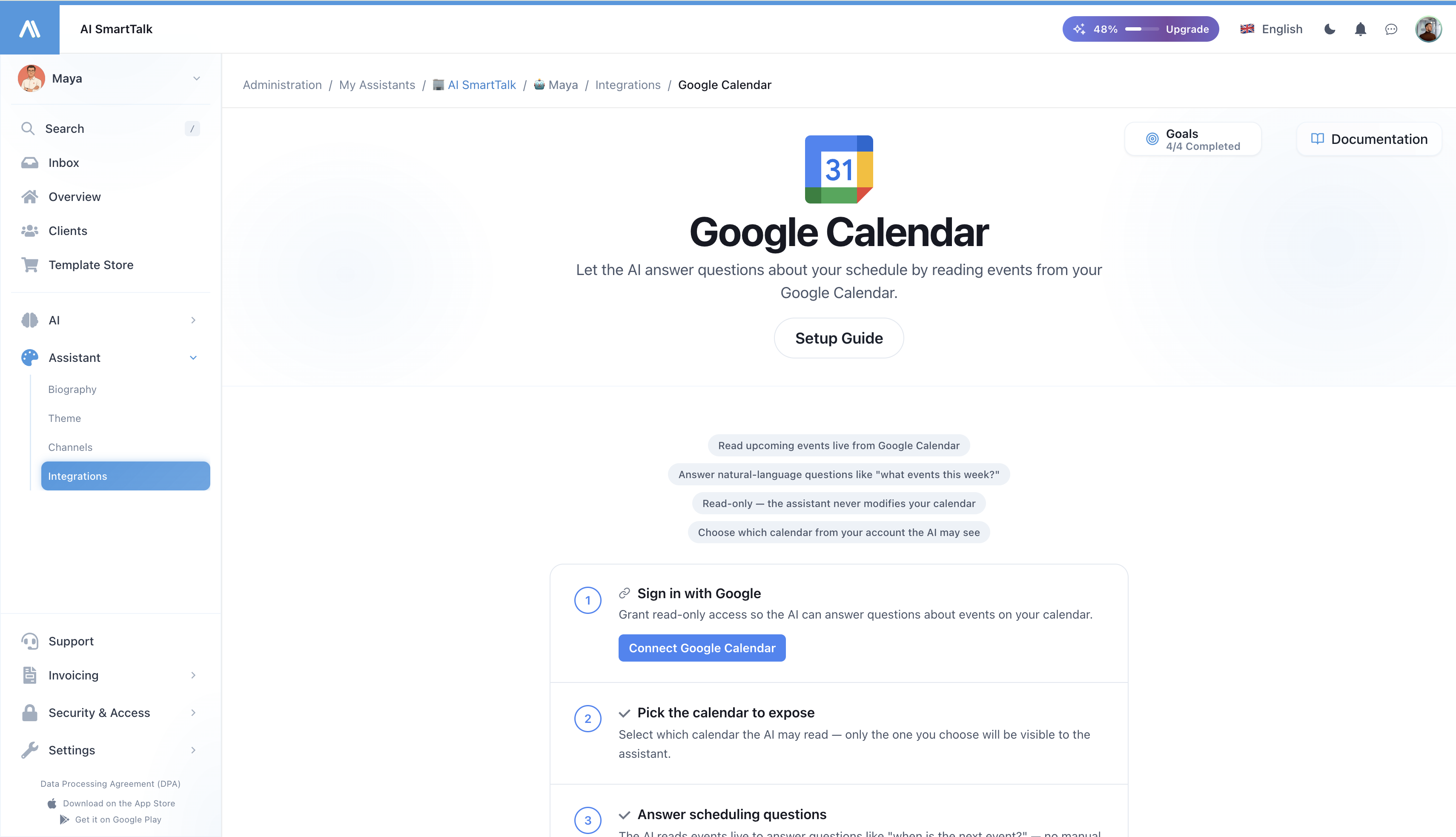
Prehľad
Integrácia Google Calendar umožňuje vášmu AI asistentovi:
- Odpovedať na otázky o plánovaní v prirodzenom jazyku — "Kedy je ďalšia služba?", "Ste otvorení v nedeľu ráno?", "Aké udalosti sú tento týždeň?"
- Čítať udalosti naživo — žiadne manuálne synchronizovanie, žiadne zastarané odpovede. Keď aktualizujete svoj kalendár, asistent okamžite vidí zmenu.
- Pracovať vo vašej časovej zóne — udalosti sú formátované v časovej zóne kalendára, takže dni v týždni a časy zostávajú správne.
- Zostať iba na čítanie — asistent nikdy nemodifikuje, nevytvára ani neodstraňuje udalosti vo vašom kalendári.
Pre koho je to určené?
Táto integrácia vyhovuje každej organizácii, kde zákazníci pravidelne kladú otázky "kedy?":
- Farnosti a miesta uctievania — časy služieb, spovede, farnícke udalosti
- Lekárske praxie a kliniky — konzultačné hodiny, pohotovostné rozvrhy
- Športové kluby a telocvične — rozvrhy tried, dostupnosť ihrísk
- Školy, združenia, NGO — kalendáre udalostí, otváracie hodiny
- Akýkoľvek podnik s variabilnými hodinami, ktorý už zverejňuje kalendár
Ak dnes zverejňujete Google Calendar na svojej webovej stránke, váš AI asistent môže zajtra odpovedať na otázky o ňom.
Ako to funguje
Keď používateľ položí asistentovi otázku o vašom rozvrhu:
- Asistent rozpozná, že ide o otázku o plánovaní
- Číta váš kalendár naživo — priamo z Google, žiadna kópia
- Vyberá relevantné udalosti pre časové obdobie, o ktoré sa používateľ pýtal
- Odpovedá prirodzene, v jazyku používateľa
Nie je žiadna nočná synchronizácia a žiadna kópia vašich udalostí v našej databáze. Dáta žijú v Google a sú čítané len vtedy, keď je otázka potrebná — čo tiež znamená, že v momente, keď zrušíte prístup v Google, asistent prestane vidieť čokoľvek.
Predpoklady
- Aktívny účet AI SmartTalk
- Google účet, ktorý vlastní alebo má prístup k kalendáru, ktorý chcete zverejniť
- Kalendár, ktorý chcete zverejniť, už vytvorený v Google Calendar (môže byť verejný alebo súkromný — asistent používa OAuth oprávnenia pripojeného účtu)
Krok za krokom nastavenie
Krok 1: Otvorte integráciu Google Calendar
- Prihláste sa do svojho účtu AI SmartTalk
- Prejdite na Administrácia → Moji asistenti → [Váš asistent]
- Kliknite na Konektory v bočnom paneli
- Nájdite Google Calendar a kliknite naň
Krok 2: Autorizujte sa s Google
- Kliknite na Pripojiť Google Calendar
- Prihláste sa pomocou Google účtu, ktorý má prístup k kalendáru, ktorý chcete zverejniť
- Skontrolujte požadované oprávnenia:
- Zobraziť vaše kalendáre (iba na čítanie)
- Zobraziť vašu primárnu e-mailovú adresu (iba na zobrazovacie účely)
- Kliknite na Povoliť
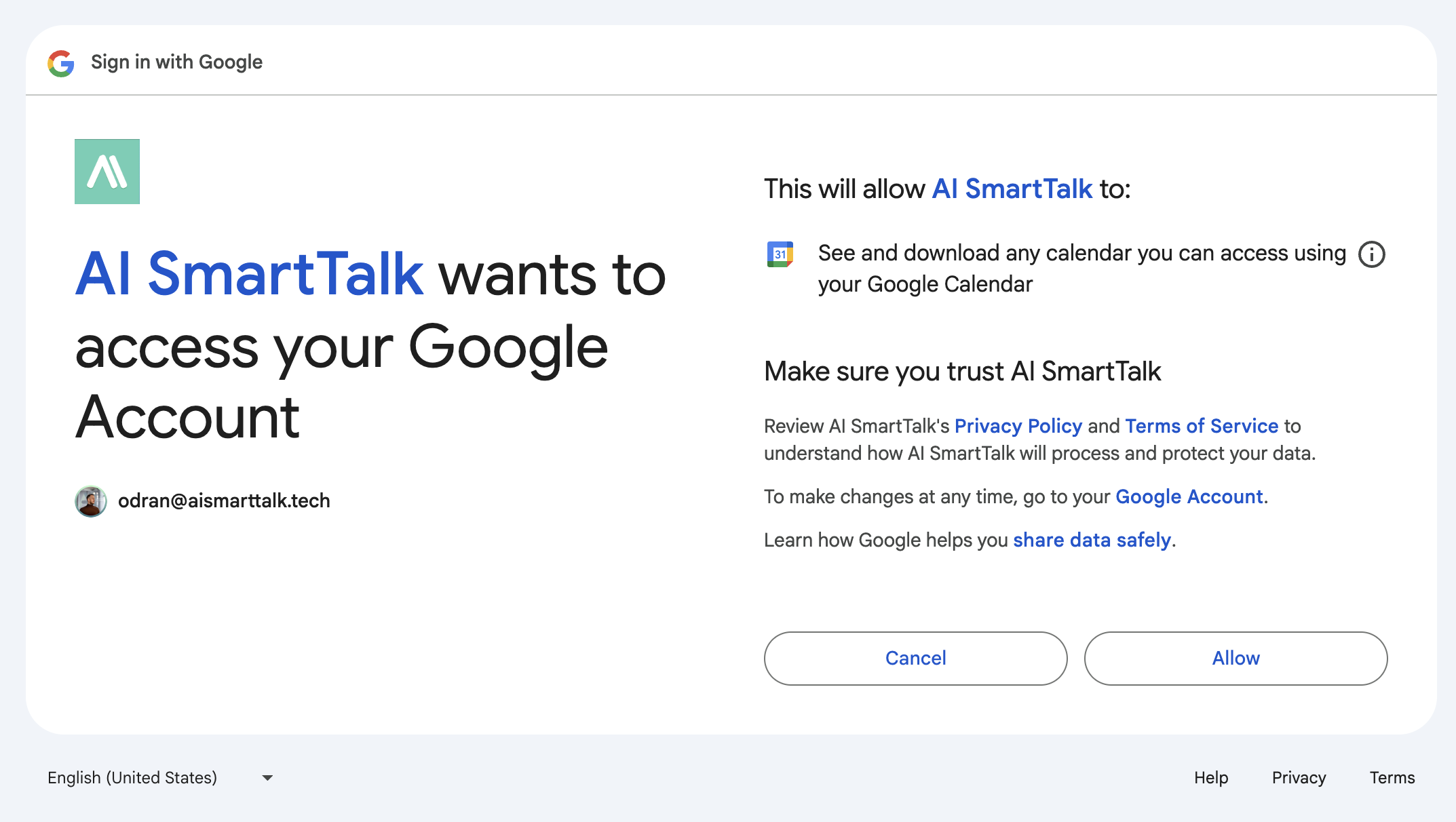
AI SmartTalk požaduje calendar.readonly — asistent môže zoznamovať a čítať udalosti, ale nemôže vytvárať, modifikovať ani mazať nič vo vašom kalendári.
Krok 3: Vyberte kalendár, ktorý môže asistent čítať
Po autorizácii uvidíte všetky kalendáre prístupné pripojenému Google účtu. Vyberte ten, ktorý chcete, aby asistent čítal.
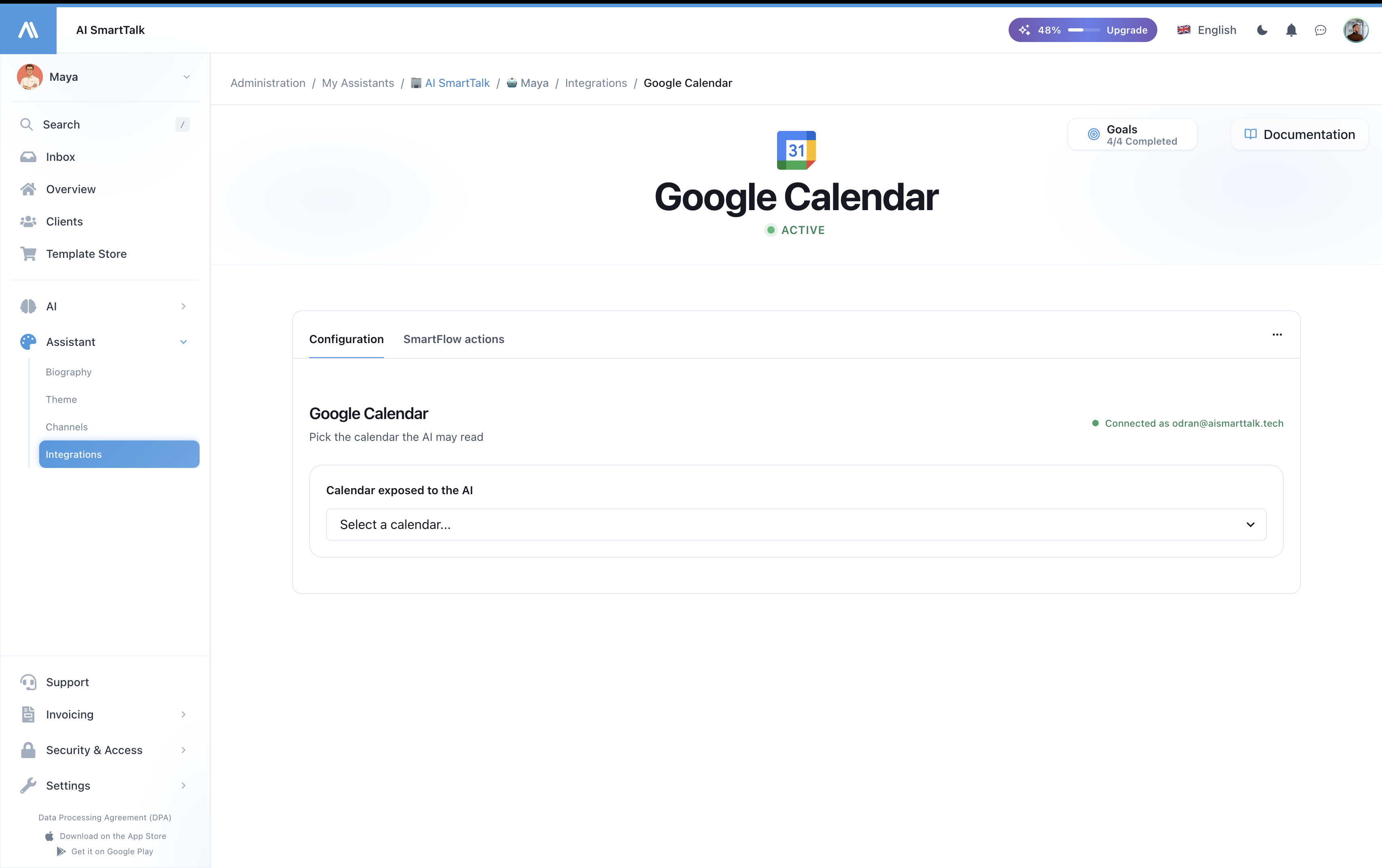
Iba kalendár, ktorý vyberiete, je zverejnený. Ostatné kalendáre na účte zostávajú súkromné pre asistenta. Výber môžete zmeniť kedykoľvek.
Krok 4: Overte, že sa zobrazujú nasledujúce udalosti
Akonáhle je kalendár vybraný, stránka integrácie zobrazuje nasledujúcich 5 nadchádzajúcich udalostí ako kontrolu. Ak ich tu vidíte, asistent ich vidí tiež.
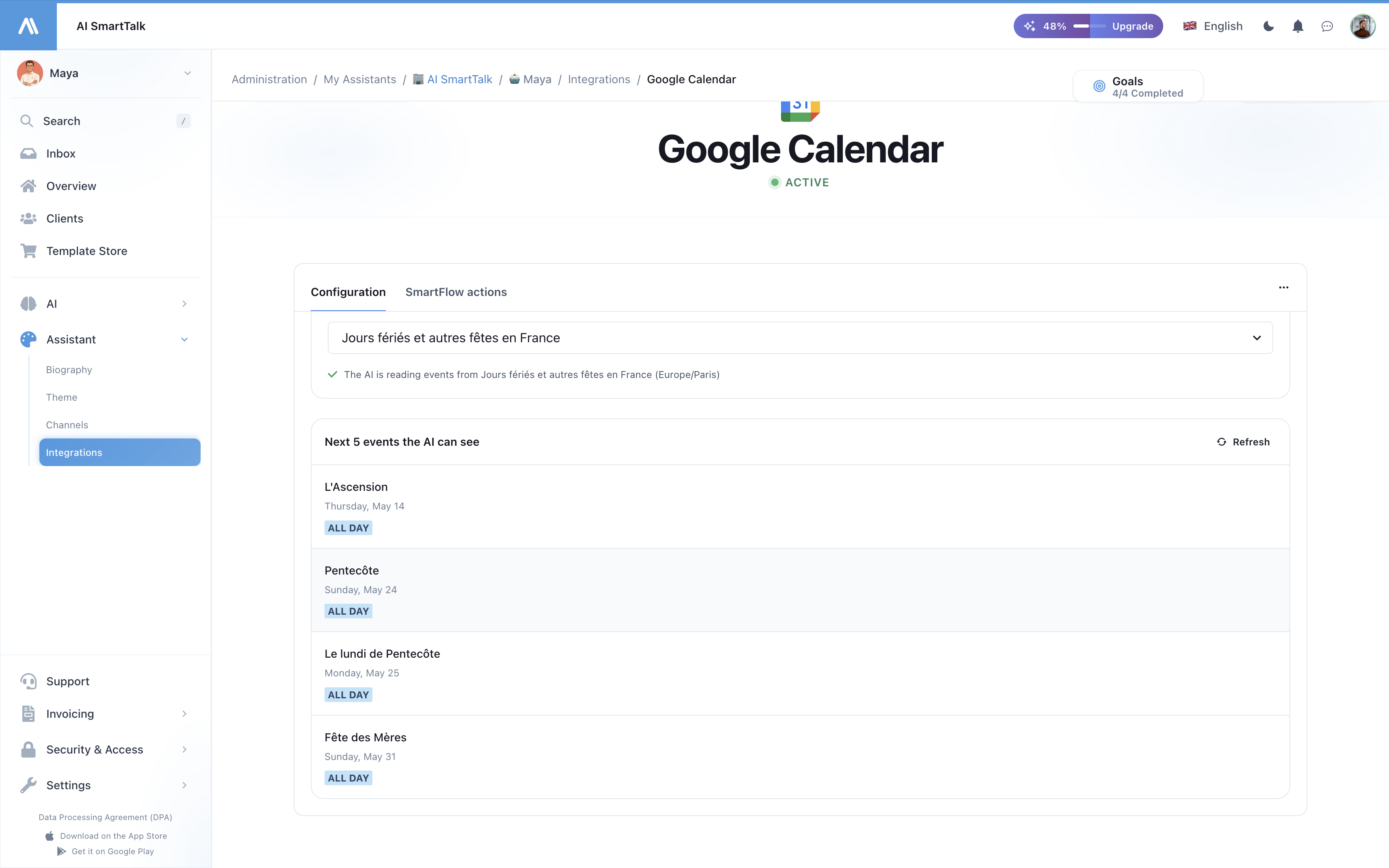
To je všetko — asistent je teraz schopný odpovedať na otázky o plánovaní naživo.
Na čo môže asistent odpovedať
Akonáhle je pripojený, váš asistent spracováva otázky ako:
| Otázka | Čo asistent robí |
|---|---|
| "O koľkej je omša v nedeľu?" | Získa udalosti tento týždeň filtrované podľa "omša", vráti zodpovedajúci čas a miesto |
| "Čo je v kalendári tento víkend?" | Vypíše všetky udalosti medzi sobotou a nedeľou |
| "Kedy sú spovede?" | Filtrovať nadchádzajúce udalosti podľa kľúčového slova "spoveď" |
| "O koľkej sa otvárate v stredu?" | Hľadá "otvorenie" alebo relevantné udalosti v stredu |
| "Je čoskoro príprava na krst?" | Hľadá v nasledujúcich 30 dňoch zodpovedajúce udalosti |
Asistent automaticky vyberá správne časové okno na základe otázky — dnes, zajtra, tento týždeň, budúci týždeň, tento víkend, nasledujúcich 30 dní alebo až 90 dní pre širšie dotazy.
Podpora viacerých jazykov
Asistent odpovedá v jazyku používateľa bez ohľadu na to, ako sú názvy udalostí napísané v kalendári. Kalendárová udalosť s názvom "Messe à Crèvecoeur-le-Grand" môže byť zobrazená anglicky hovoriacemu ako "Omša v Crèvecoeur-le-Grand v stredu o 18:30."
Ochrana súkromia a bezpečnosť
Čo máme prístupné
| Prístup | Účel |
|---|---|
| Zoznam vašich kalendárov | Umožňuje vám vybrať, ktorý zverejniť |
| Čítať udalosti vo vybranom kalendári | Odpovedať na otázky o plánovaní naživo |
| Zobraziť vašu primárnu e-mailovú adresu | Zobraziť "Pripojené ako ..." v administrácii |
Čo nikdy nerobíme
- Modifikovať, vytvárať alebo mazať akúkoľvek udalosť
- Čítať udalosti z kalendárov, ktoré ste nevybrali
- Pristupovať k Gmailu, Drive, Kontakty alebo akúkoľvek inú službu Google
- Ukladať obsah udalostí v našej databáze (udalosti sú získavané naživo, nikdy nie sú kopírované)
- Zdieľať údaje kalendára s tretími stranami
Zrušenie prístupu
Môžete sa odpojiť kedykoľvek, z ktorejkoľvek strany:
- V AI SmartTalk: Konektory → Google Calendar → Odpojiť
- V Google: Oprávnenia účtu → Odstrániť AI SmartTalk
Akonáhle ste odpojení, nástroj kalendára okamžite zmizne z asistenta a akákoľvek budúca otázka o udalostiach bude zodpovedaná bez údajov kalendára.
Riešenie problémov
| Problém | Riešenie |
|---|---|
| "Pripojenie vypršalo" na stránke integrácie | Váš OAuth token vypršal a nemohol byť obnovený. Kliknite na Znova pripojiť Google Calendar. |
| Asistent hovorí, že nemá informácie o kalendári | Uistite sa, že ste vybrali kalendár v Kroku 3 a že kalendár má udalosti v nasledujúcich 30 dňoch. |
| Asistent uvádza nesprávne časy | Overte, či časová zóna kalendára v nastaveniach Google Calendar zodpovedá vašej miestnej časovej zóne. |
| Nová udalosť bola pridaná, ale asistent ju nevidí | Počkajte niekoľko sekúnd a opýtajte sa znova — neexistuje žiadna cache, ale Google môže trvať 10–30 sekúnd, kým propaguje nové udalosti do API. |
| Asistent vracia nesprávny jazyk pre názvy udalostí | Názvy udalostí sú vrátené tak, ako sú napísané. Použite jazyk, v ktorom chcete odpovede na názvy udalostí, alebo sa spoliehajte na asistenta, že ich preloží. |
Správa integrácie
| Akcia | Ako |
|---|---|
| Pripojiť | Konektory → Google Calendar → Pripojiť → OAuth |
| Zmeniť kalendár | Otvorte stránku integrácie → vyberte iný kalendár z rozbaľovacieho zoznamu |
| Obnoviť náhľad | Otvorte stránku integrácie → kliknite na Obnoviť na paneli udalostí |
| Znova pripojiť | Ak token vypršal, kliknite na Znova pripojiť Google Calendar |
| Odpojiť | Konektory → Google Calendar → Odpojiť |
Najlepšie praktiky
- Použite vyhradený kalendár — vytvorte kalendár "Verejné podujatia" v Google namiesto toho, aby ste vystavovali svoj osobný. Môžete ho zdieľať s viacerými členmi tímu a všetci uvidia rovnaké podujatia.
- Použite jasné, vyhľadávateľné názvy podujatí — "Nedeľná omša — 10:30" je pre asistenta ľahšie vyhľadateľná ako "N.O.". Asistent môže vyhľadávať podľa kľúčových slov.
- Správne nastavte časové pásmo kalendára — asistent používa časové pásmo kalendára na formátovanie časov. Skontrolujte to v Google Kalendári → Nastavenia → Nastavenia pre moje kalendáre → Váš kalendár → Časové pásmo.
- Testujte s reálnymi otázkami — po pripojení otvorte chat a opýtajte sa "kedy je ďalšie podujatie?" aby ste potvrdili, že asistent odpovedá z vášho kalendára.
- Udržujte účet OAuth aktívny — ak zmeníte heslo Google alebo odoberiete prístup, budete sa musieť znova pripojiť.
Súvisiaca dokumentácia
- Integrácia Google Meet — automaticky generujte odkazy na Meet pre schôdzky SmartCalendar
- Integrácia Google Drive — synchronizujte dokumenty do znalostnej bázy
- Prehľad integrácií