Google Calendar
Connect your Google Calendar to AI SmartTalk so your assistant can answer questions about your schedule in real time — masses, services, classes, opening hours, appointments — by reading events directly from your calendar.
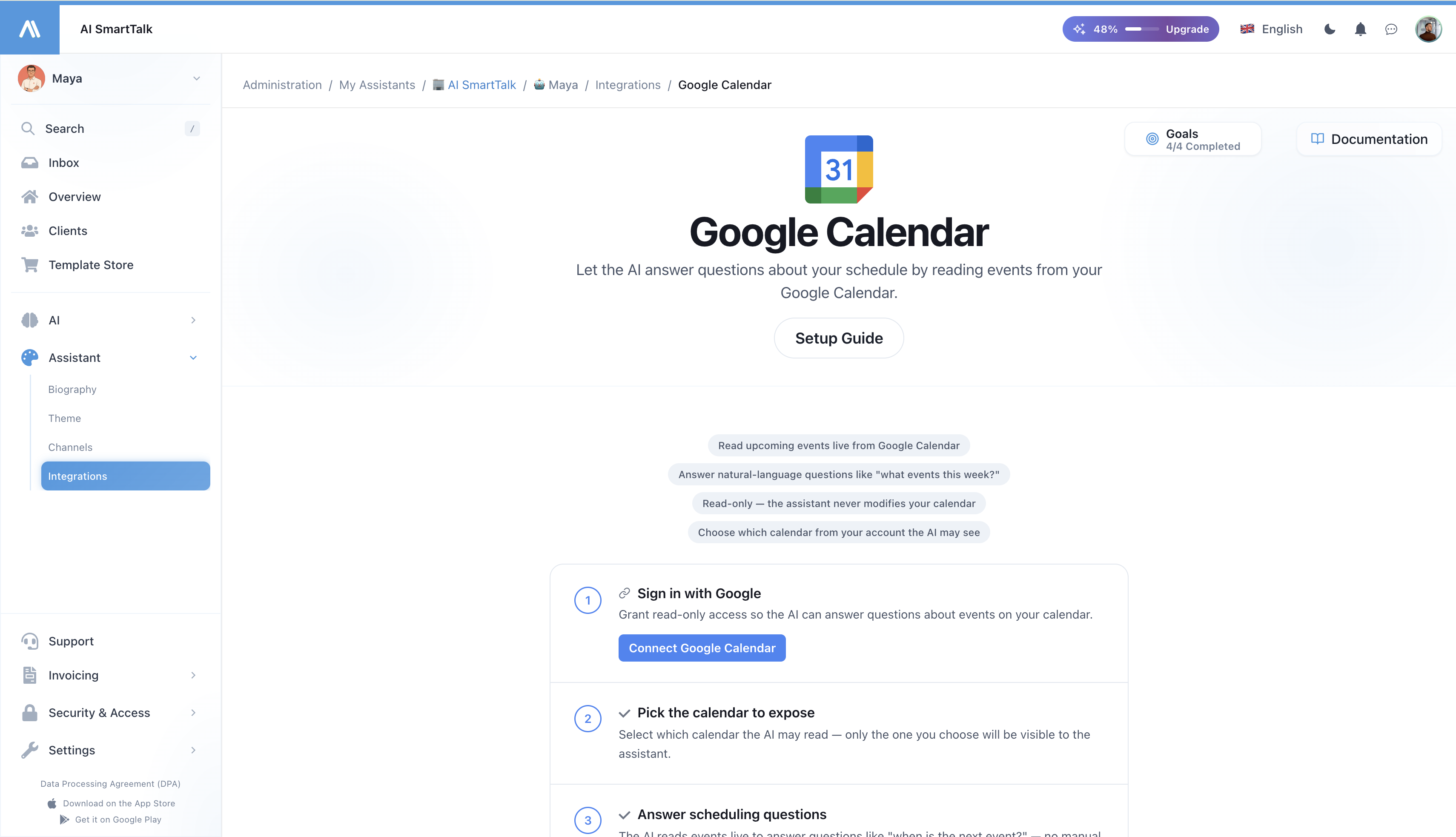
Overview
The Google Calendar integration enables your AI assistant to:
- Answer scheduling questions in natural language — "When is the next service?", "Are you open Sunday morning?", "What events this week?"
- Read events live — no manual syncing, no out-of-date answers. When you update your calendar, the assistant sees the change instantly.
- Work in your timezone — events are formatted in the calendar's timezone so day-of-week and times stay correct.
- Stay read-only — the assistant never modifies, creates, or deletes events on your calendar.
Who is this for?
This integration fits any organization where customers regularly ask "when?" questions:
- Parishes & places of worship — service times, confessions, parish events
- Medical practices & clinics — consultation hours, on-call schedules
- Sports clubs & gyms — class schedules, court availability windows
- Schools, associations, NGOs — event calendars, opening hours
- Any business with variable hours that already publishes a calendar
If you publish a Google Calendar on your website today, your AI assistant can answer about it tomorrow.
How it works
When a user asks the assistant about your schedule:
- The assistant recognizes it's a scheduling question
- It reads your calendar live — straight from Google, no copy
- It picks out the relevant events for the time period the user asked about
- It answers naturally, in the user's language
There is no nightly sync and no copy of your events in our database. The data lives in Google and is read only when a question needs it — which also means that the moment you revoke access in Google, the assistant stops seeing anything.
Prerequisites
- An active AI SmartTalk account
- A Google account that owns or has access to the calendar you want to expose
- The calendar to expose already created in Google Calendar (it can be public or private — the assistant uses the OAuth permissions of the connected account)
Step-by-step setup
Step 1: Open the Google Calendar integration
- Log into your AI SmartTalk account
- Navigate to Administration → My Assistants → [Your Assistant]
- Click Connectors in the sidebar
- Locate Google Calendar and click on it
Step 2: Authorize with Google
- Click Connect Google Calendar
- Sign in with the Google account that has access to the calendar you want to expose
- Review the permissions requested:
- See your calendars (read-only)
- See your primary email (for display purposes only)
- Click Allow
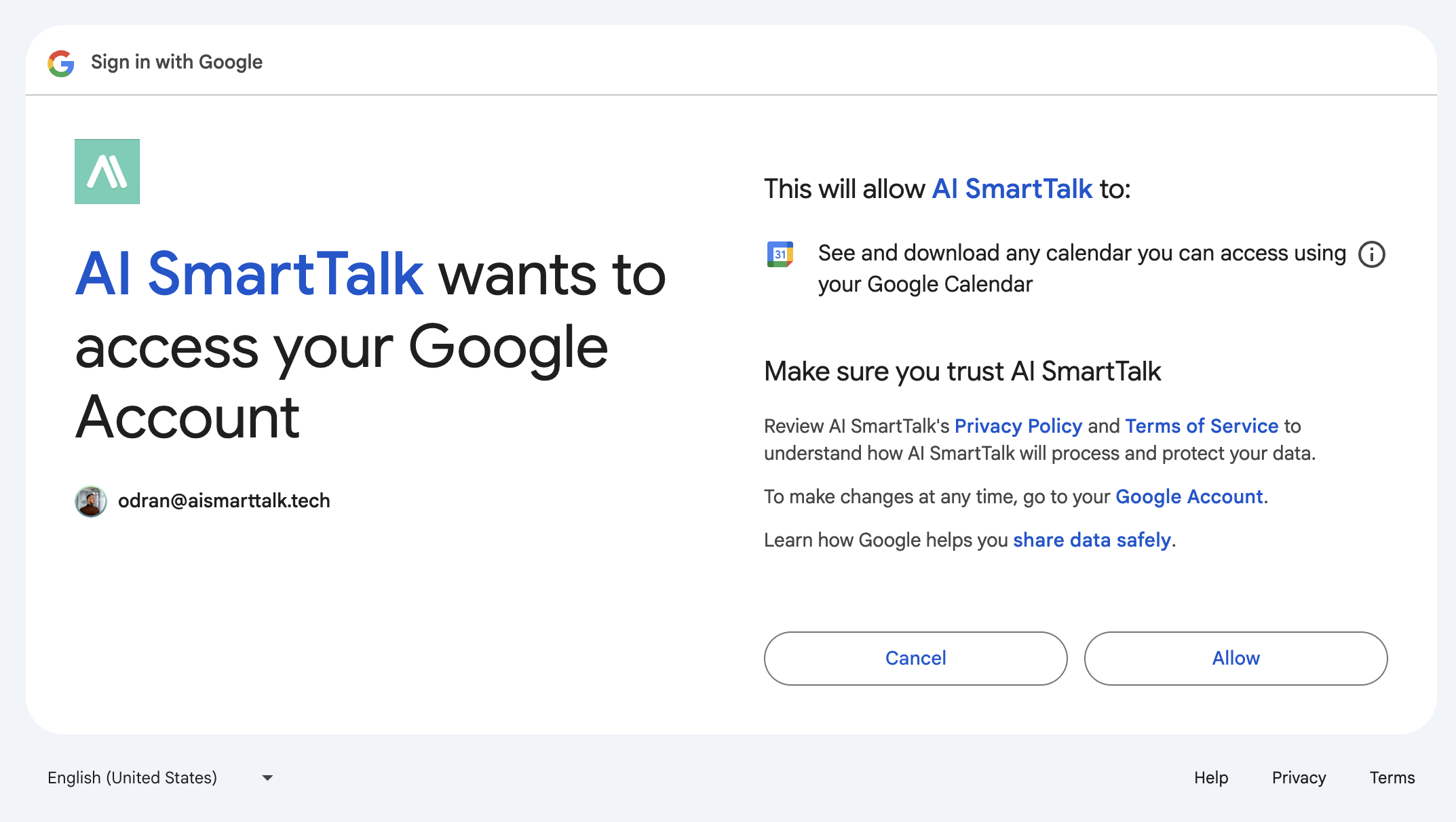
AI SmartTalk requests calendar.readonly — the assistant can list and read events but cannot create, modify, or delete anything on your calendar.
Step 3: Pick the calendar the assistant may read
After authorizing, you'll see all calendars accessible to the connected Google account. Pick the one you want the assistant to read.
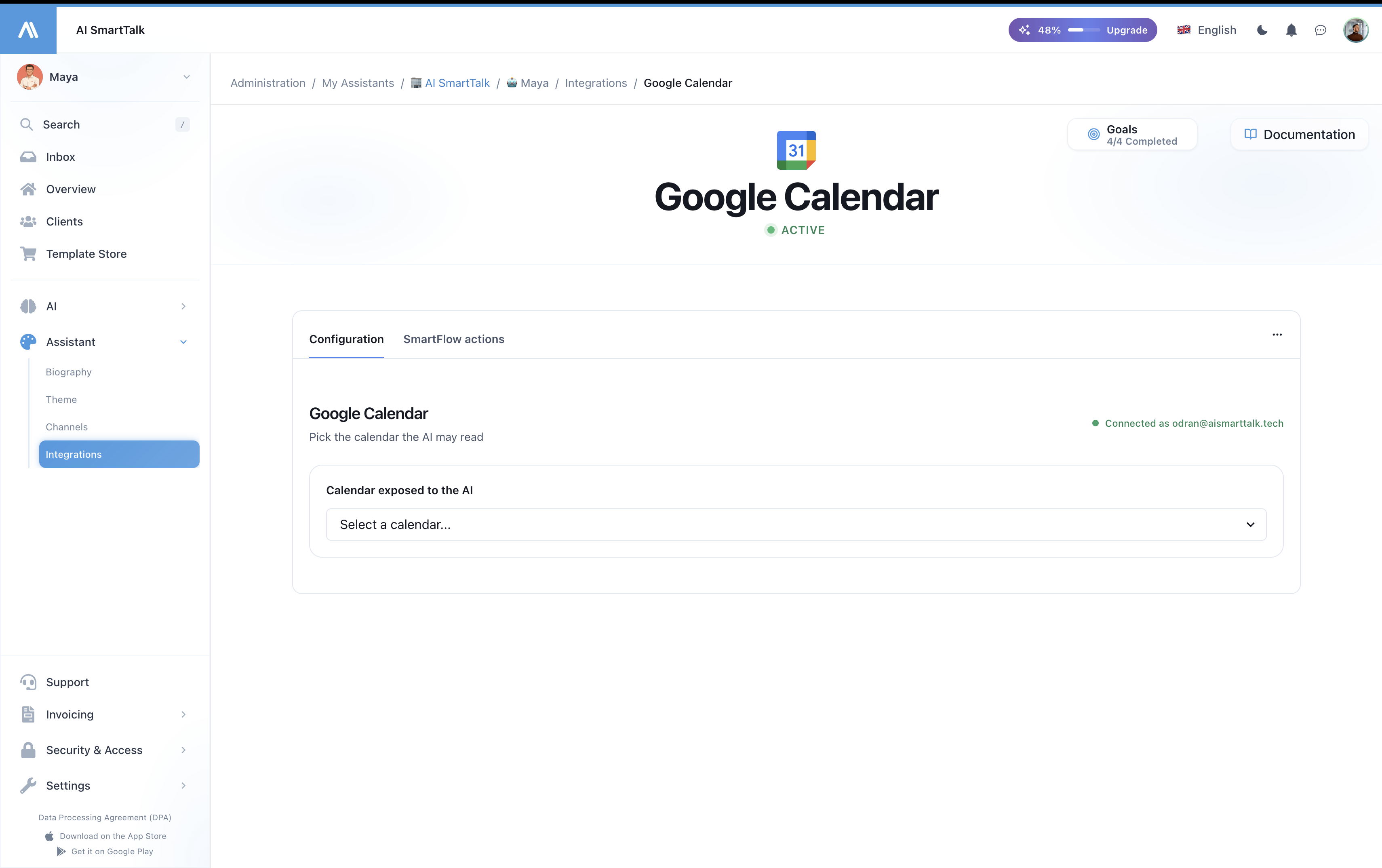
Only the calendar you select is exposed. Other calendars on the account stay private to the assistant. You can change the selection anytime.
Step 4: Verify the next events appear
Once a calendar is selected, the integration page shows the next 5 upcoming events as a sanity check. If you see them here, the assistant sees them too.
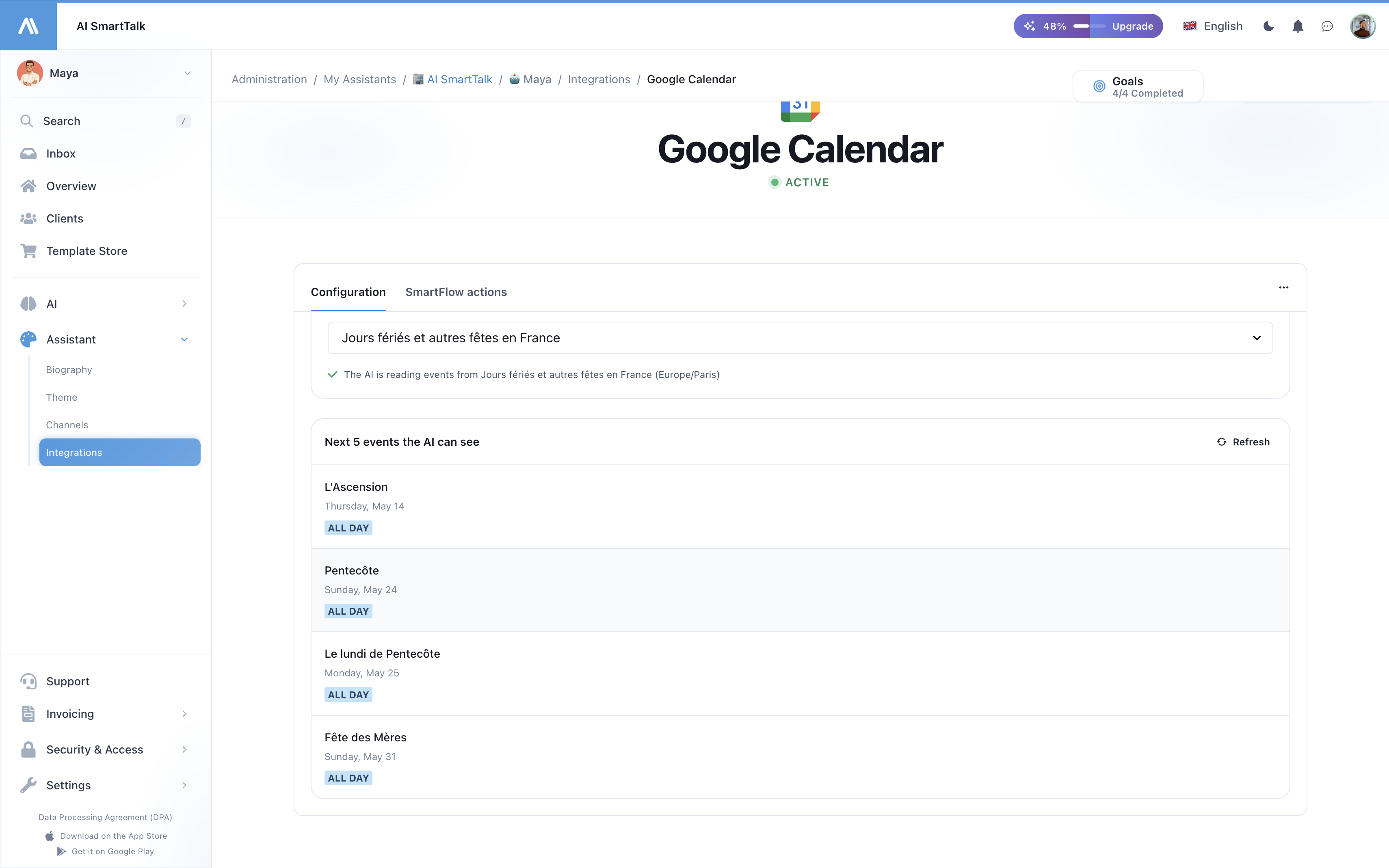
That's it — the assistant is now able to answer scheduling questions live.
What the assistant can answer
Once connected, your assistant handles questions like:
| Question | What the assistant does |
|---|---|
| "What time is mass on Sunday?" | Fetches events this week filtered by "mass", returns the matching time and location |
| "What's on the calendar this weekend?" | Lists all events between Saturday and Sunday |
| "When are confessions?" | Filters upcoming events by "confession" keyword |
| "What time do you open Wednesday?" | Looks for "opening" or relevant events on Wednesday |
| "Is there a baptism preparation soon?" | Searches the next 30 days for matching events |
The assistant chooses the right time window automatically based on the question — today, tomorrow, this week, next week, this weekend, the next 30 days, or up to 90 days for broader queries.
Multilingual support
The assistant answers in the user's language regardless of how event titles are written in the calendar. A calendar event titled "Messe à Crèvecoeur-le-Grand" can be surfaced to an English speaker as "Mass at Crèvecoeur-le-Grand on Wednesday at 6:30pm."
Privacy & security
What we access
| Access | Purpose |
|---|---|
| List your calendars | Let you choose which one to expose |
| Read events on the selected calendar | Answer scheduling questions live |
| See your primary email | Display "Connected as ..." in the admin |
What we never do
- Modify, create, or delete any event
- Read events from calendars you didn't select
- Access Gmail, Drive, Contacts, or any other Google service
- Store event content in our database (events are fetched live, never copied)
- Share calendar data with third parties
Revoking access
You can disconnect at any time, from either side:
- In AI SmartTalk: Connectors → Google Calendar → Disconnect
- In Google: Account Permissions → Remove AI SmartTalk
Once disconnected, the calendar tool disappears from the assistant immediately and any future question about events will be answered without calendar data.
Troubleshooting
| Issue | Solution |
|---|---|
| "Connection expired" on the integration page | Your OAuth token has expired and could not be refreshed. Click Reconnect Google Calendar. |
| The assistant says it has no calendar info | Make sure you selected a calendar in Step 3, and that the calendar has events in the next 30 days. |
| The assistant gives wrong times | Verify the calendar's timezone in Google Calendar settings matches your local timezone. |
| New event added but assistant doesn't see it | Wait a few seconds and ask again — there is no cache, but Google can take 10–30 seconds to propagate new events to the API. |
| The assistant returns the wrong language for event titles | Event titles are returned as written. Use the language you want answers in for your event titles, or rely on the assistant to translate them. |
Managing the integration
| Action | How |
|---|---|
| Connect | Connectors → Google Calendar → Connect → OAuth |
| Change calendar | Open the integration page → pick another calendar from the dropdown |
| Refresh preview | Open the integration page → click Refresh on the events panel |
| Reconnect | If the token expired, click Reconnect Google Calendar |
| Disconnect | Connectors → Google Calendar → Disconnect |
Best practices
- Use a dedicated calendar — create a "Public events" calendar in Google rather than exposing your personal one. You can share it with multiple team members and they all see the same events.
- Use clear, searchable event titles — "Sunday Mass — 10:30am" is easier for the assistant to surface than "S.M.". The assistant can search by keyword.
- Set the calendar timezone correctly — the assistant uses the calendar's timezone to format times. Check it under Google Calendar → Settings → Settings for my calendars → Your calendar → Time zone.
- Test with real questions — once connected, open the chat and ask "when is the next event?" to confirm the assistant answers from your calendar.
- Keep the OAuth account active — if you change the Google password or revoke access, you'll need to reconnect.
Related documentation
- Google Meet integration — auto-generate Meet links for SmartCalendar appointments
- Google Drive integration — sync documents into the knowledge base
- Integrations overview