Web Chat
The web chat widget is the fastest way to put your assistant in front of customers. Paste a snippet on any page, and a floating chat button appears in the corner — branded with your colors, ready to answer.
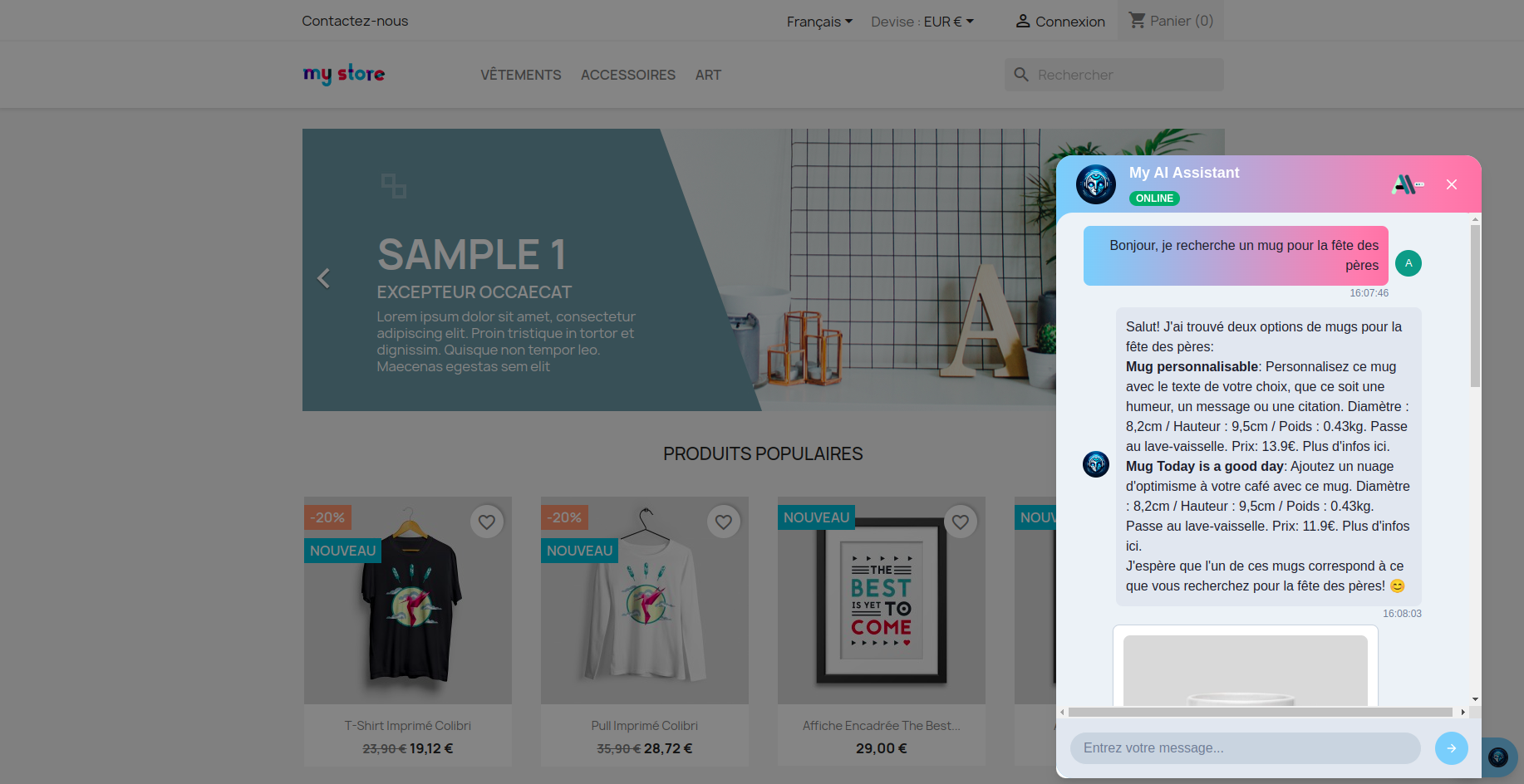
Add it to your site
Open your assistant in the admin and walk through the Theme → Integrate step. Pick your platform (any HTML page, WordPress, Shopify, PrestaShop, Joomla, or Webflow) and copy the embed code shown there.
Paste the snippet before the closing </body> tag of your site. The widget appears the next time the page loads.
Using WordPress, PrestaShop, Joomla or Shopify? You probably don't need the snippet at all — install the matching plugin or app and the widget auto-injects with one click.
Make it look like your brand
Two color values define the widget's entire look — set them in the Theme page and the widget updates instantly. Pick a primary and a secondary color that match your site:
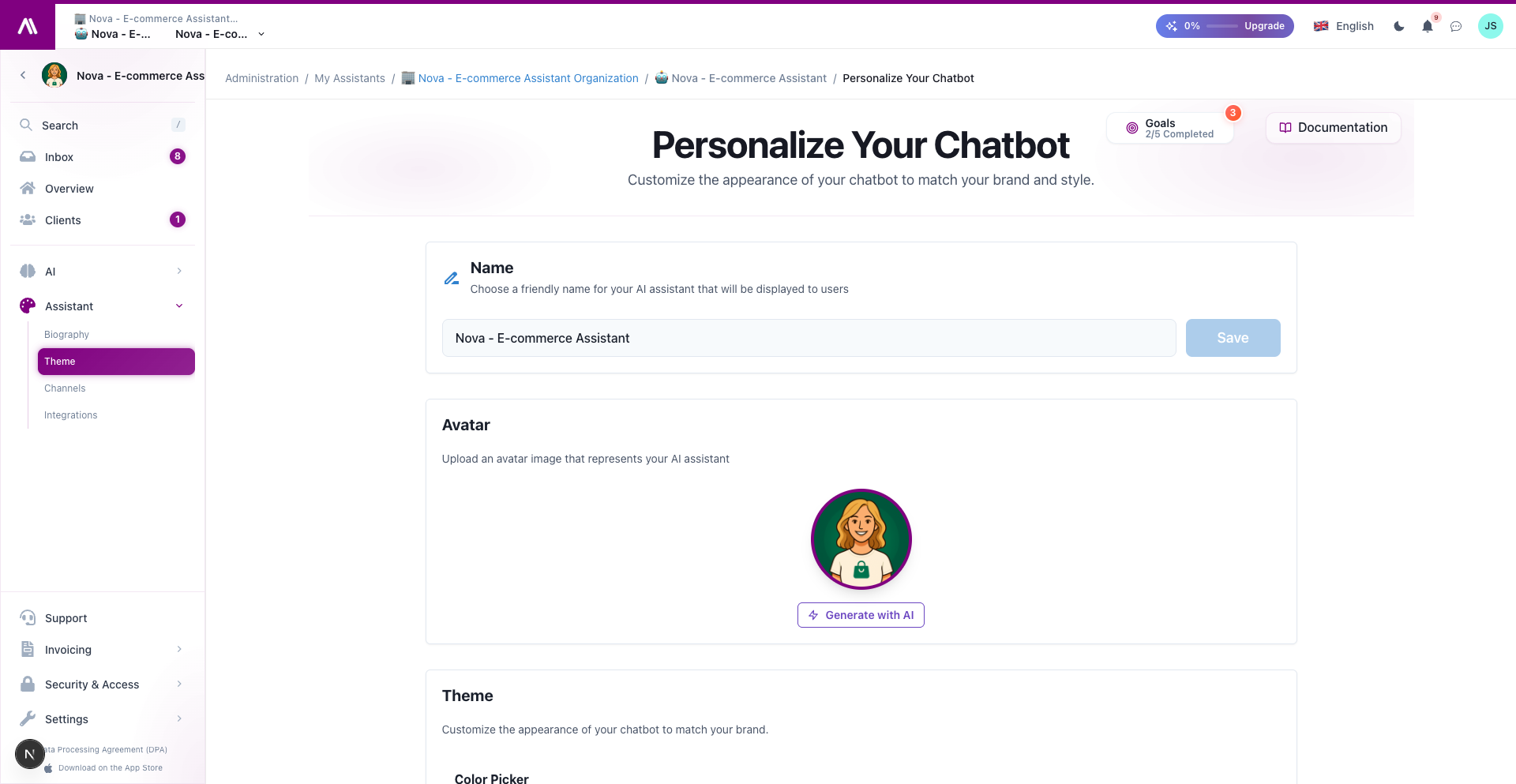
The avatar, the chat button, the bubble accents — everything follows those two colors. See the Theme guide for the full walkthrough.
GDPR consent built in
When a visitor opens the widget for the first time, they see a short consent screen explaining what data is processed. Nothing is recorded before they accept. This is enabled by default — no plugin, no extra setup.
You can customize the consent text from the Web integration page.
What customers can do
Out of the box, the widget supports:
- Text replies in your knowledge base's language(s)
- Rich product cards (perfect for e-commerce — comes from the assistant's
cardsoutput) - File uploads (PDFs, screenshots) — useful for support questions
- Voice input — visitors can speak instead of typing
- Voice mode (optional) — full hands-free voice conversation
Each of those can be turned on or off per channel from the integration page.
What you can do from the admin
Every web chat conversation appears in the Inbox just like any other channel. You can:
- Read, search, filter web conversations
- Take over from the AI when needed
- See which page the customer was on when they opened the chat (Navigation events)
- Block abusive visitors
Multiple sites, one assistant
You can paste the same snippet on as many sites as you want, but for security you'll want to whitelist the domains in Configuration → Allowed Domains. Only the domains you list can use your assistant — anyone else gets blocked.
Related
- Theme & Appearance — make it look on-brand
- Integrating the Chatbot — embed code, allowed domains, plugin install
- WordPress · PrestaShop · Shopify · Joomla — auto-inject via plugin
- Inbox — handle the conversations
- Voice Call — turn the chat into a phone-style conversation