Telegram
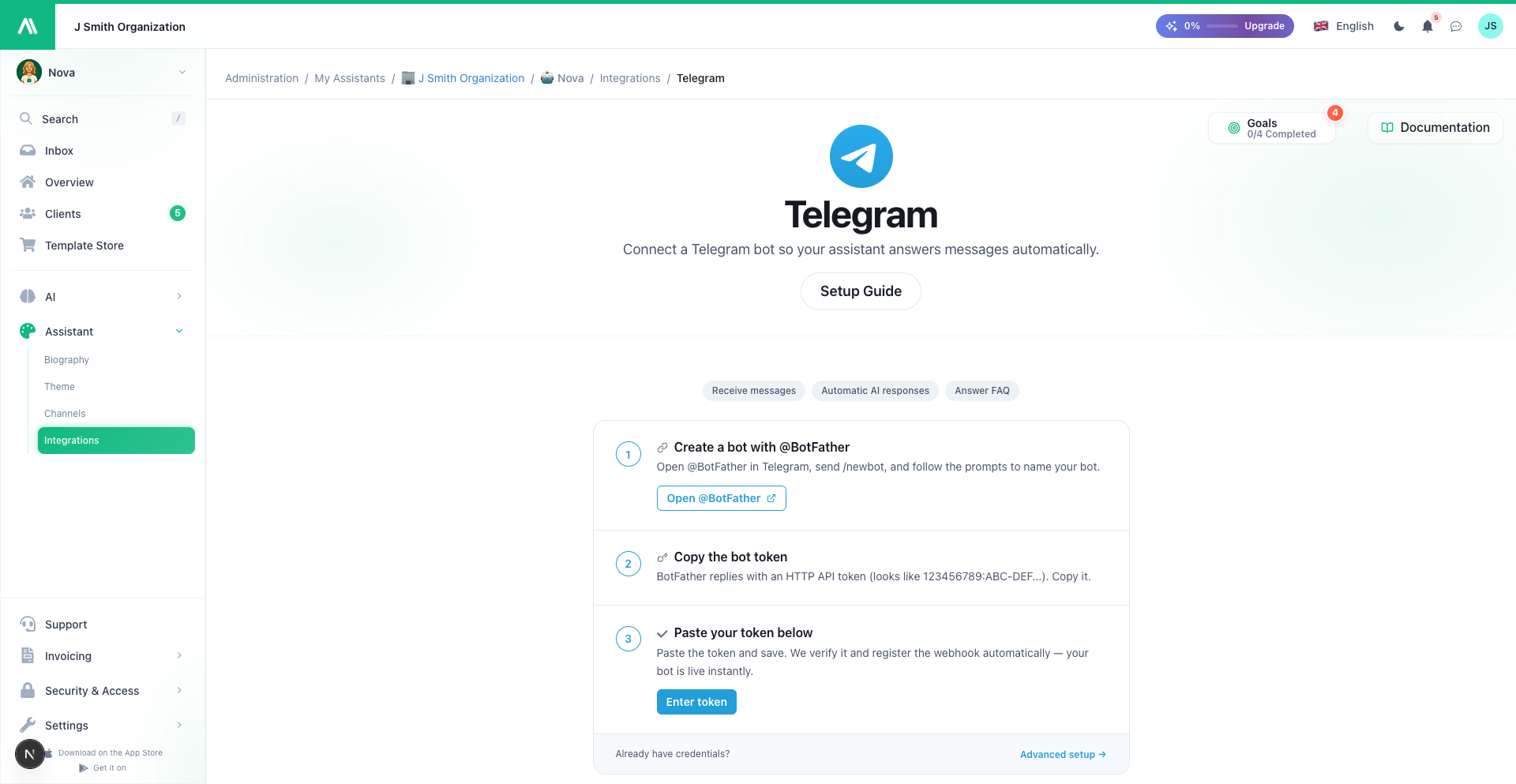
Your assistant can answer on Telegram using the same knowledge base, voice, and SmartFlows it uses everywhere else. You create a bot with Telegram's official @BotFather, paste its token into AI SmartTalk, and you're live — we register the webhook for you, no server setup.
Connect it
Step 1 — Create a bot with @BotFather
- Open @BotFather in Telegram.
- Send
/newbotand follow the prompts to name your bot and pick a username. - BotFather replies with an HTTP API token that looks like
123456789:ABC-DEF1234ghIkl-zyx57W2v1u123ew11.
Treat this token like a password — anyone who has it can control your bot.
Step 2 — Paste the token into AI SmartTalk
- In the admin, open your assistant and go to Integrations → Telegram.
- Paste the token into the Bot Token field and save.
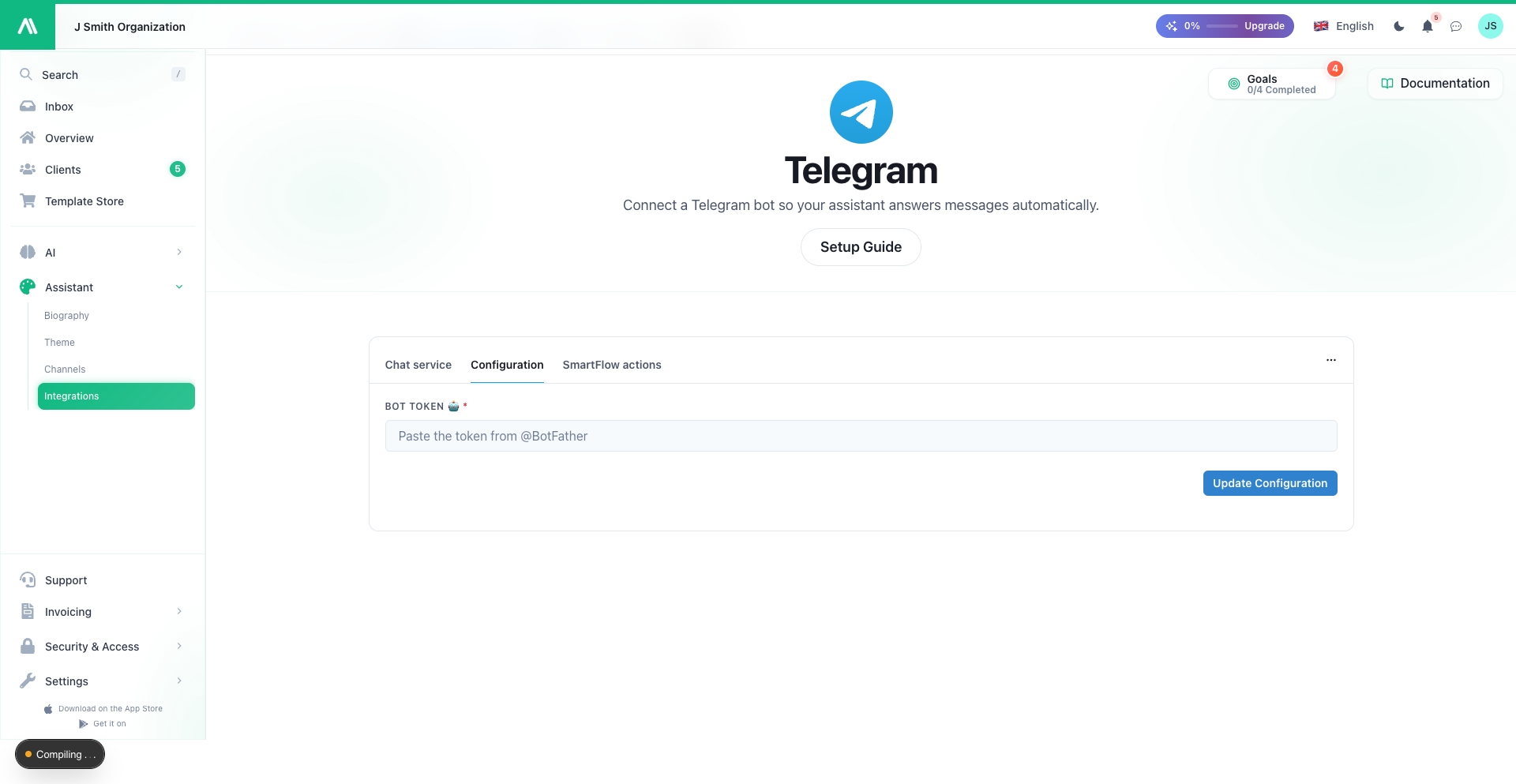
That's it. We verify the token with Telegram, register the webhook automatically, and your bot goes live instantly. The connected card shows your bot's @username with a Live badge and an Open chat link.
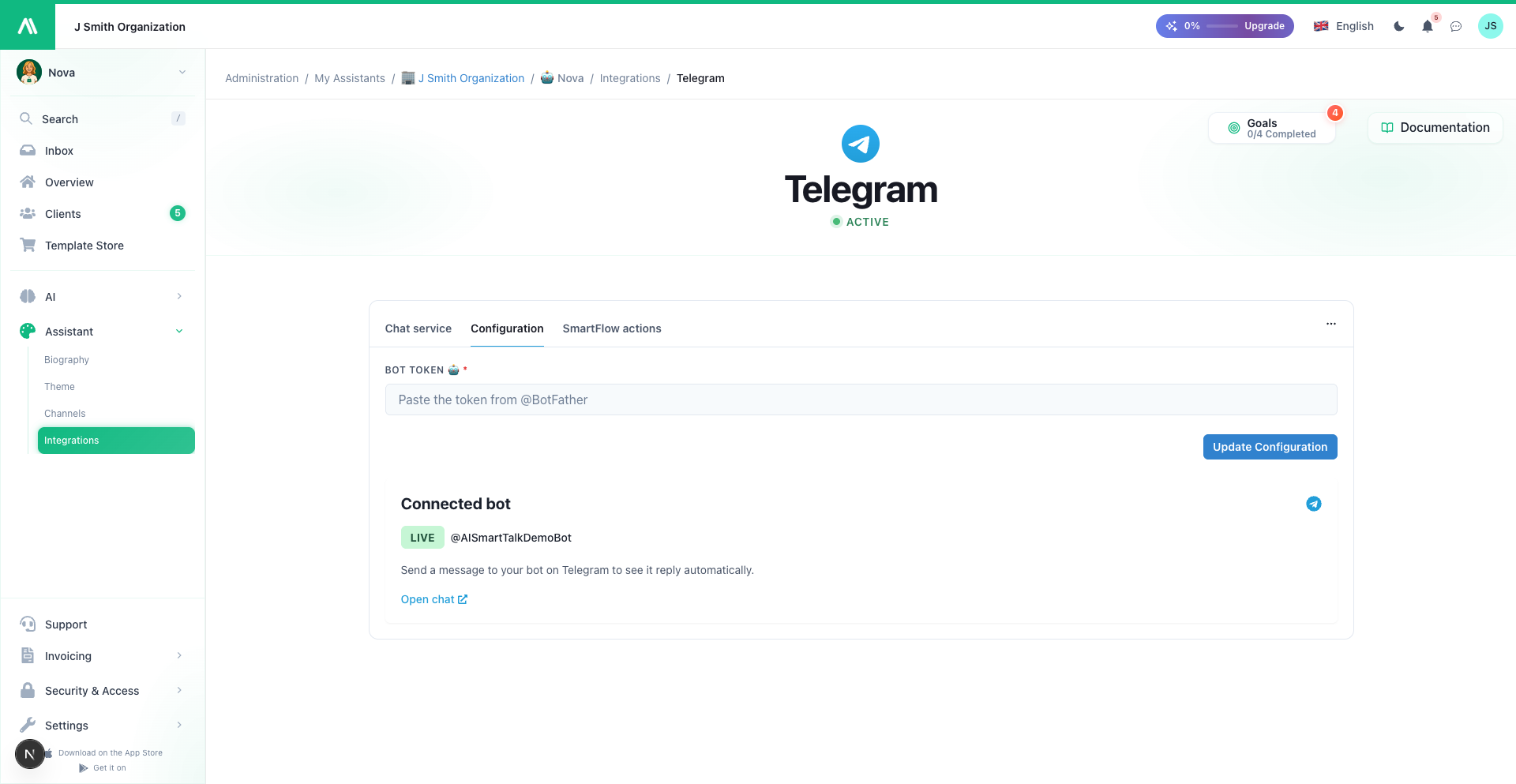
Send a message to your bot on Telegram — it replies on its own.
What the assistant can do on Telegram
- Reply to any text message, in the customer's language (auto-detected)
- Understand photos customers send — they're analyzed by vision and the assistant answers about what's in the image (a caption sent with the photo is taken into account)
- Transcribe voice notes and audio messages — the assistant answers the spoken request as if it had been typed
- Answer FAQs and run your knowledge base like on every other channel
Conversations show up in the unified Inbox tagged with the Telegram icon. Photos and voice messages are stored there too, so you can revisit them.
What isn't read: documents that aren't images (PDF, spreadsheets…), stickers, locations, and video. The assistant simply ignores those and waits for a message it can act on.
Group chats: the bot works in groups, but Telegram's default privacy mode means it only receives messages where it's @mentioned or replied to. Disable privacy mode in @BotFather (
/setprivacy) if you want it to see every message.
Telegram replies are plain text — no markdown formatting. The assistant adapts automatically. Replies longer than Telegram's 4096-character limit are trimmed to fit.
Customize the flow
The default flow — AI reads, AI replies — works out of the box. For finer control (escalation rules, after-hours behavior, different replies per bot), wrap it in a SmartFlow with the Chat Service trigger.
→ Chat Service trigger · SmartFlow introduction
What you need on your side
- A Telegram account to talk to @BotFather
- A bot token (free, created in under a minute)
- Nothing else — no developer account, no webhook URL to copy, no server to configure.
Pause or disconnect
Disconnect from the Telegram integration page at any time. We remove the webhook from your bot so it stops receiving messages; the conversation history stays in your Inbox. The bot itself keeps existing in Telegram — reconnect any time by pasting the token again.
Troubleshooting
| Symptom | Likely cause |
|---|---|
| "This bot token was rejected" on save | The token is mistyped or was reset in @BotFather — copy it again |
| Bot doesn't reply | The integration is paused, or the bot was connected to another assistant — one bot token serves one assistant |
| Replies look cut off | The answer exceeded Telegram's 4096-character limit and was trimmed |